Vibe Coding Editor

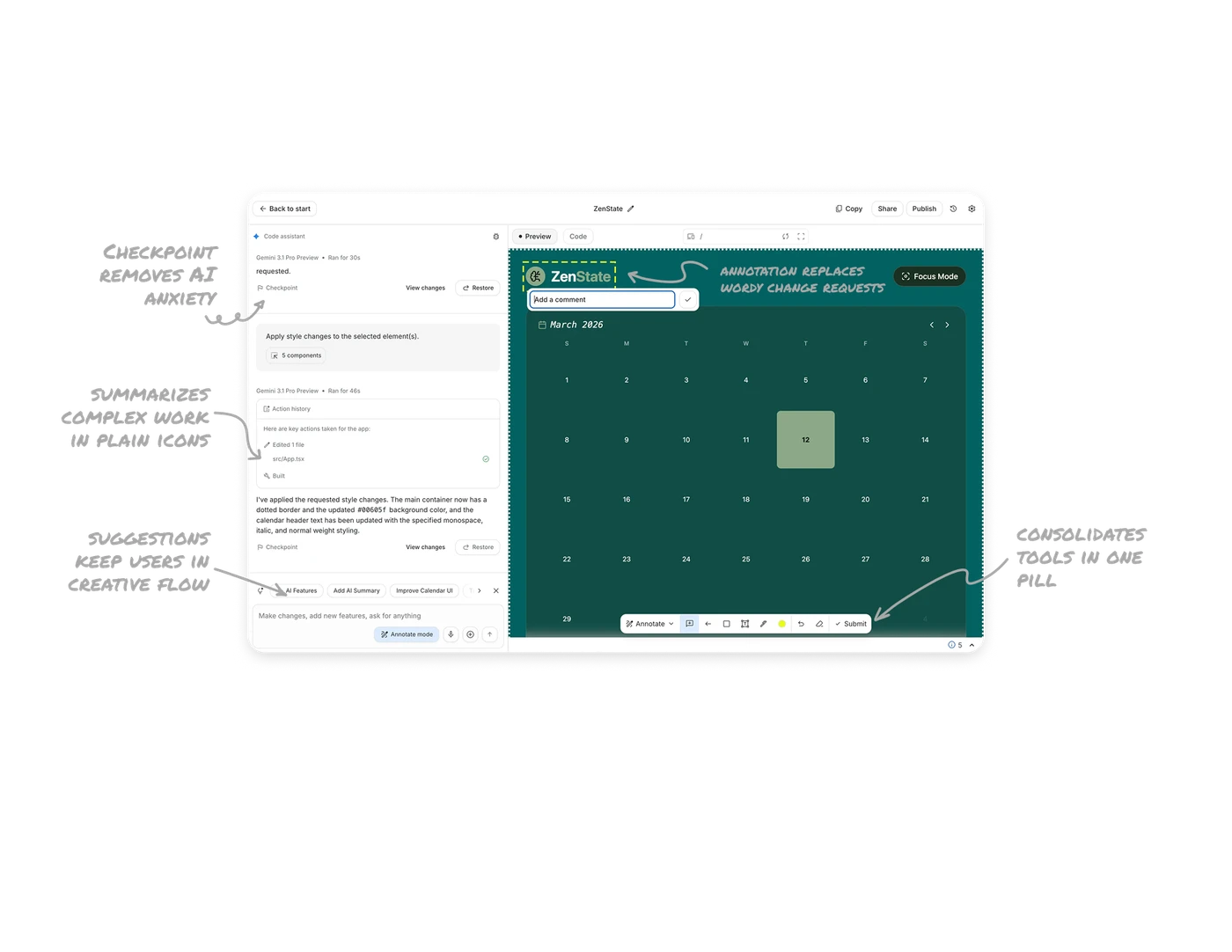
Checkpoint and Restore after every step removes AI anxiety
Each AI response ends with a visible Checkpoint flag and a Restore button. Users always know they can undo any change, which removes the biggest fear of AI tools: breaking something you cannot fix. In generative coding products, the perceived reversibility of every step is what determines how much users experiment. Safety nets at every checkpoint directly increase creative confidence.
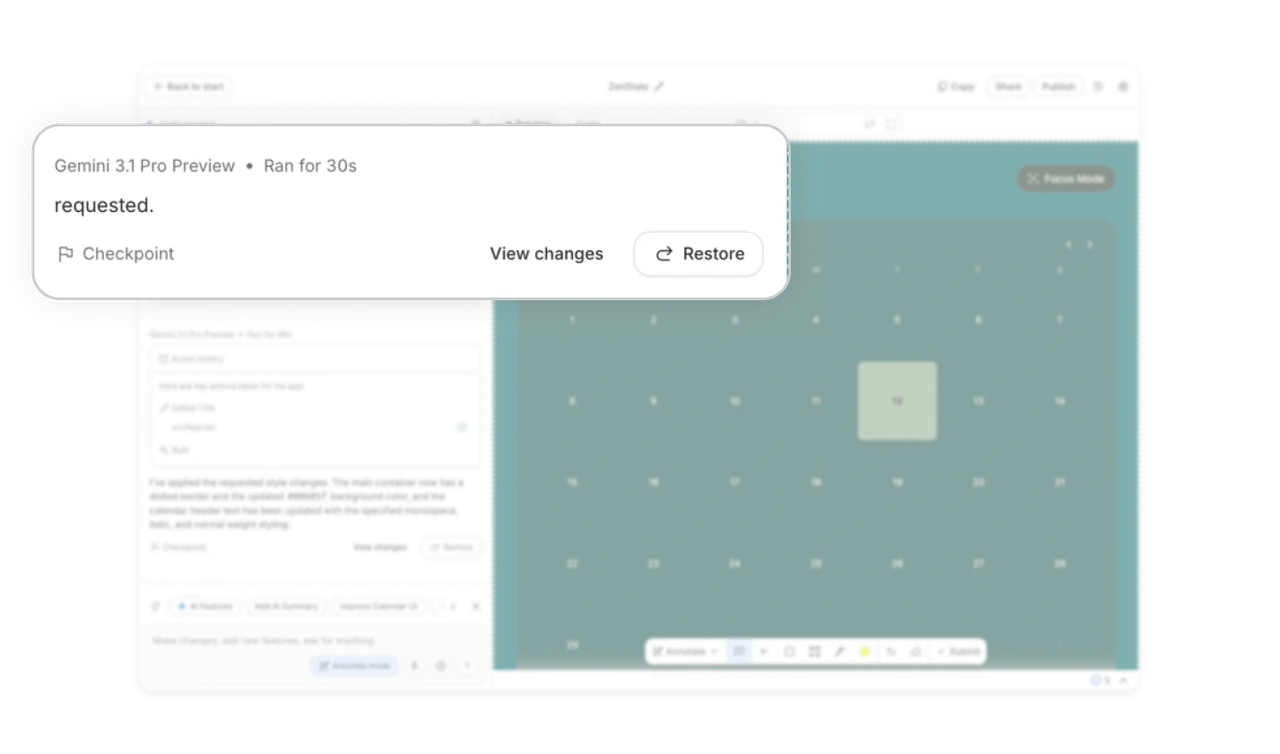
Action history card summarizes complex work in plain icons
Instead of showing raw code diffs, the AI produces an Action history card with labeled icons: edited files, built project, applied changes. Users understand what happened without reading code. Abstracting technical operations into icon-labeled summaries lets non-developers feel in control of a system that would otherwise be intimidating. This pattern applies to any tool where the engine is complex but the user is not technical.
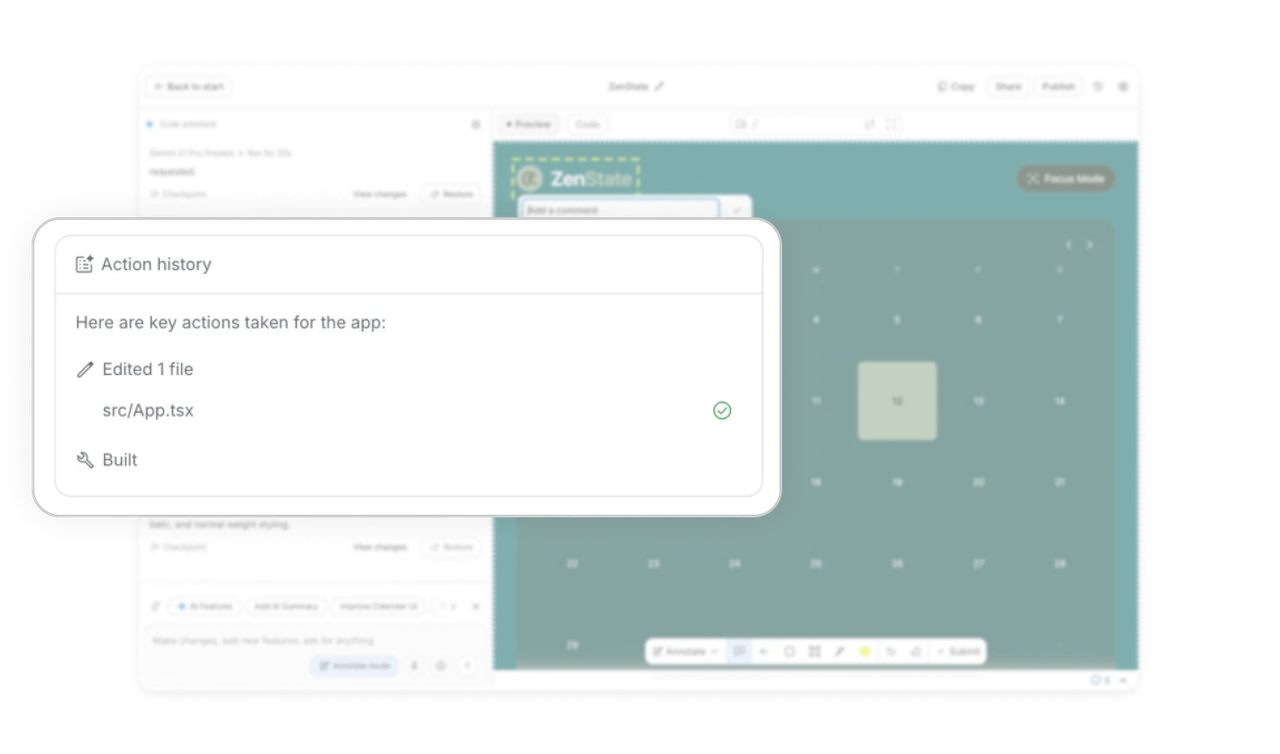
Visual annotation replaces wordy change requests
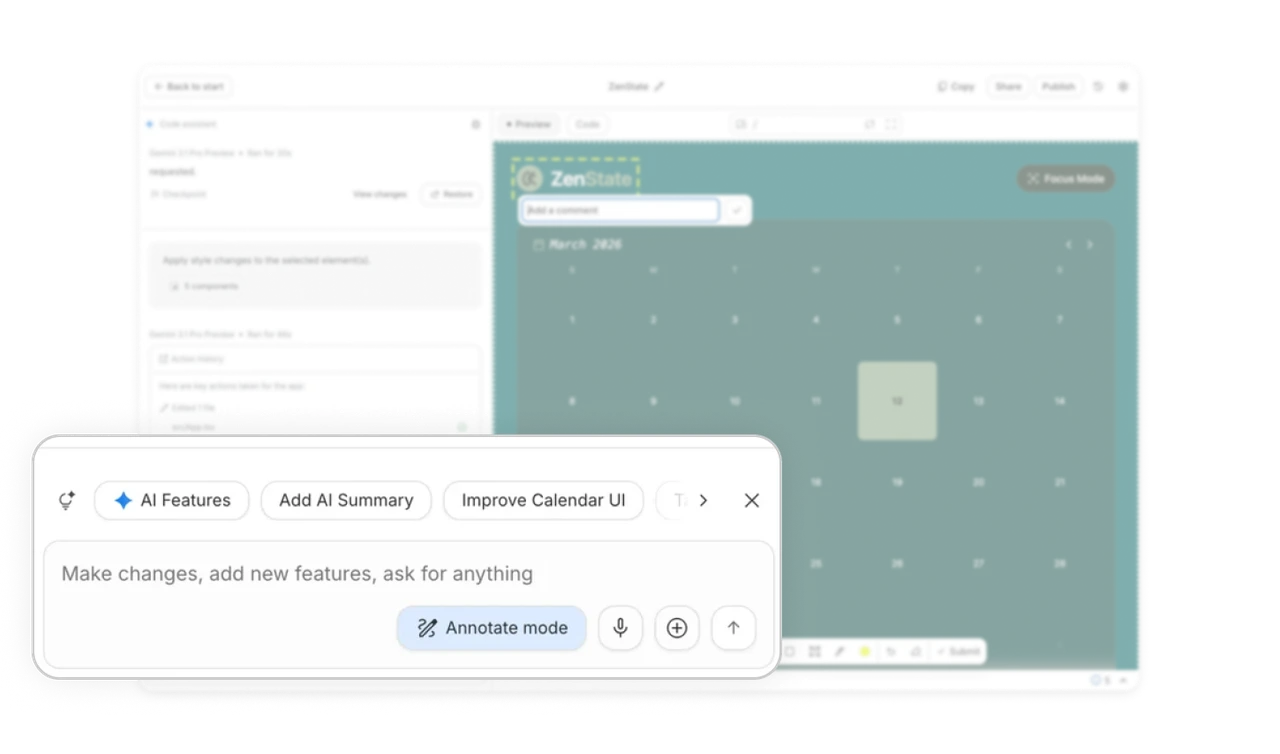
The Annotate mode lets users draw directly on the preview and attach comments to specific elements. Describing a UI change in text is slow and error-prone. Pointing at it is instant. This pattern bridges the gap between natural language and visual intent, and it turns the AI from a chat partner into a design collaborator that understands "this thing, not that thing" without any typing.
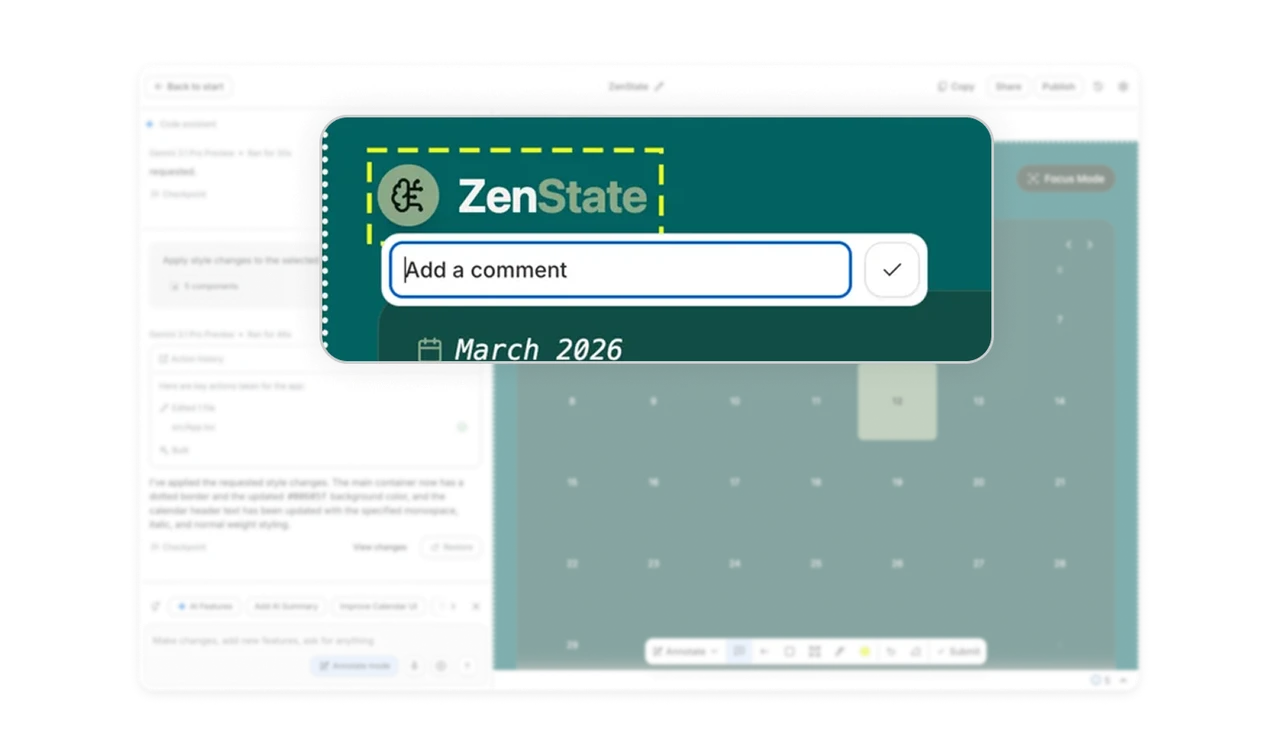
Contextual suggestions keep users in creative flow
Above the chat input, chips like Add AI Summary and Improve Calendar UI appear based on what the user just built. These are not generic prompts. They are specific next-step suggestions that match the current app state. Contextual suggestions beat blank inputs every time because they eliminate the "what do I ask next" friction that causes users to abandon AI tools mid-session.
Preview toolbar consolidates annotation tools in one pill
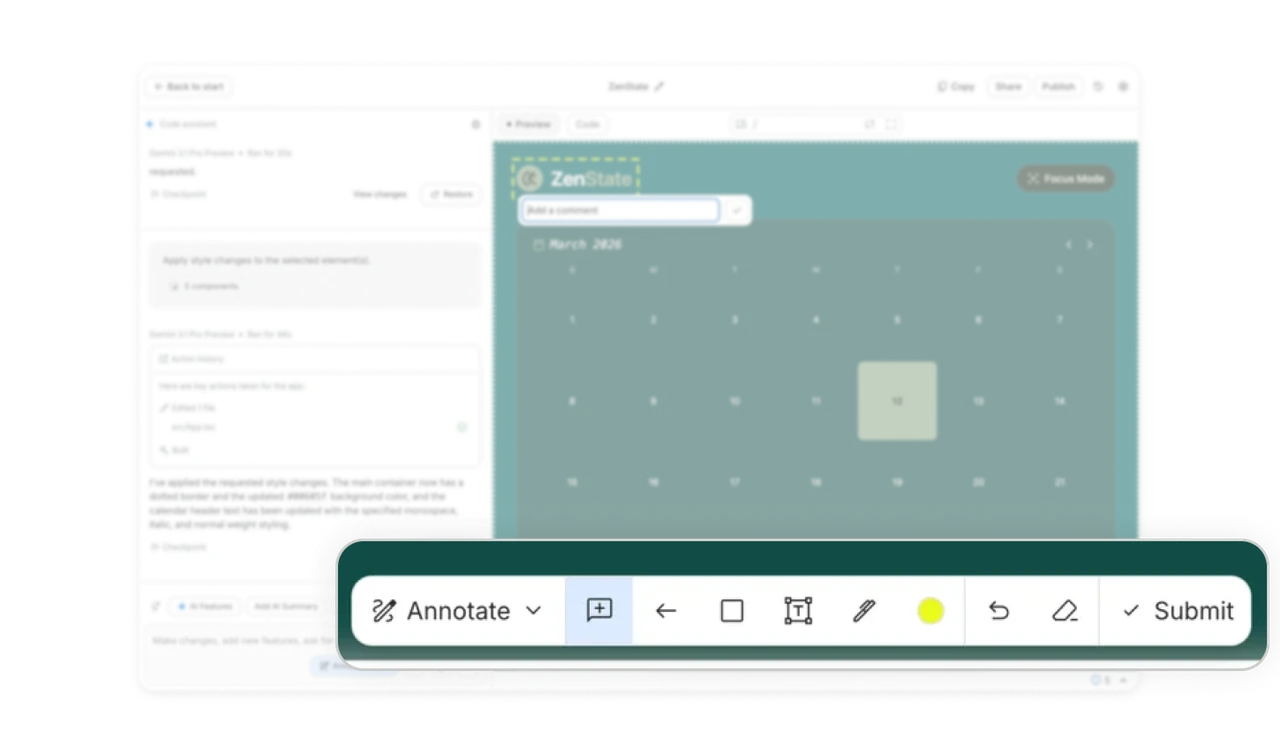
Arrow, rectangle, text, pen, color picker, undo, clear, and submit all live in a single floating pill at the bottom of the preview. Users never leave the preview surface to access any tool. Consolidating related actions into one persistent toolbar keeps hands and eyes focused on the content being edited, which is the single most important principle in any canvas or preview-based editor.
Similar Breakdown Lessons