Workout Filters

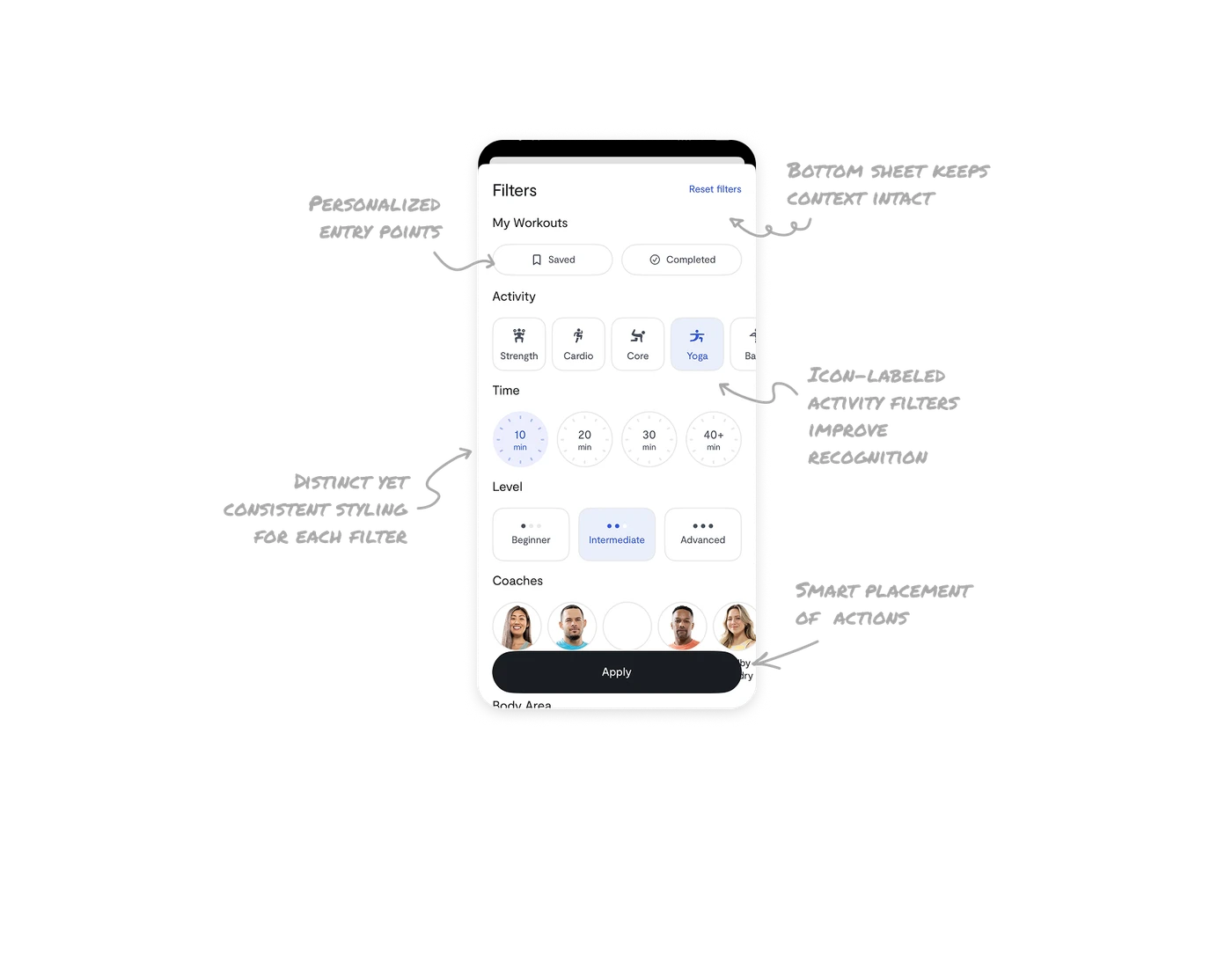
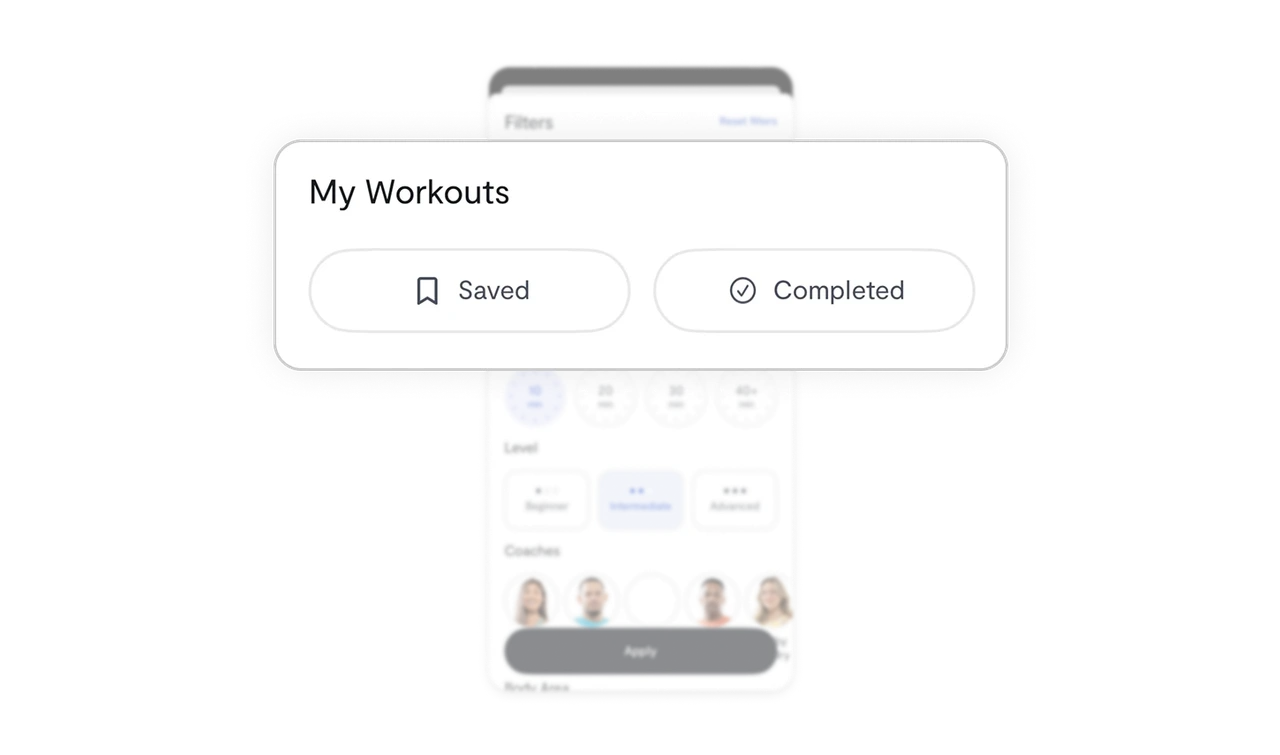
Personalized entry points
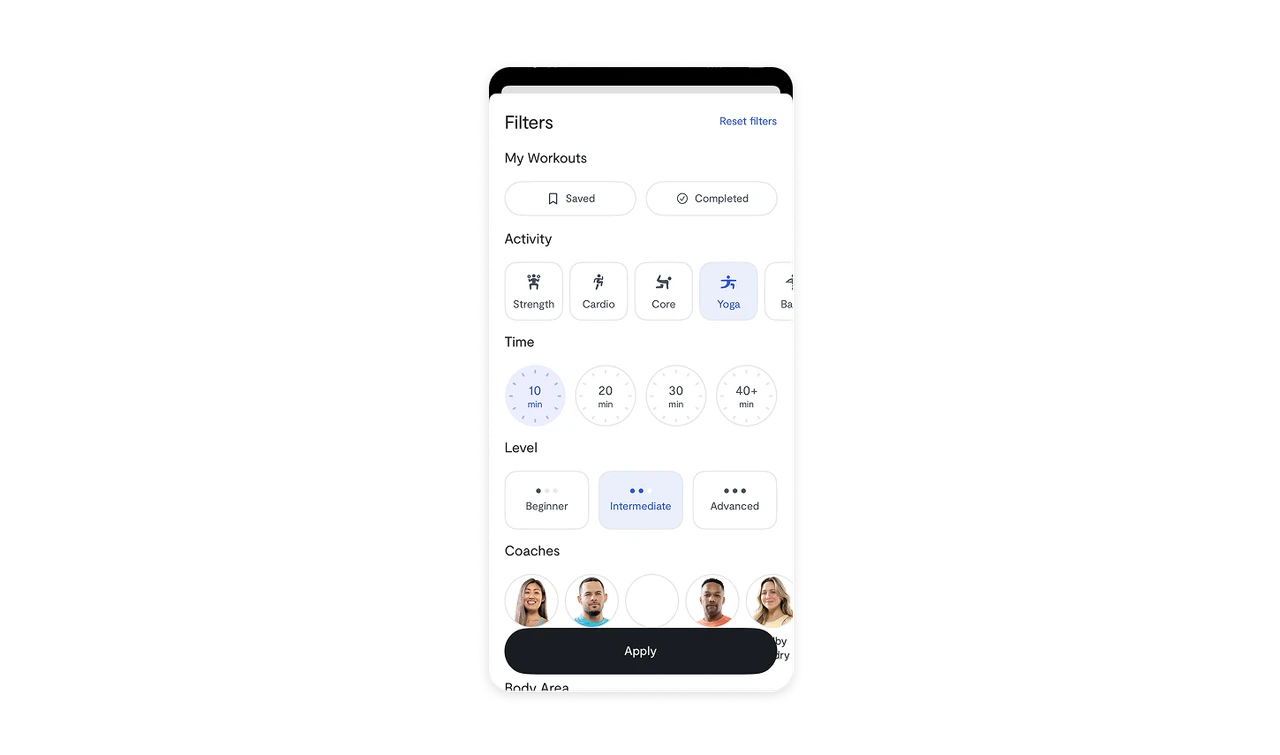
The filter starts with personalized options like Saved and Completed before moving to general categories. This sequencing makes the experience feel tailored, not generic.
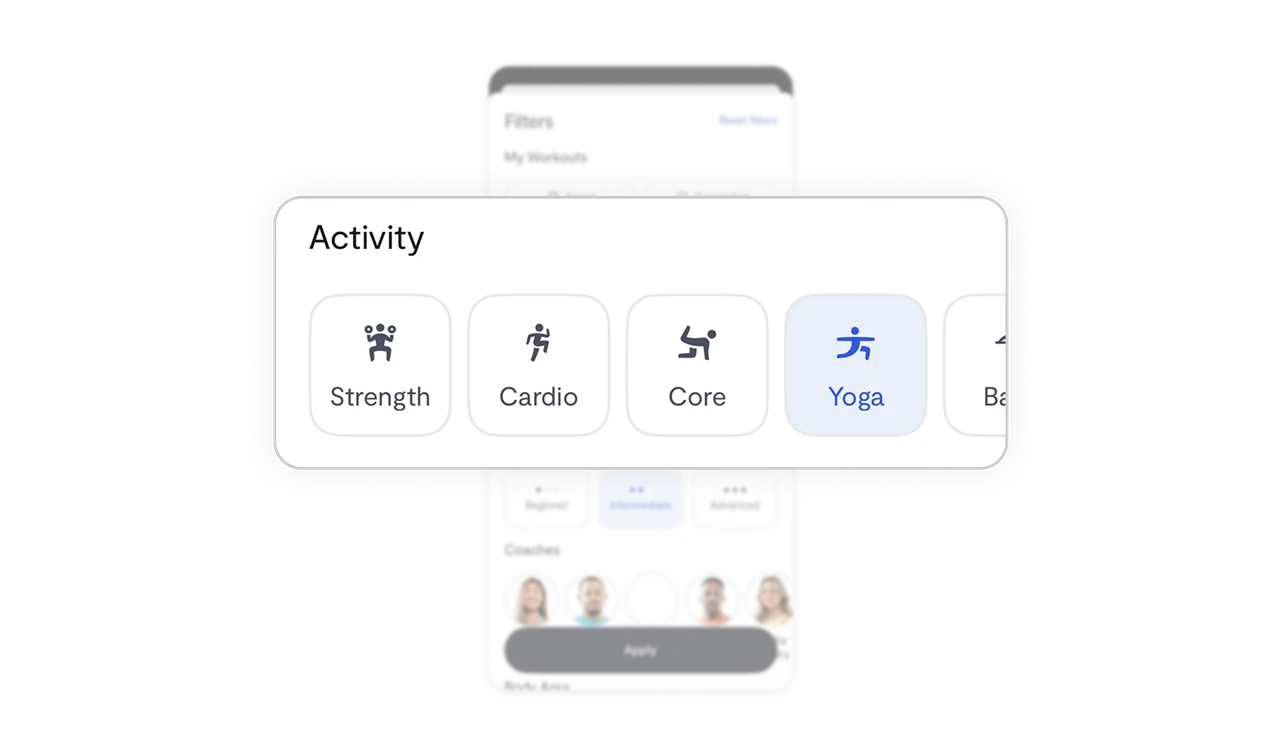
Icon-labeled activity filters improve recognition
Activities are paired with simple, consistent icons plus clear labels. This dual-coding helps users quickly scan and select the right activity without second-guessing.
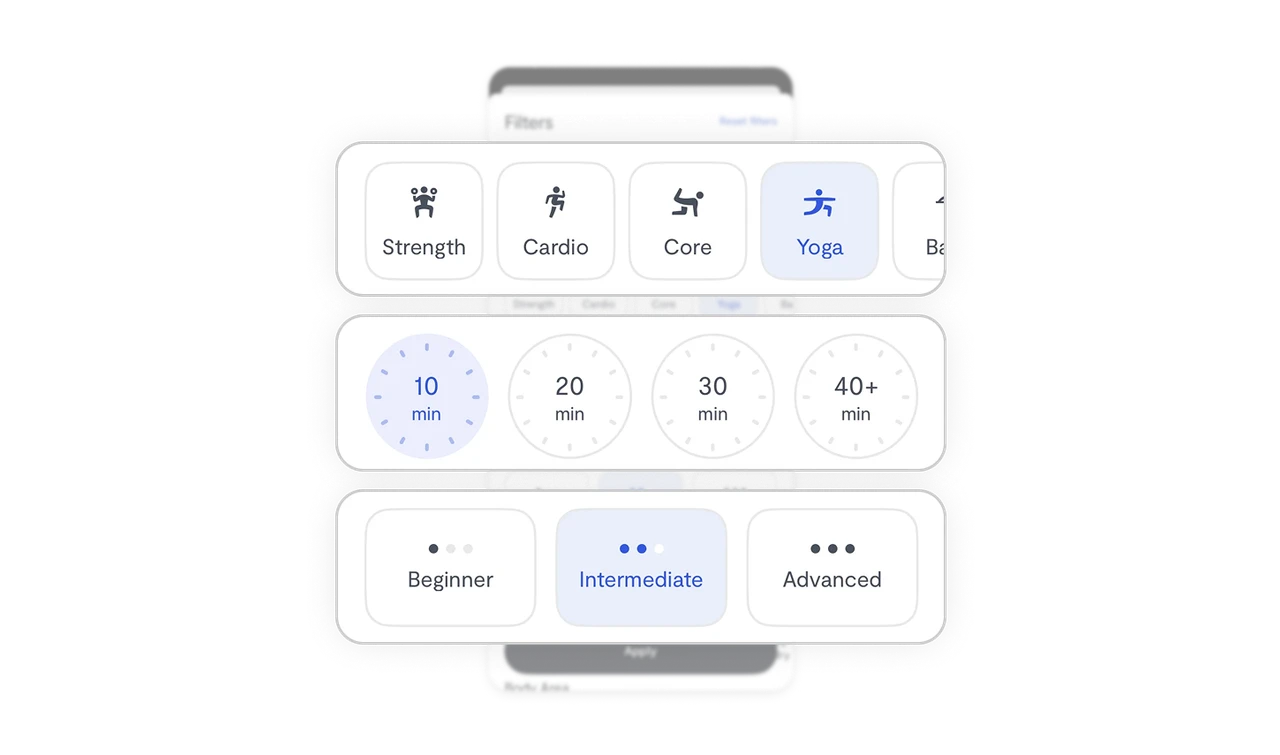
Distinct yet consistent styling for each filter
Activity, Time, and Level are visually differentiated but maintain minimal, cohesive styling. These contrasts prevent monotony and reduce cognitive load while keeping the interface elegant.
Bottom sheet keeps context intact
Instead of sending users to a separate page, filters open as a bottom sheet overlay. This preserves the user’s sense of place and makes it feel like a natural extension of the current screen.
Smart placement of actions
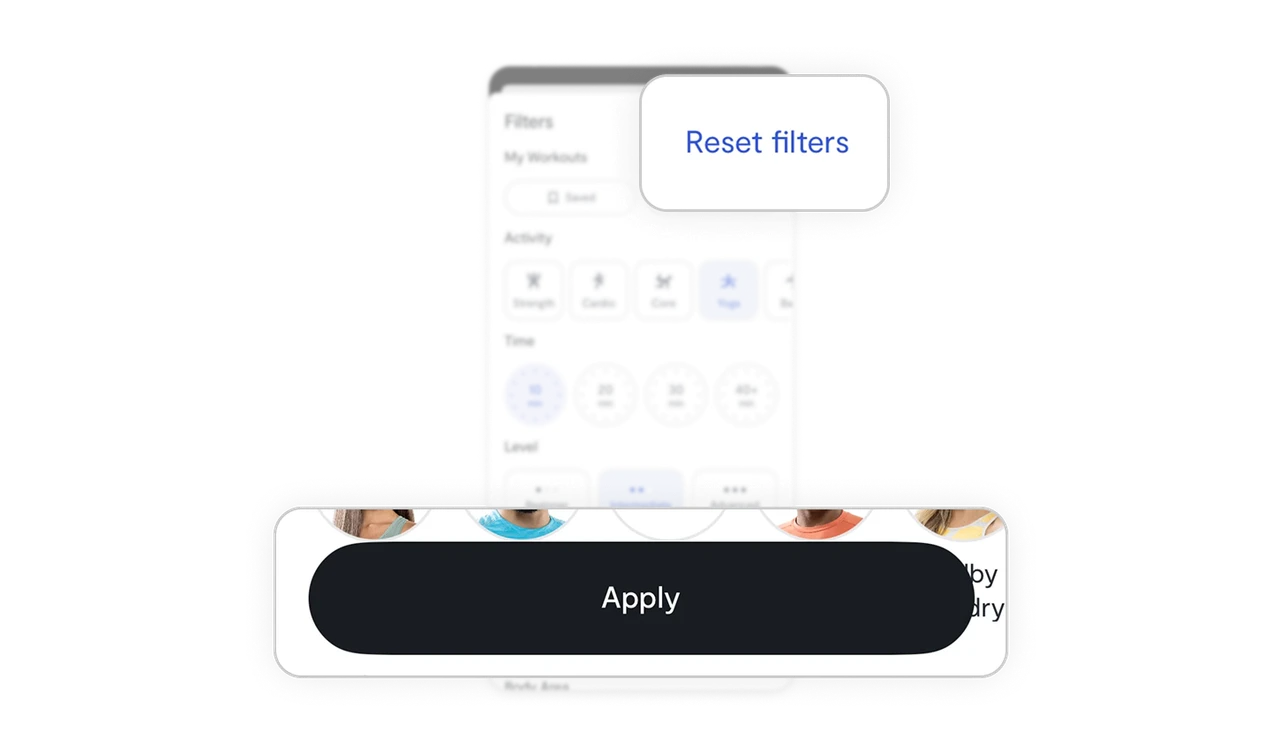
The Reset option sits at the top right since it’s less frequent, while the Apply button anchors at the bottom, large, centered, and thumb-friendly. This hierarchy aligns with real usage patterns.
Similar Breakdown Lessons