Customer Support Inbox

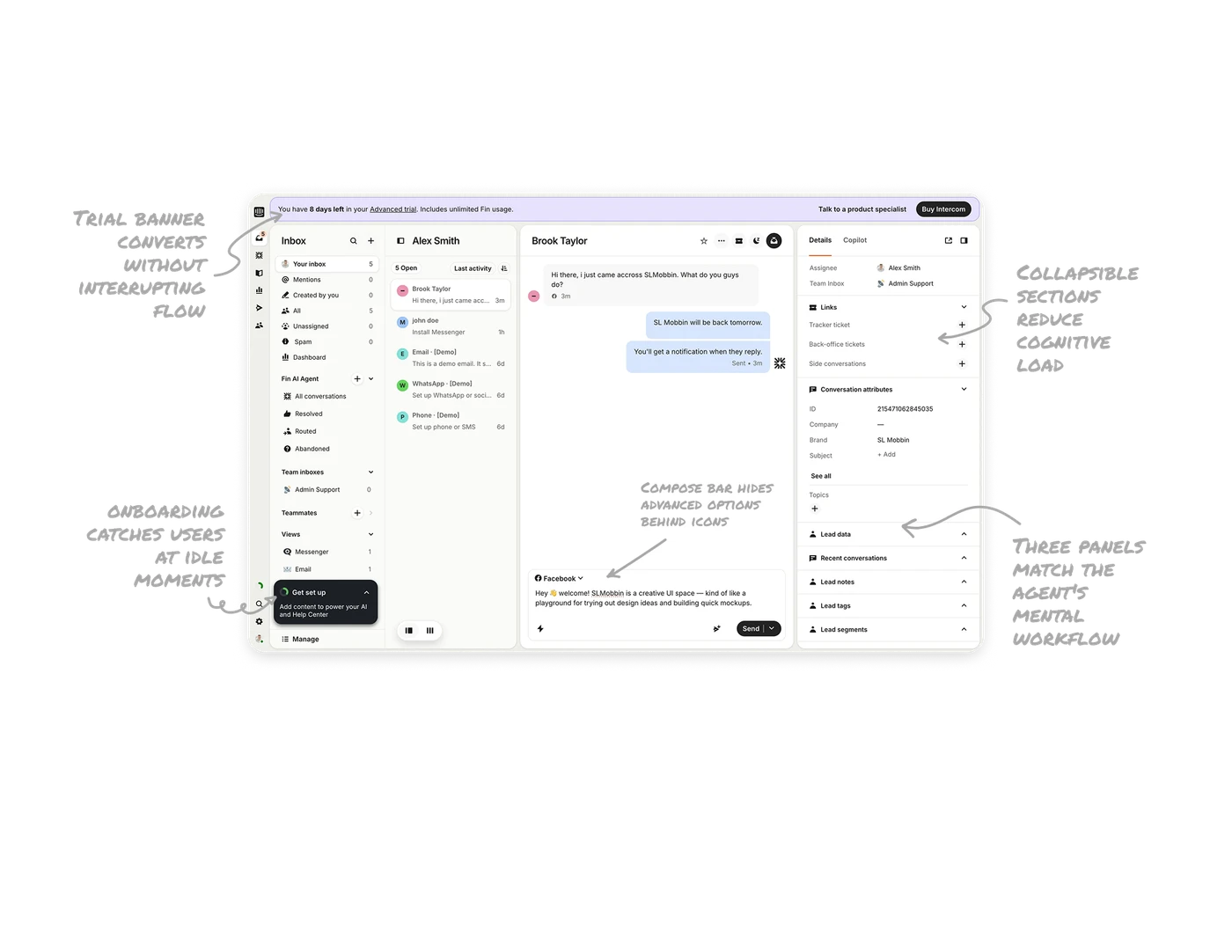
Three panels match the agent's mental workflow
Left panel for navigation, middle for the active conversation, right for customer context. This mirrors exactly how a support agent thinks: find the ticket, read the thread, check the details. Layouts that follow the user's natural cognitive sequence eliminate switching cost and let agents work faster without learning a new mental model.
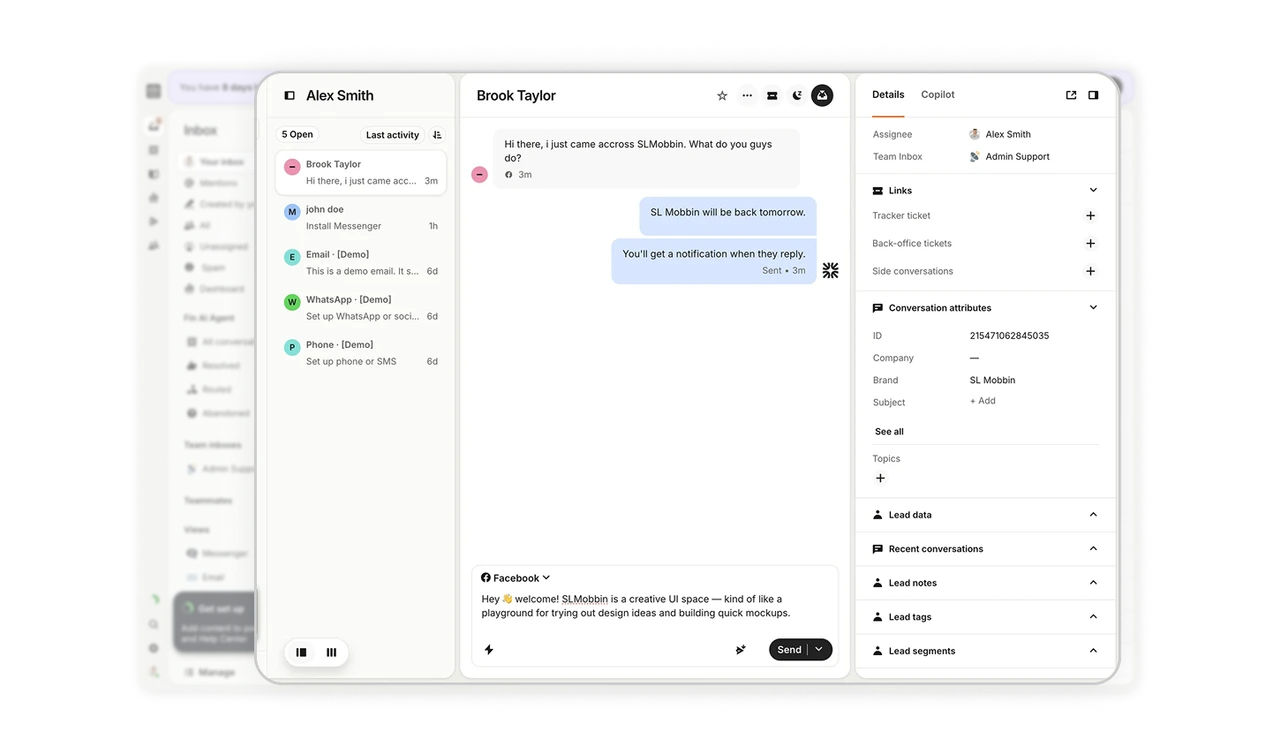
Collapsible right panel sections reduce cognitive load
Conversation attributes, lead data, recent conversations, and lead tags all collapse independently. Agents see only what they need for the current task. In dense B2B tools, collapsible groupings let each user build a personal view of the interface without any settings panel or customization flow.
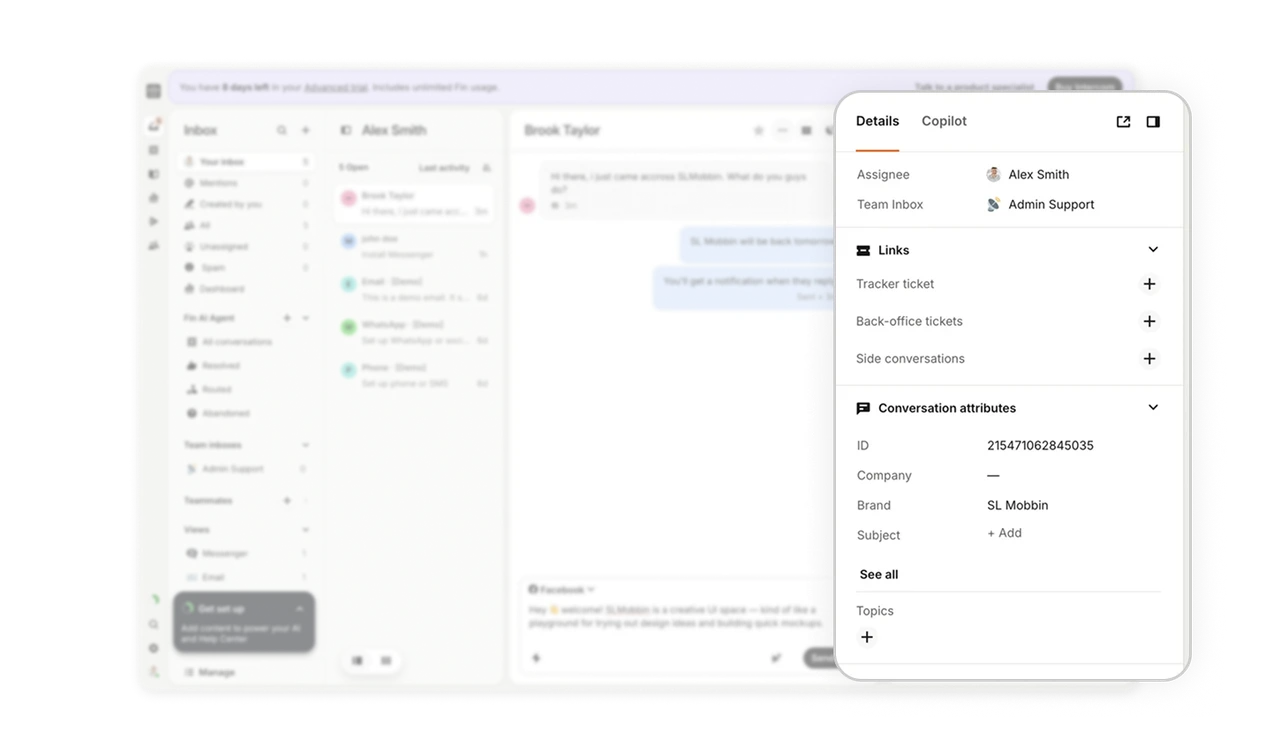
Compose bar hides advanced options behind icons
The message input is clean and minimal. Lightning bolt, attachment, and AI assist icons sit quietly at the bottom, visible but not competing. Agents who just need to type a reply are never distracted. Power users find advanced options instantly. One input field serves two very different skill levels simultaneously.
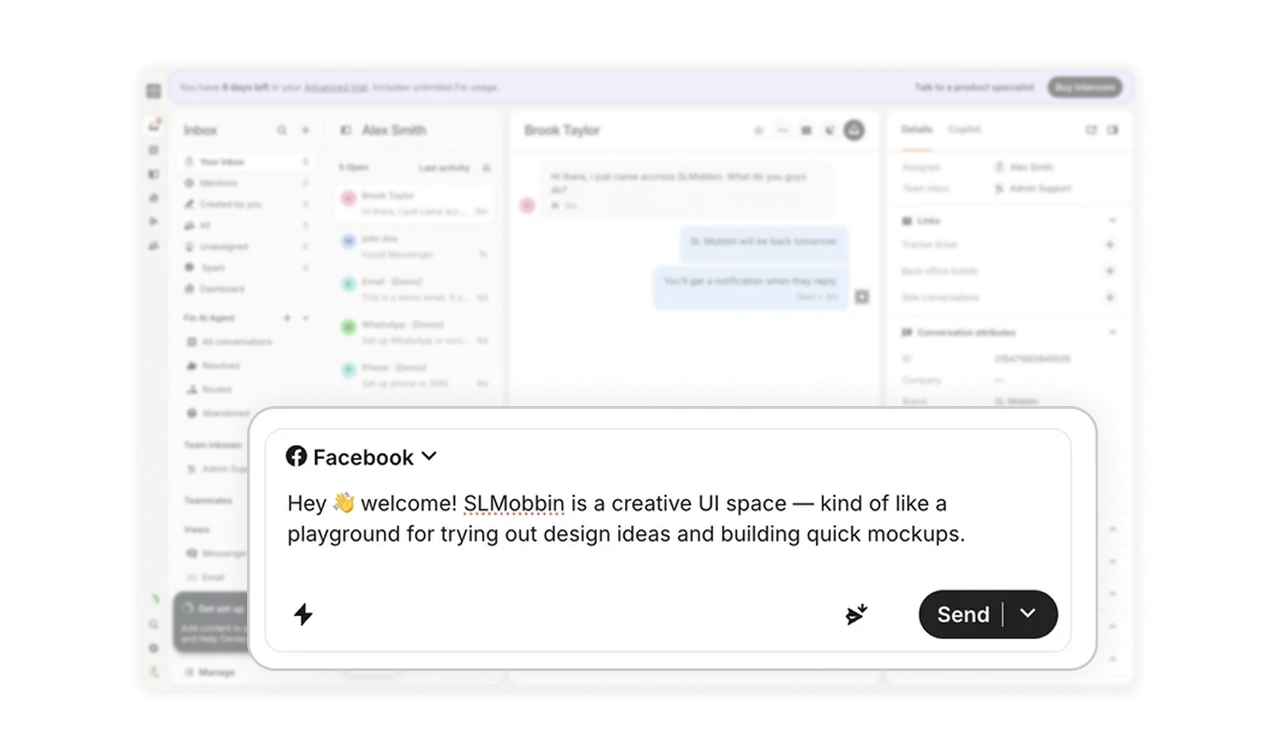
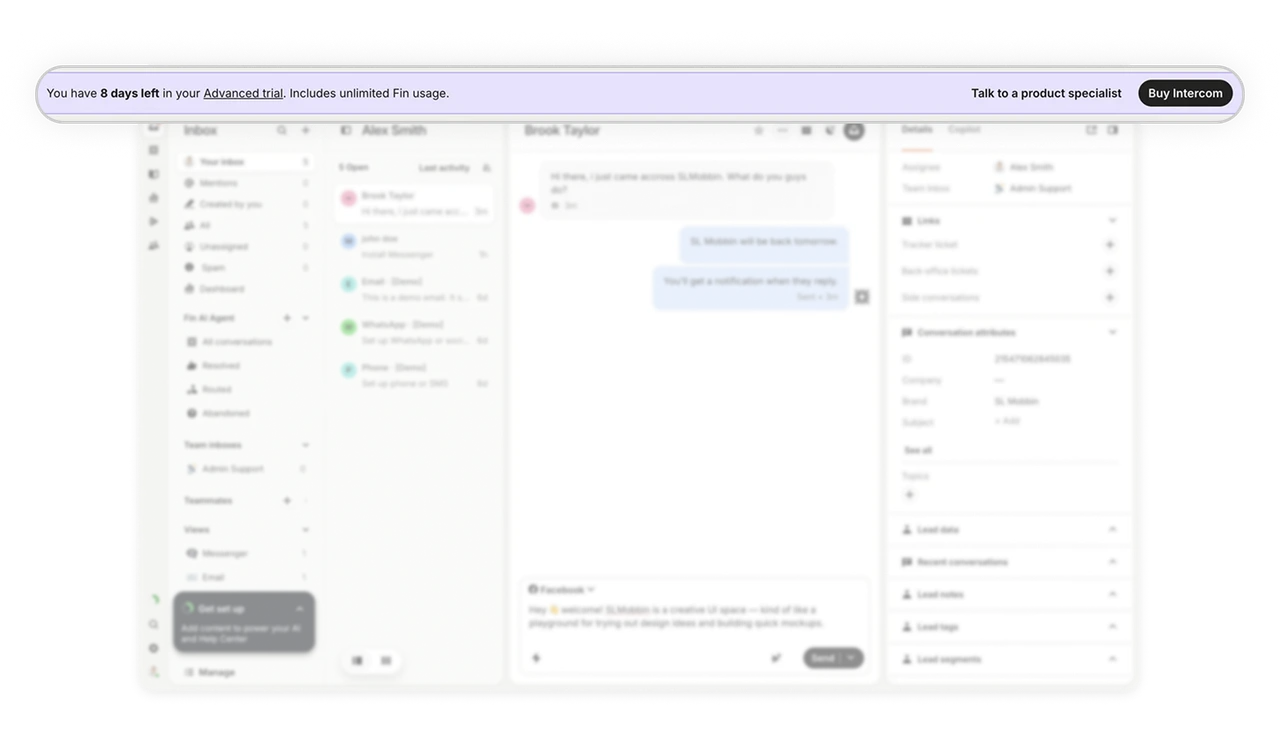
Trial banner converts without interrupting the workflow
The "8 days left" banner sits at the top in a soft lavender strip, always visible but never blocking content. The Talk to a specialist CTA is the smarter conversion play. It offers help before asking for money, which reduces resistance and builds trust at the exact moment users are evaluating the product.
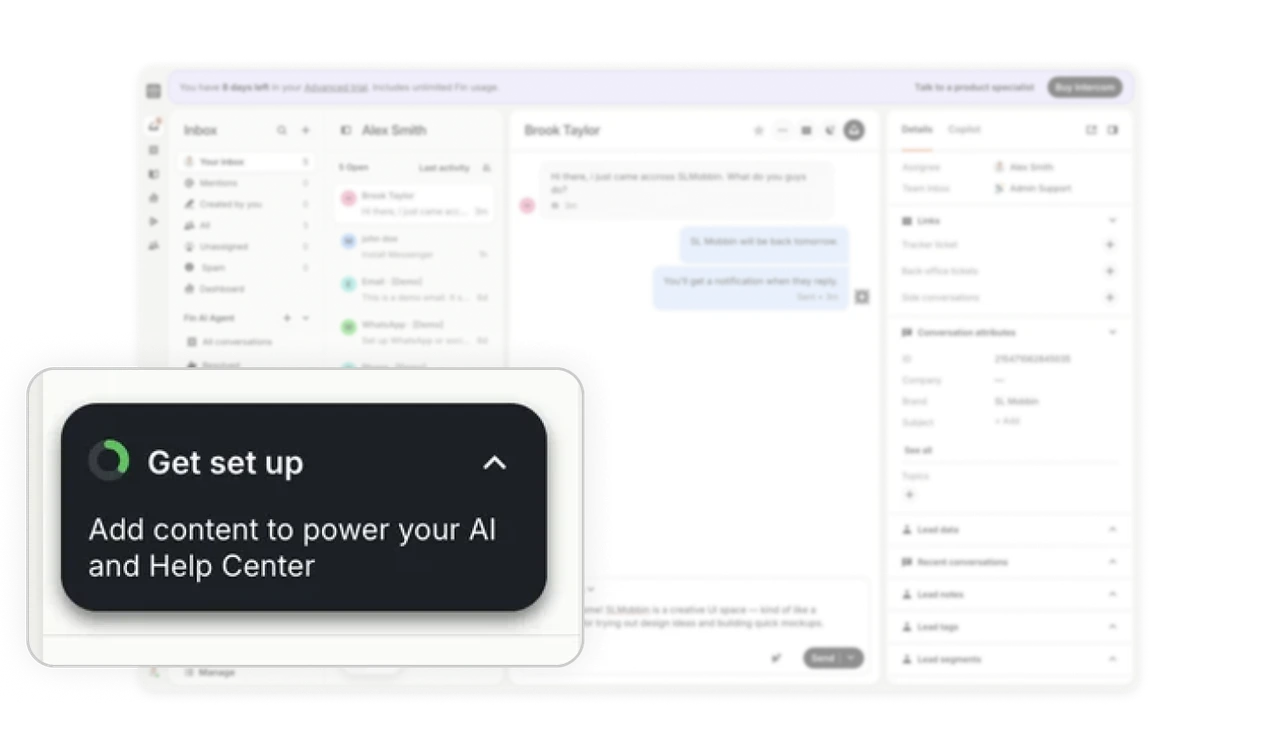
ottom-anchored onboarding catches users at idle moments
The "Get set up" card sits at the very bottom of the left nav, persistent but out of the way. It never blocks the main workflow yet stays visible every session. Bottom-anchored onboarding is smarter than modals or top banners because it surfaces during natural pauses rather than interrupting active tasks, making users far more likely to act on it.
Similar Breakdown Lessons