Design Canvas

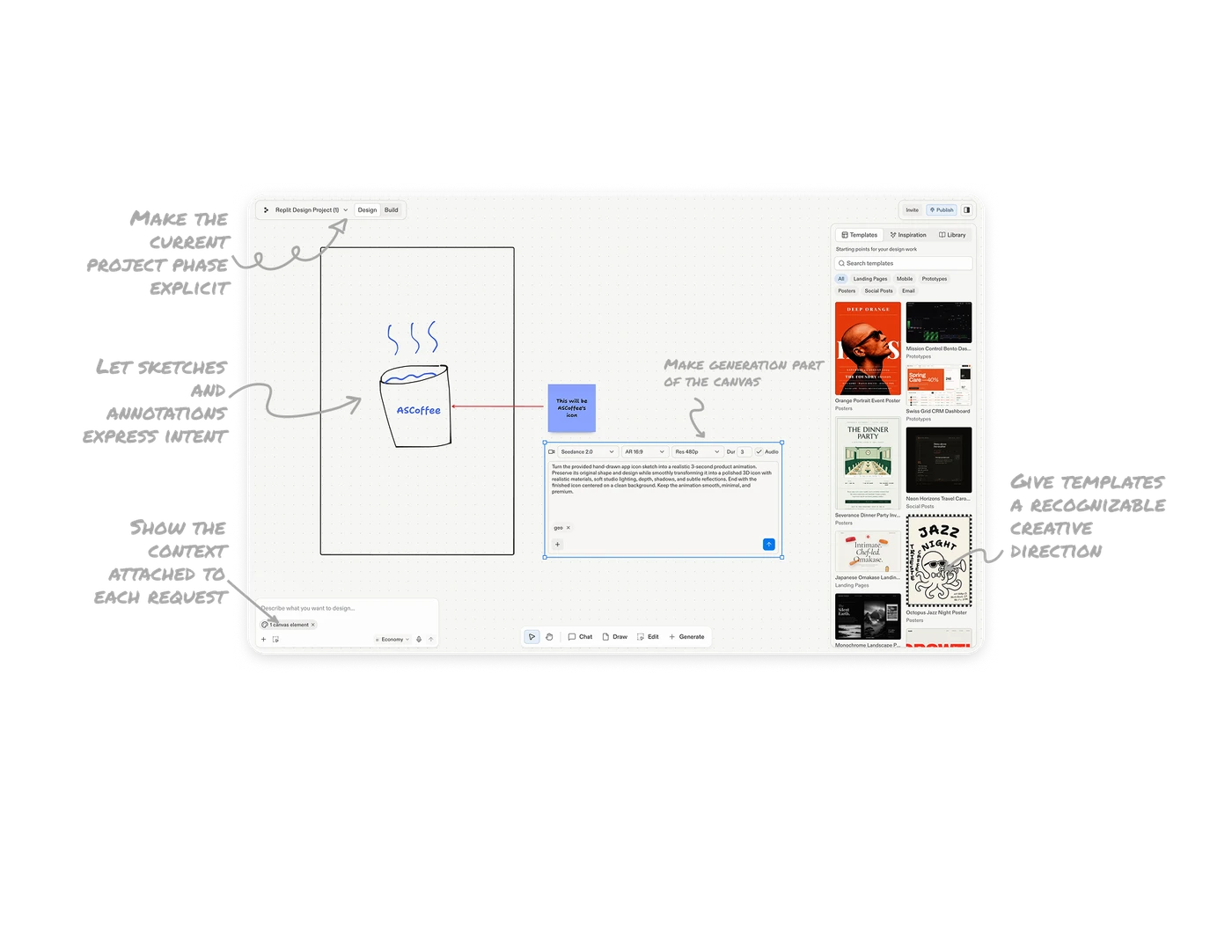
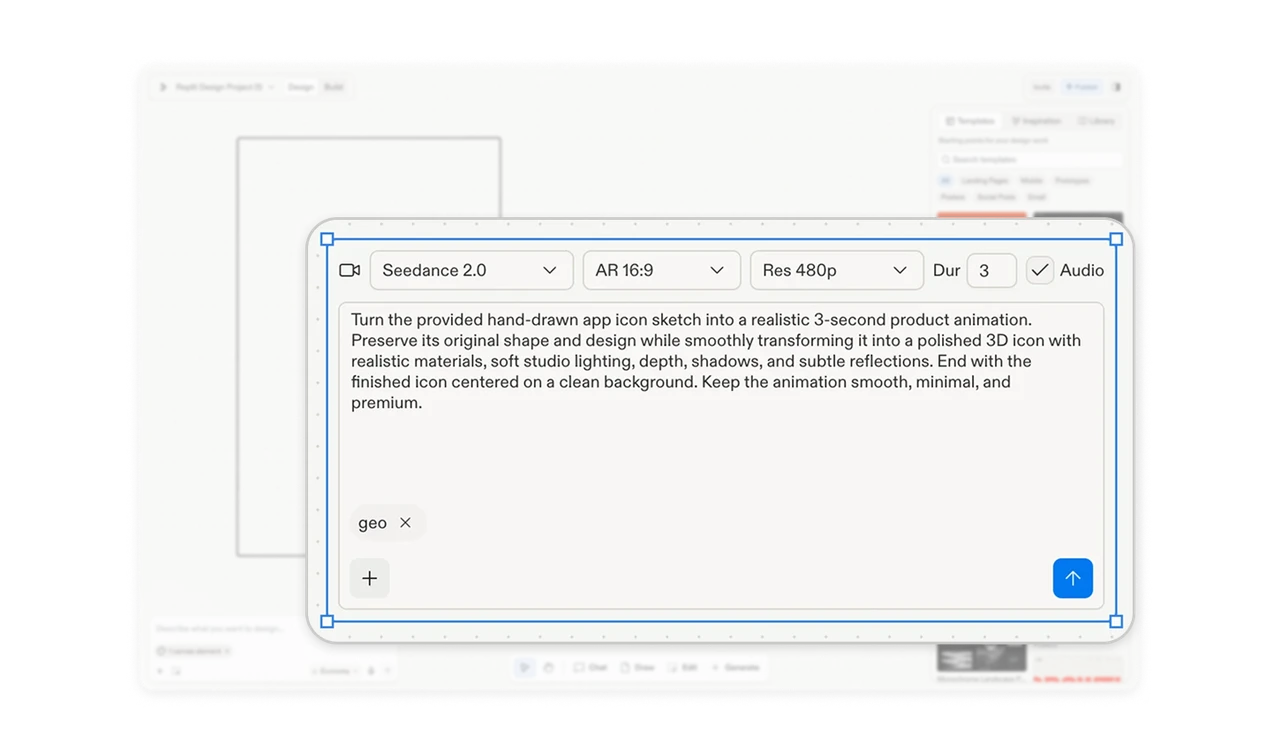
Make generation part of the canvas
The video generation form sits on the canvas as a selected block, with its prompt and output settings visible together. Keeping the request beside the sketch lets users inspect creative direction and production choices within the same workspace. In spatial creation tools, treat generation as part of the work surface, keeping its instructions and constraints close to the material being developed.
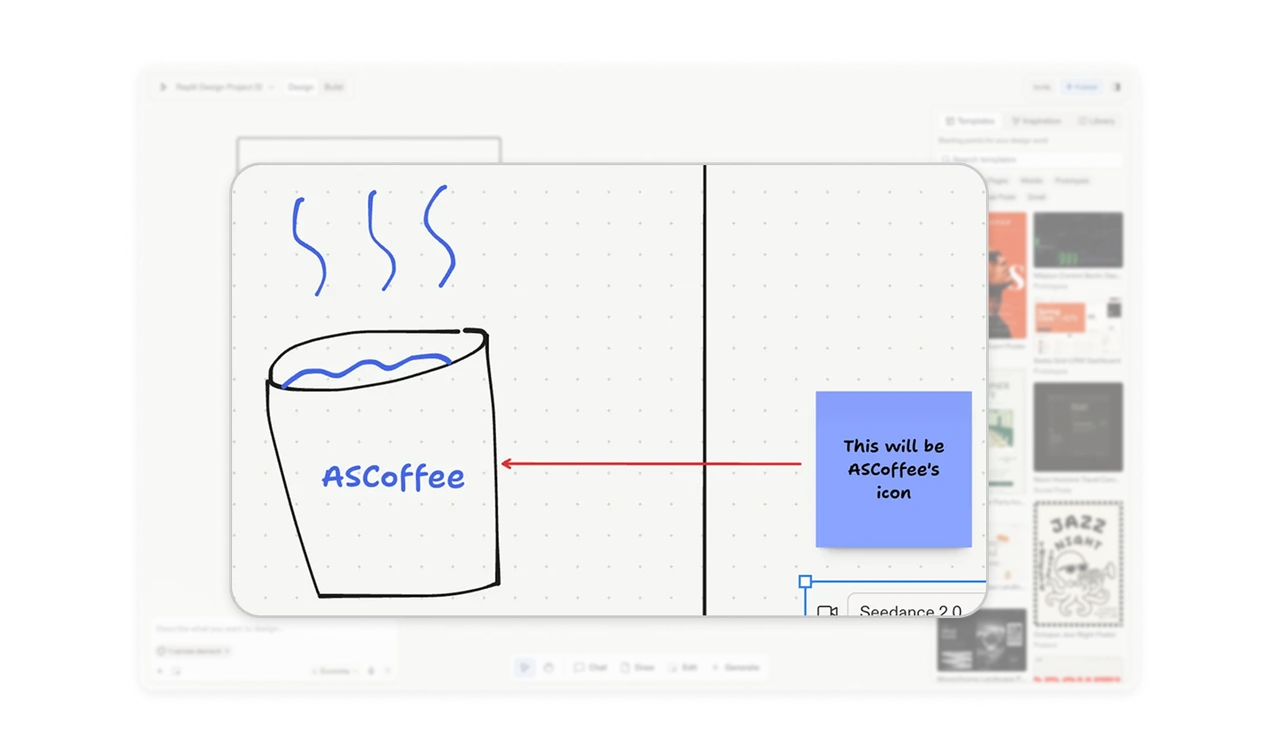
Let sketches and annotations express intent
A blue sticky note identifies the coffee sketch as an app icon, and a red arrow connects the explanation to the drawing. Each contributes something different: the sketch shows form, the note states purpose, and the arrow identifies the target. Give users ways to combine visual and verbal instructions. Rough drawings can communicate relationships that would take several sentences to describe.
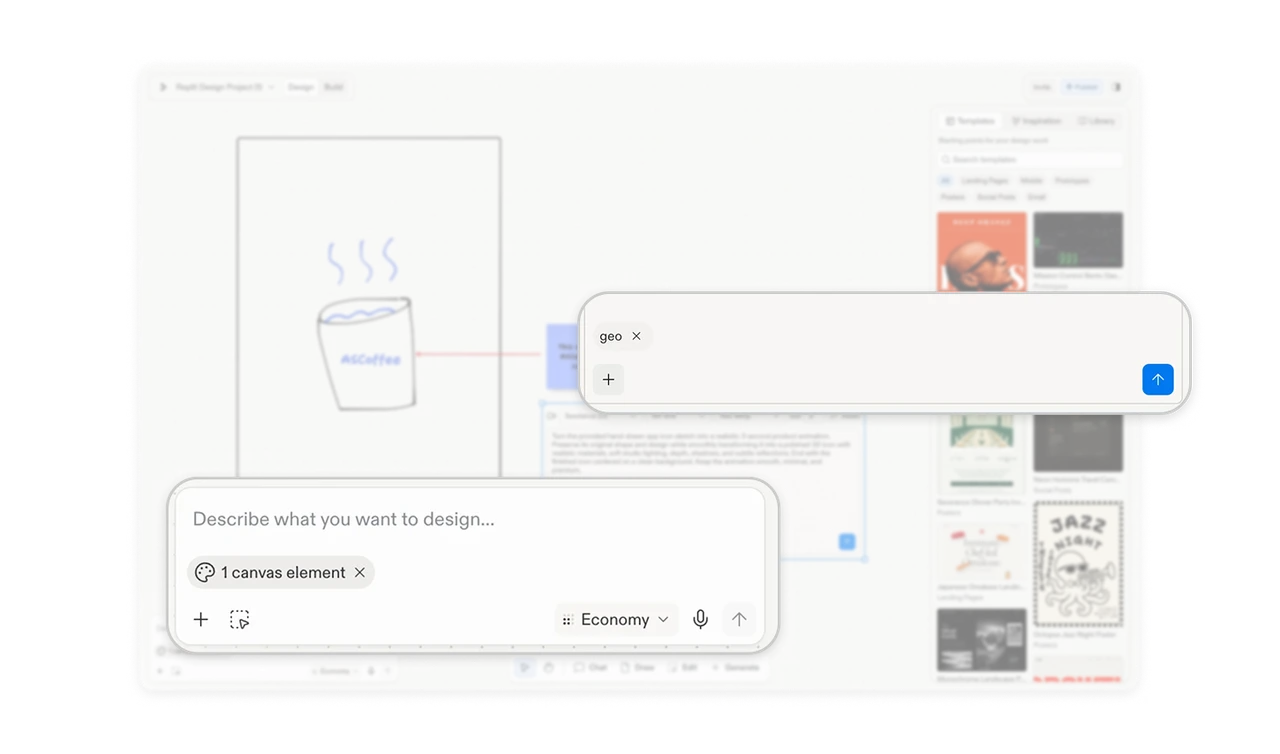
Show the context attached to each request
The design prompt shows “1 canvas element,” while the generation block has a separate “geo” chip, both with removal controls. Placing context inside each composer helps distinguish what accompanies each request. Counts and generic names still leave the source unclear. For AI tools with multiple inputs, make attachments locally visible and removable, using recognizable names or previews to clarify their identity.
Give templates a recognizable creative direction
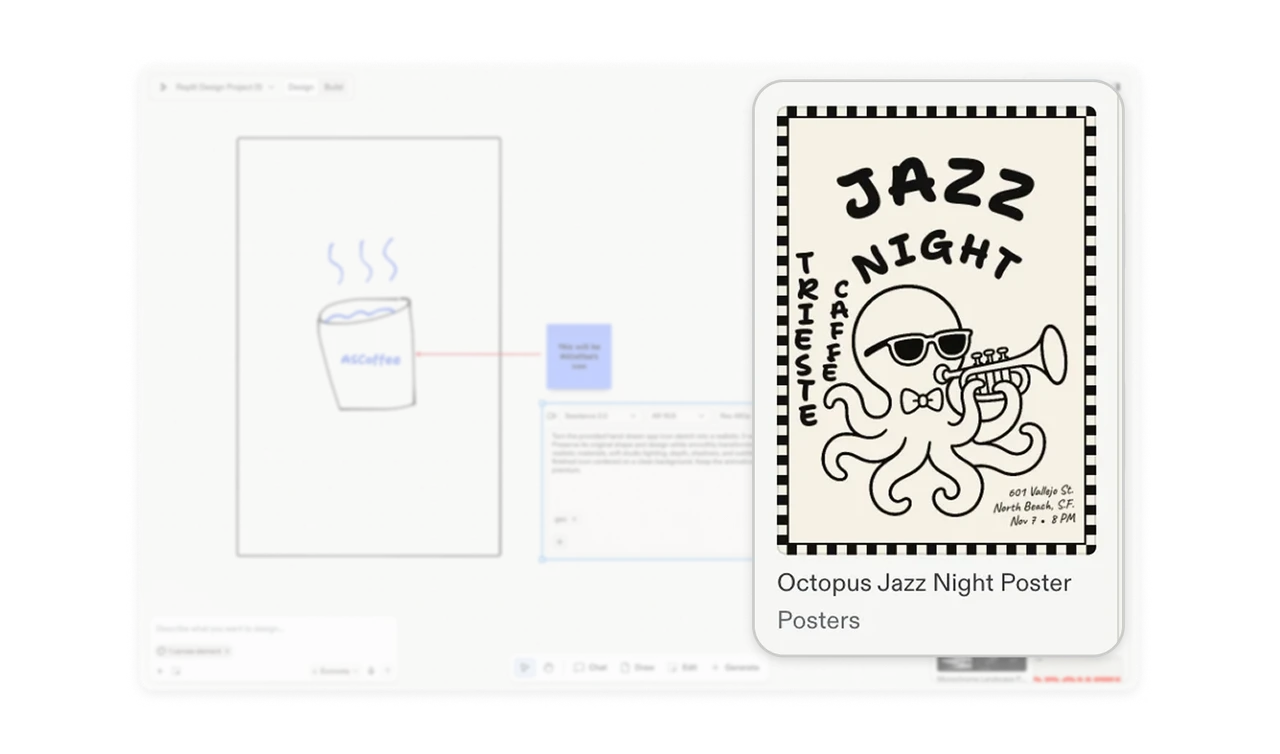
“Octopus Jazz Night Poster” pairs a specific name with an illustrated preview, while category labels identify the output format. The name suggests a subject and mood; the thumbnail reveals its visual treatment. Together, they give users more to evaluate than a generic template label. In creative catalogs, pair practical categories with distinctive examples that help people choose a direction worth developing.
Make the current project phase explicit
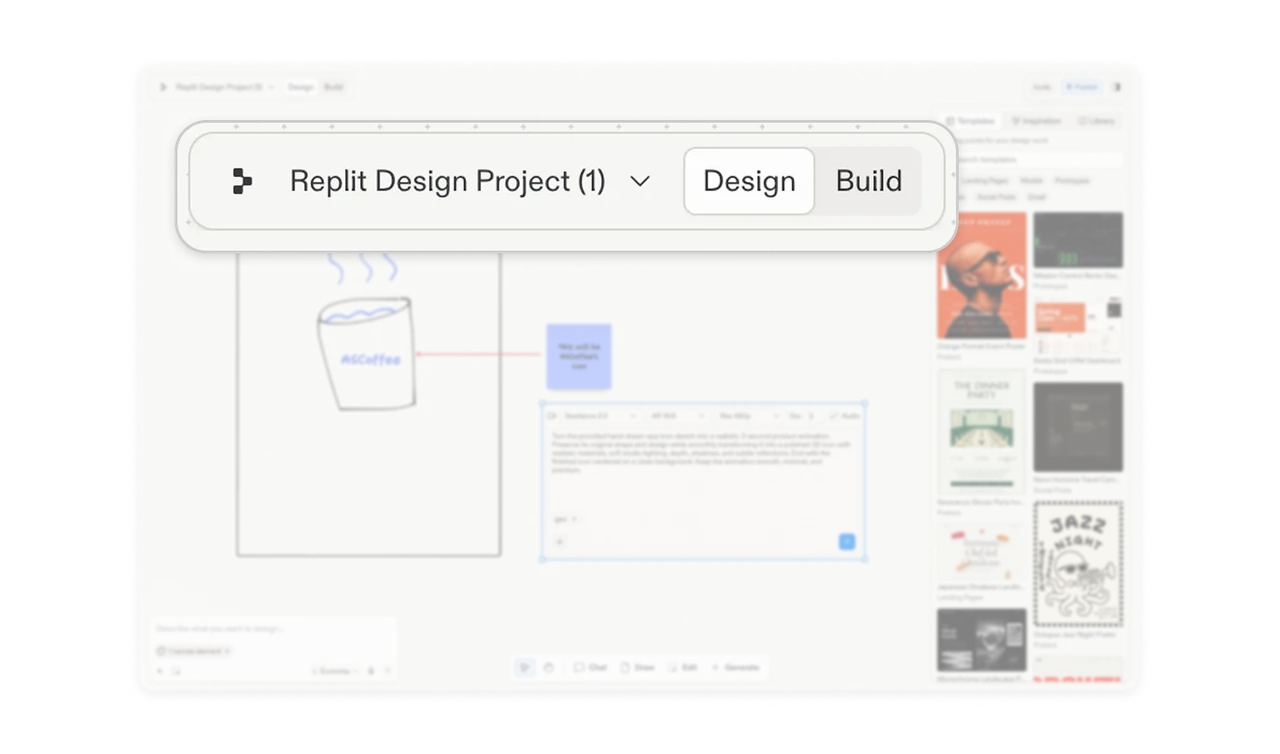
Design and Build appear beside the project name, with Design visibly selected. This placement presents the modes as phases of the same project and keeps the current phase separate from individual canvas tools. When a product spans exploration and implementation, name that distinction at the project level. Users gain a clearer frame for interpreting the controls available in their current workspace.
Similar Breakdown Lessons