Restaurant Search

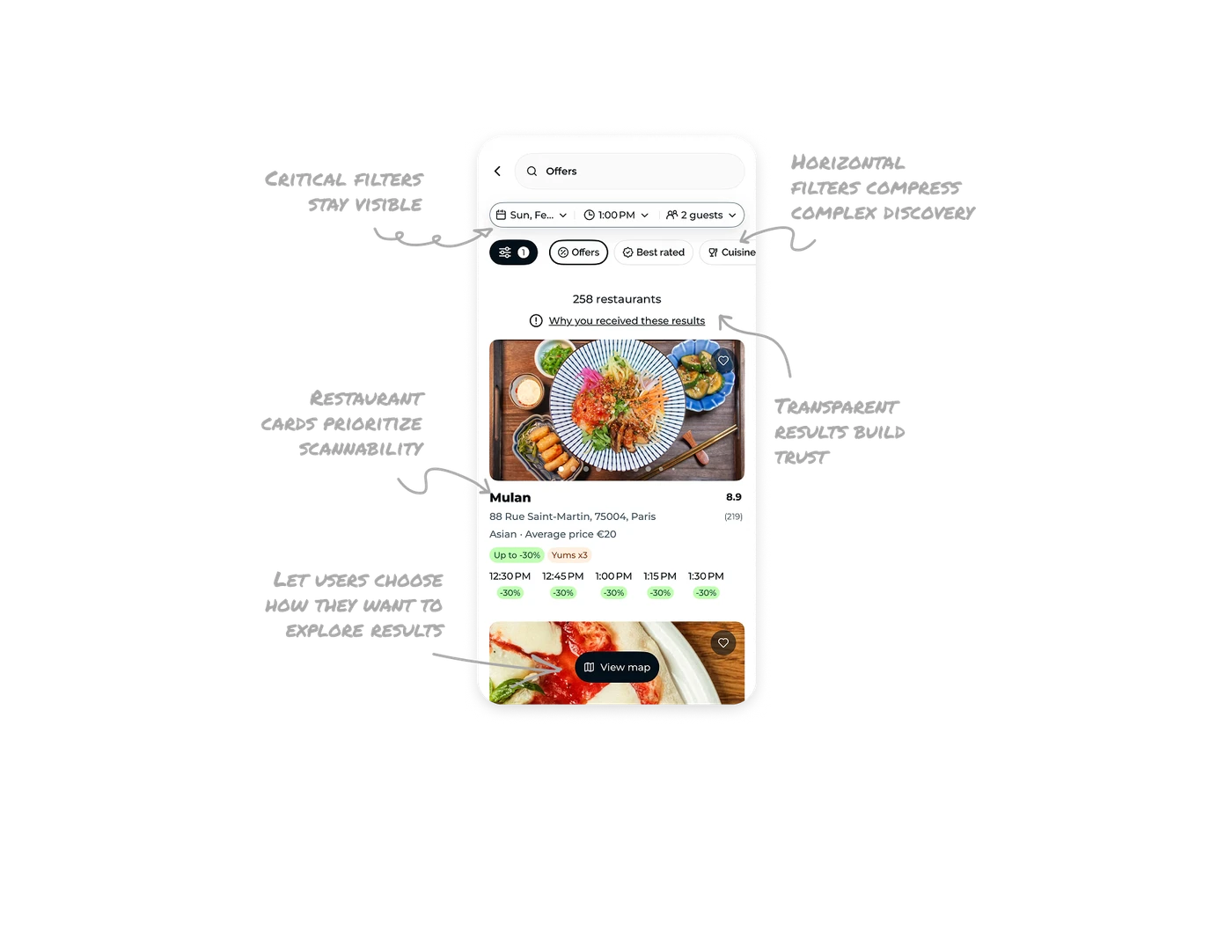
Critical filters stay visible with search
The most important parameters, such as date, time, and number of guests sit directly under the search bar. These are the inputs that most strongly affect availability. Keeping them visible maintains context. Users immediately understand why they are seeing certain restaurants and can adjust the search without leaving the screen. This reduces friction and prevents wrong results caused by hidden filters.
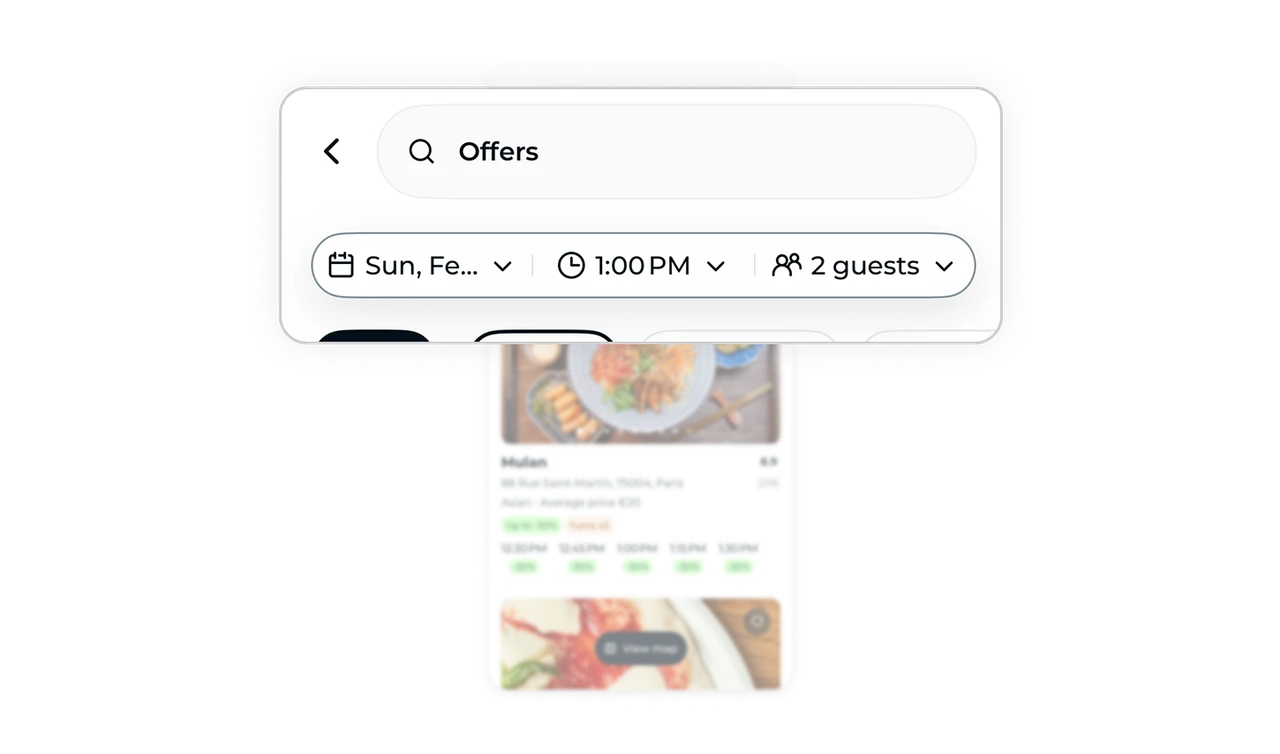
Horizontal filters compress complex discovery into small space
Popular filters like Offers, Best rated, and Cuisine are placed in a horizontal scroll. This pattern lets the interface expose many discovery shortcuts without consuming vertical space. It also encourages exploration because users can quickly apply multiple filters while scrolling. The design balances power and simplicity.
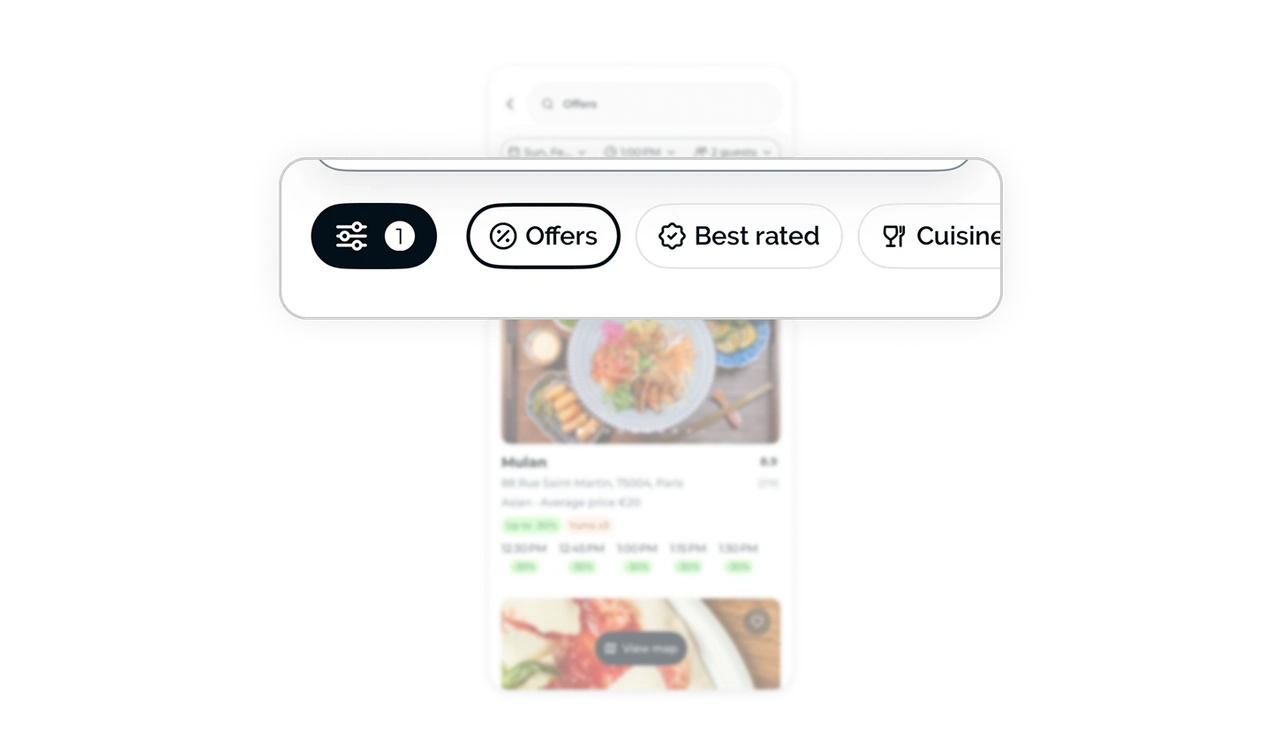
Transparent results build trust in recommendations
The interface explicitly states the number of restaurants found and includes a link explaining why these results appear. This small line removes ambiguity. Users understand the system logic instead of assuming randomness. Search transparency increases confidence, especially when filters and ranking affect outcomes.
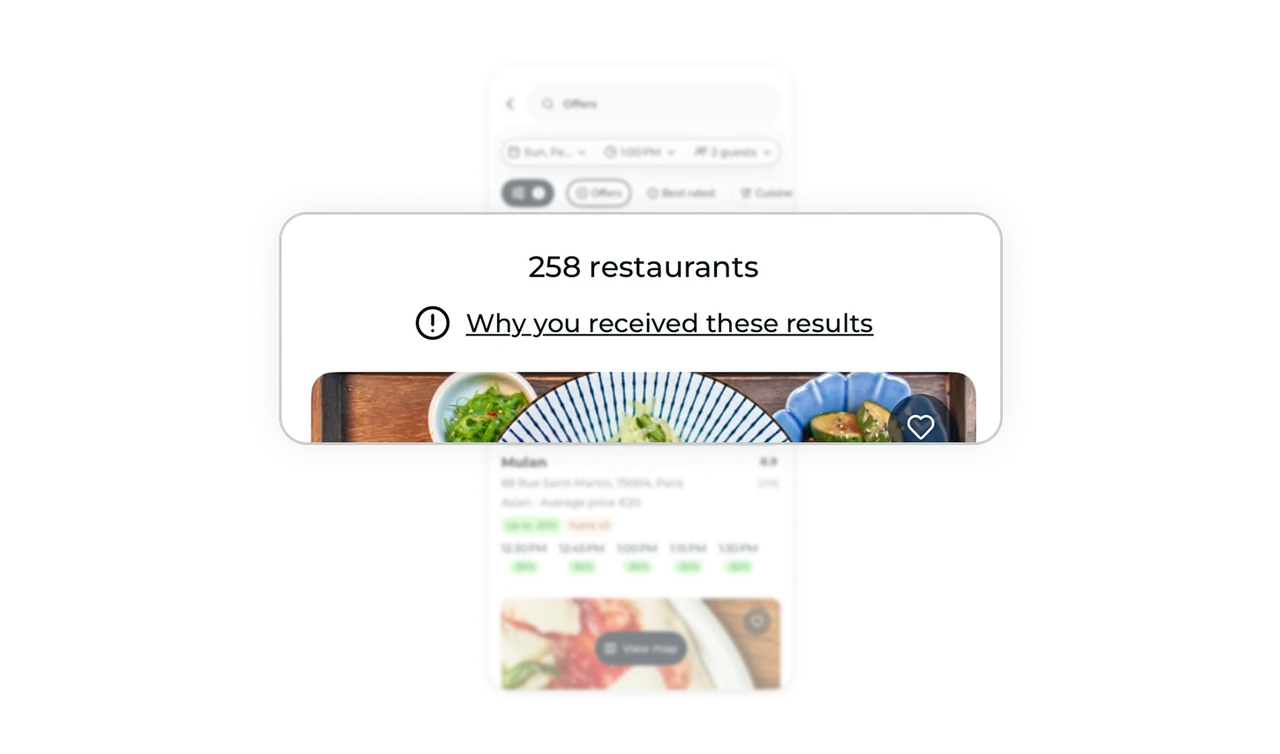
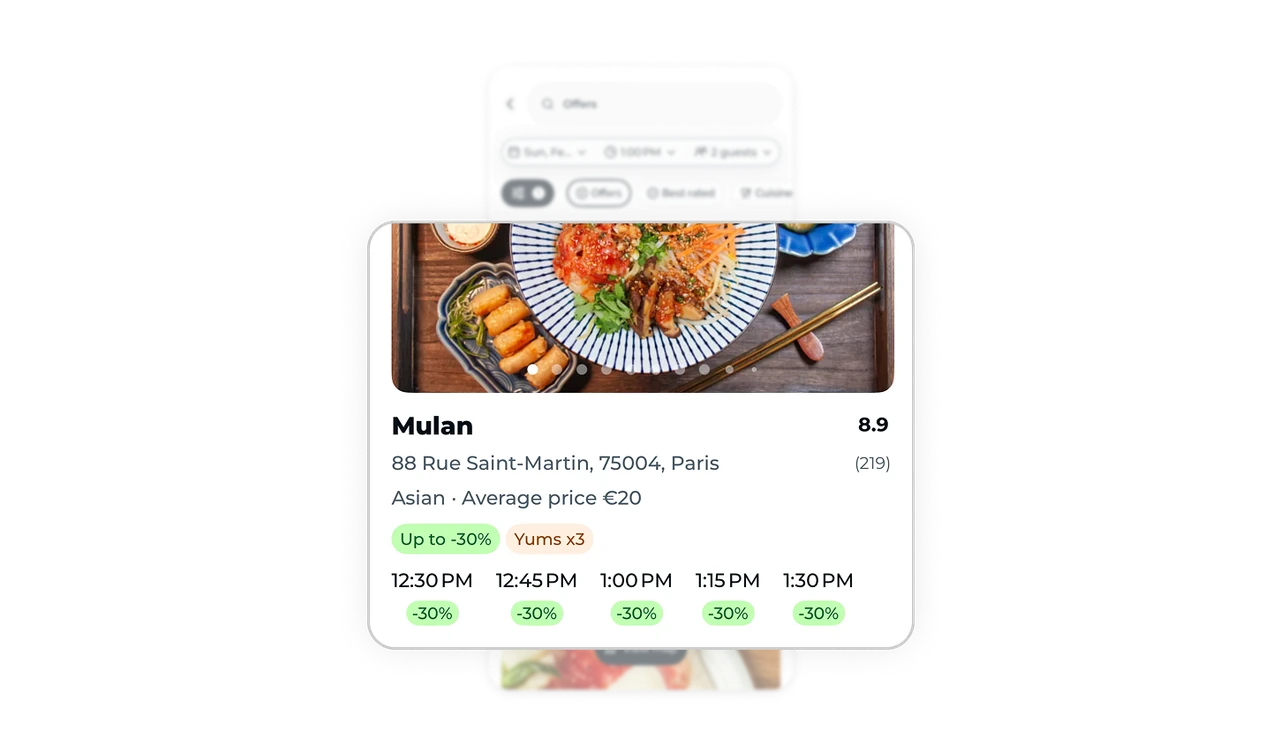
Restaurant cards prioritize scannability over density
Each card surfaces several key signals in a structured hierarchy. Color and typography do most of the work. Ratings stand out numerically, discounts use green to attract attention, and booking times are grouped visually. The result is a card packed with information that still feels easy to scan.
Let users choose how they want to explore results
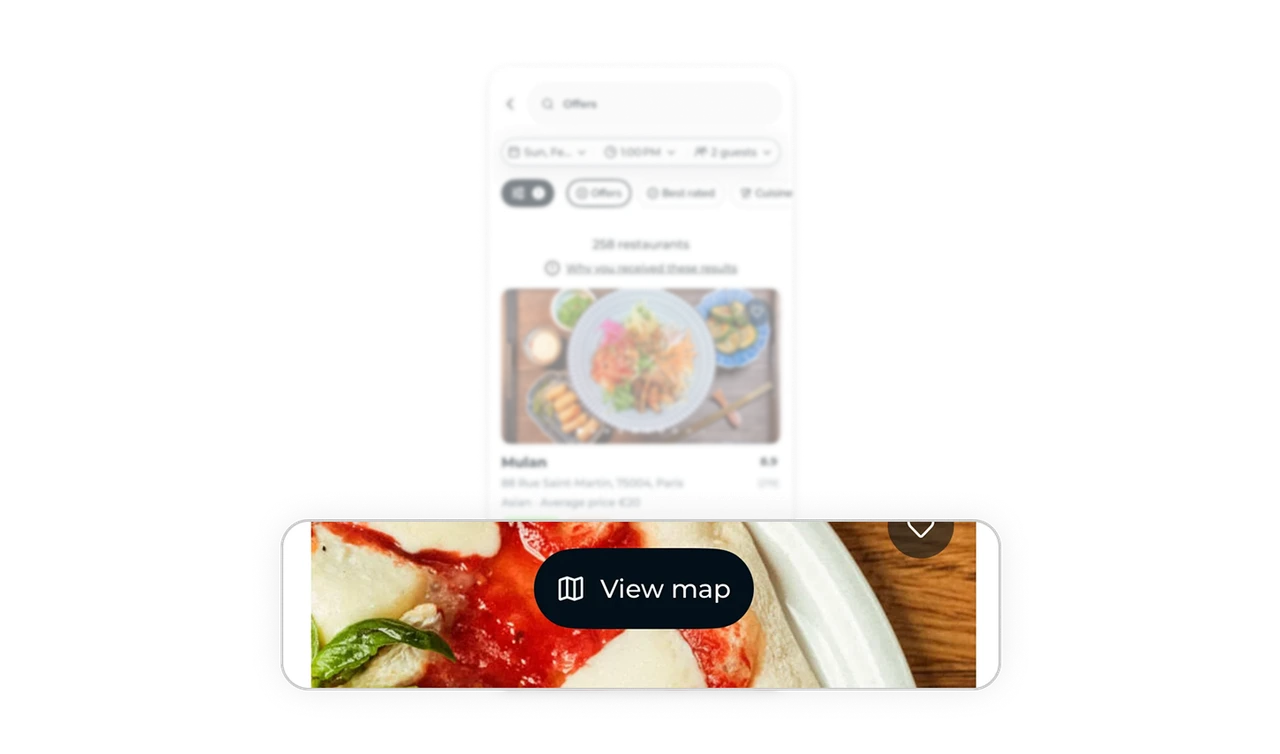
The interface includes a View map option that lets users switch between list browsing and location-based exploration. Some users prefer scanning restaurants in a list, while others want to see what is nearby on a map quickly. Giving both options supports different mental models without cluttering the main interface. This kind of flexible viewing keeps the UI clean while still covering multiple discovery behaviors.
Similar Breakdown Lessons