Search Results

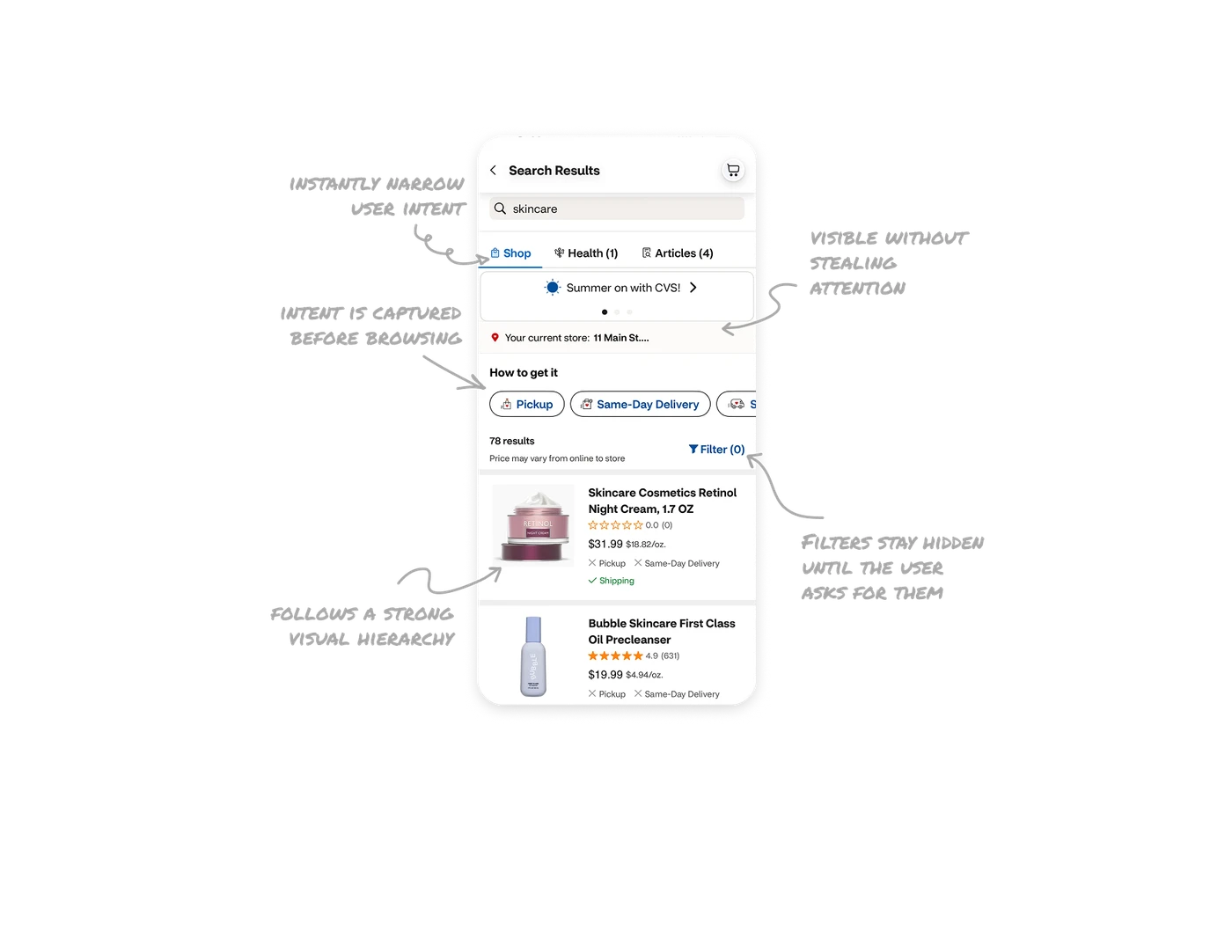
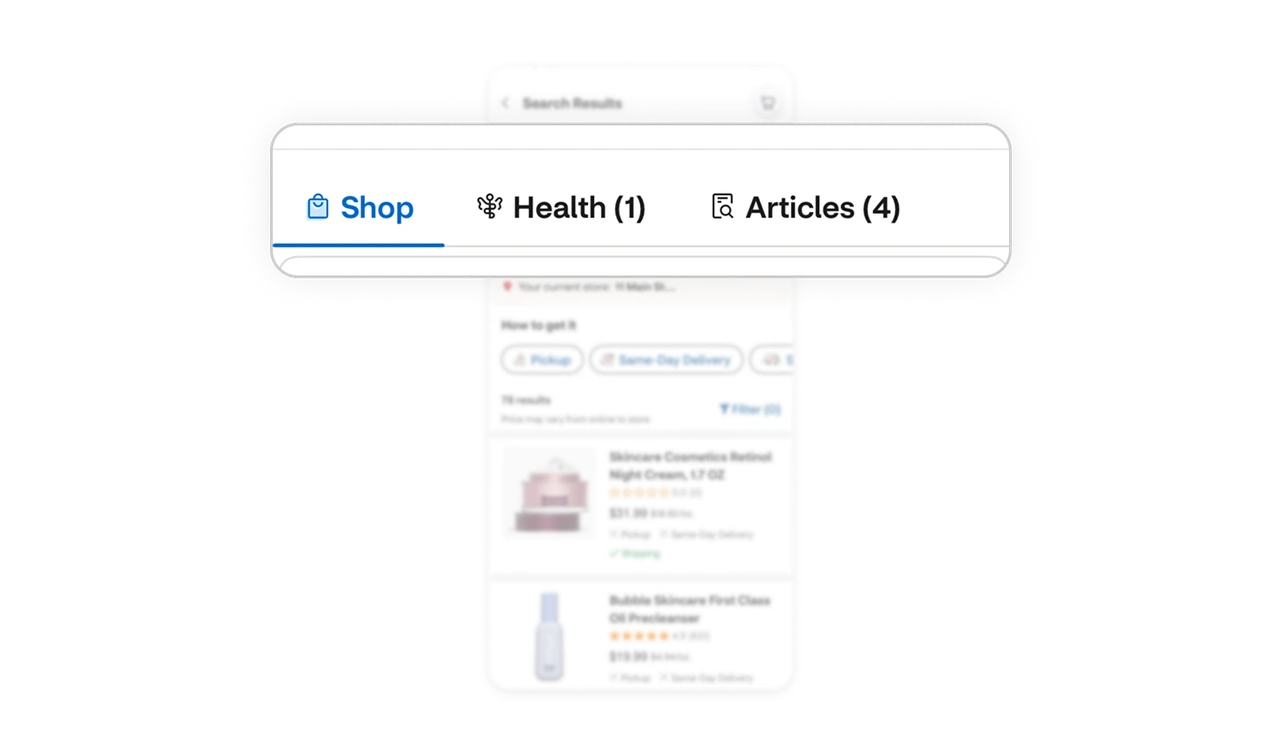
Top tabs instantly narrow user intent
The search results are divided into three clear categories: Shop, Health, and Articles. This helps users immediately understand the type of results they are seeing and allows them to switch contexts without retyping the query.
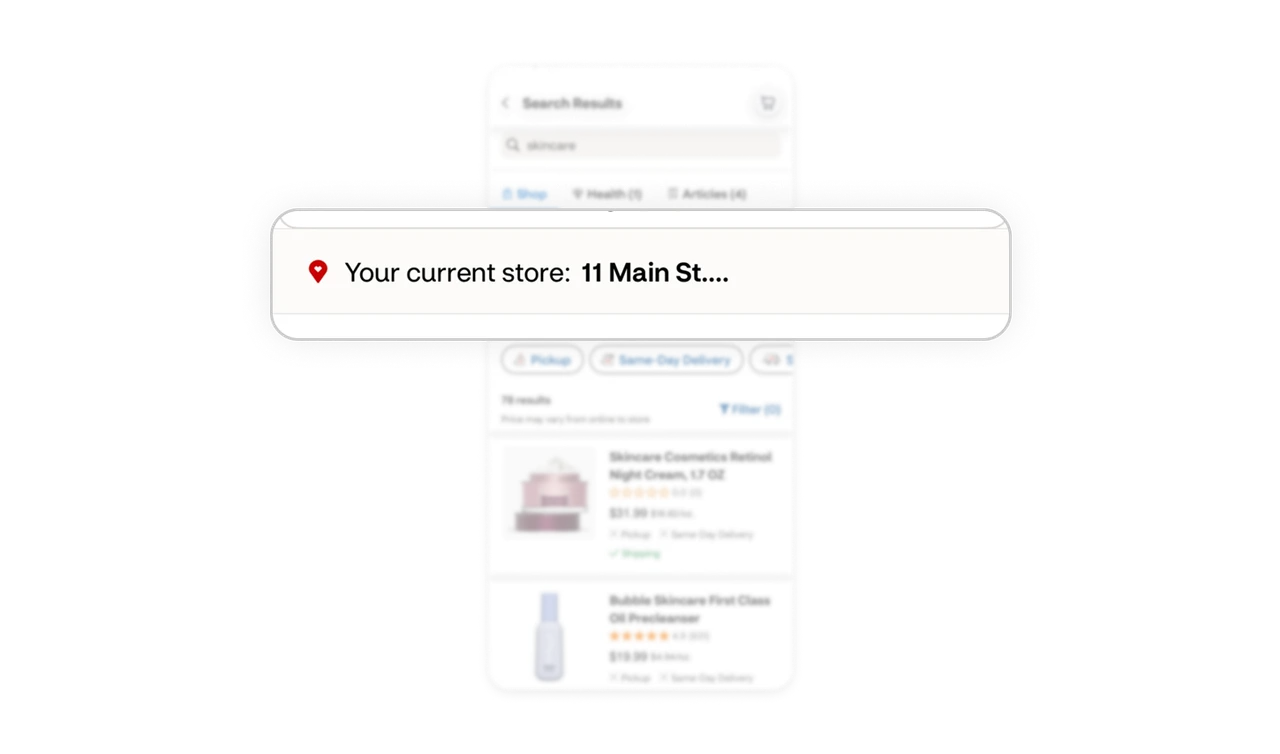
Store context is visible without stealing attention
The “Your current store” section gives users clarity about where their order will come from, right at the top of the experience. It stays visible but compact, so it informs without dominating the screen. This is a great example of high-value information placed with restraint.
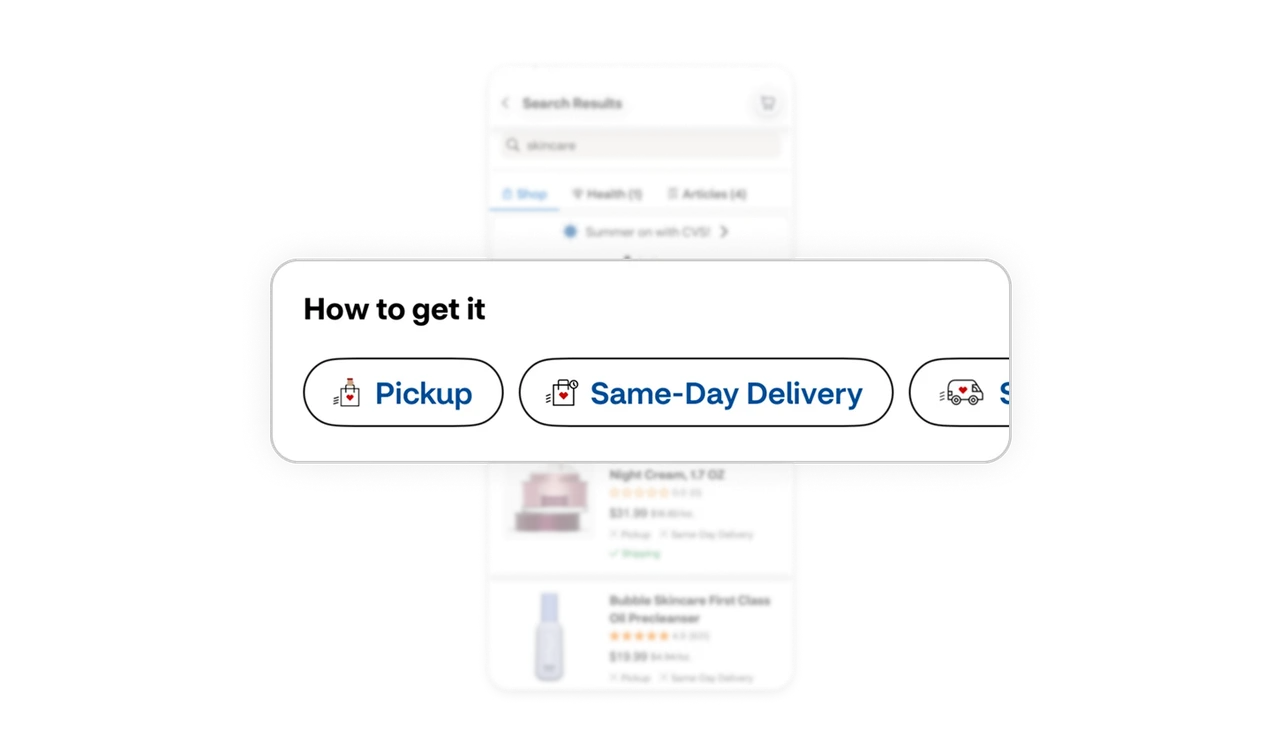
Ordering intent is captured before browsing
The “How to get it” section lets users filter by Pickup, Same-Day Delivery, or Shipping before they even start comparing products. By default, all options are enabled, so no one is blocked. This aligns the search results with the user’s real-world intention, not just keywords.
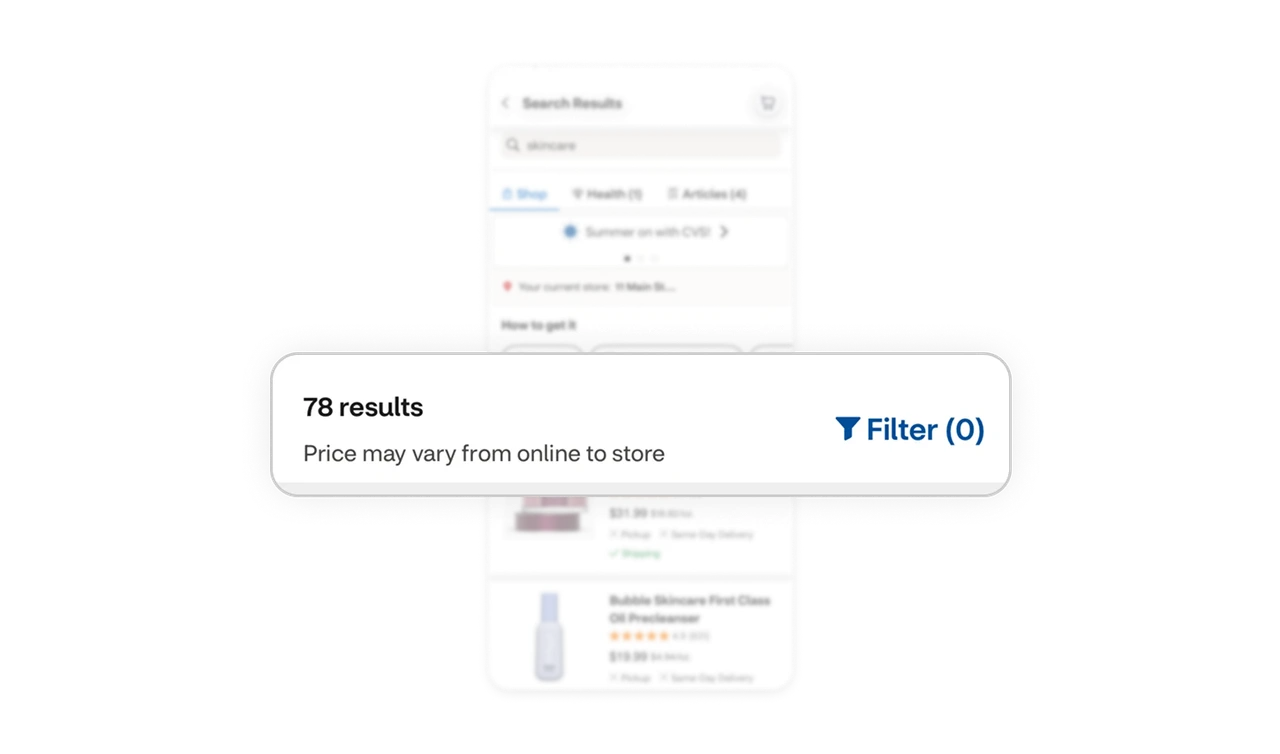
Filters stay hidden until the user asks for them
Advanced filters live behind a single Filter button, keeping the interface clean and scannable. At the same time, CVS shows the total number of results and clearly communicates that prices may vary by store. This balances transparency with visual simplicity.
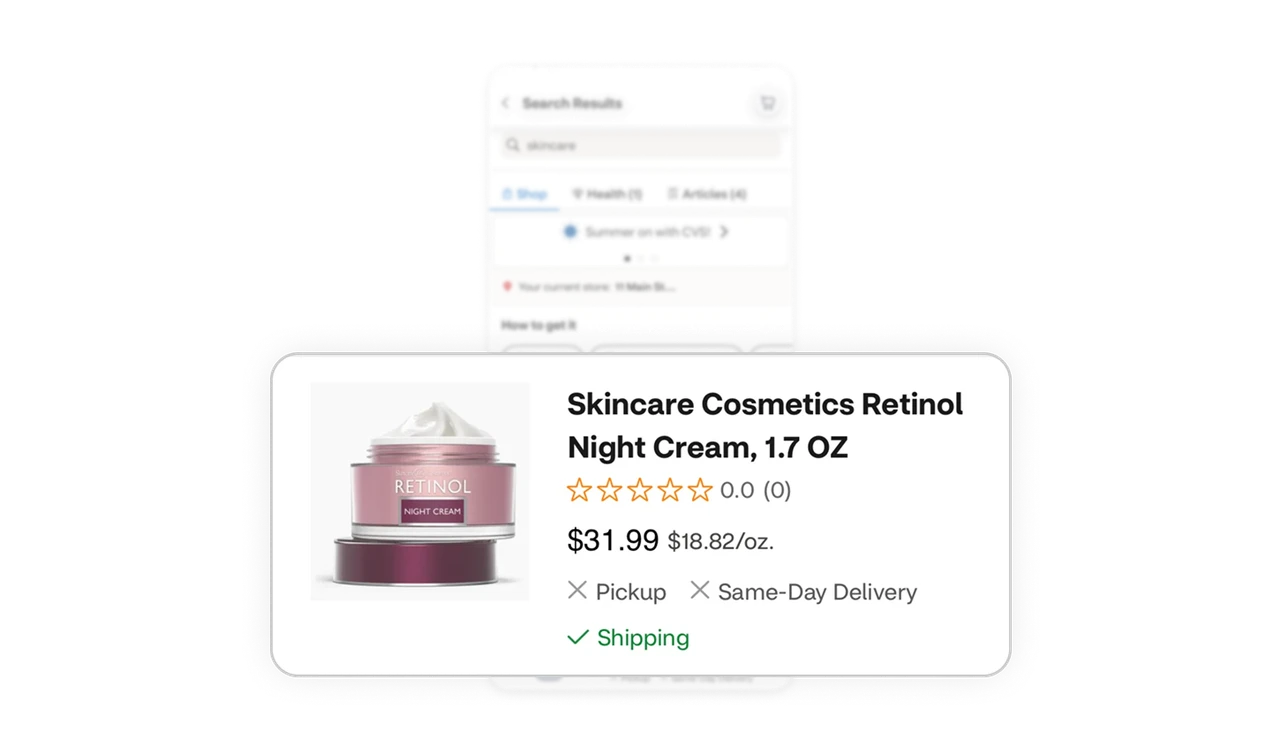
Product cards follow a strong visual hierarchy
Each product card leads with a bold product name for quick scanning, followed by ratings, price, unit cost, and availability. Order options are shown clearly so users never wonder how they can get the item.
Similar Breakdown Lessons