Vehicle Dashboard

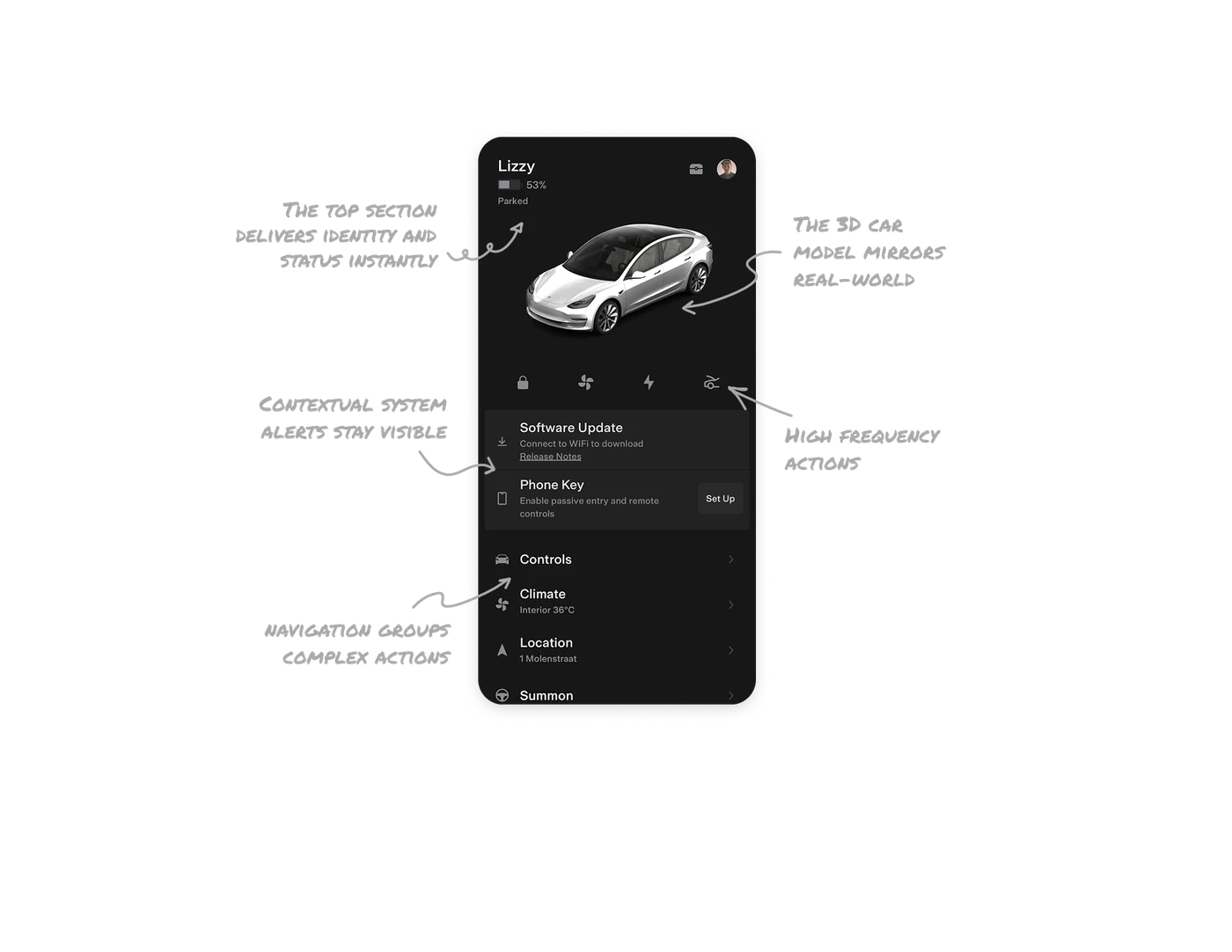
The top section delivers identity and status instantly
The driver name, battery level, and car state sit right at the top, so users can anchor themselves within a second. The tap interaction that lets you switch between battery percentage and mileage is a tiny detail that removes friction and respects how different people think about range.
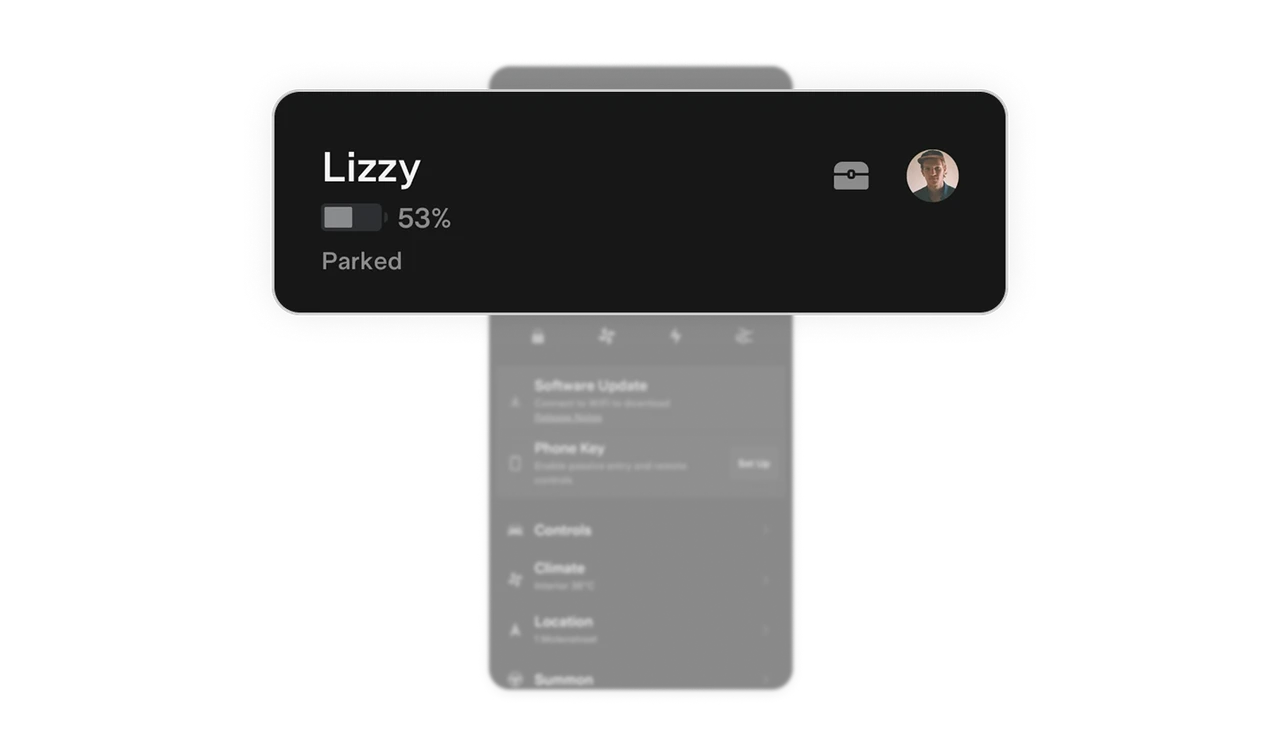
3D car model mirrors real-world state
Tesla shows your exact car color, wheel type, and door status. The model updates based on real conditions, so it doubles as a status report. This frees users from reading heavy labels and lets the visual do most of the interpretation.
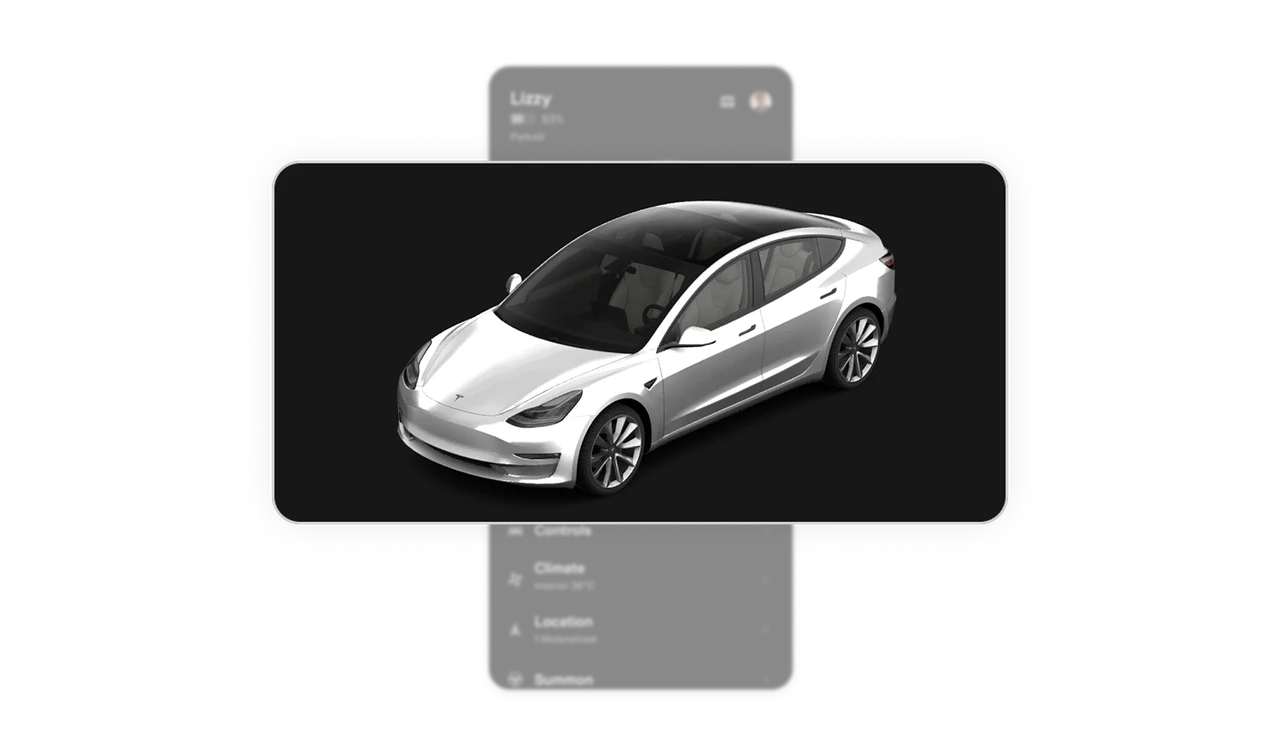
High frequency actions live directly under the car
Lock, climate, charging, and trunk controls sit right below the model because that’s the moment users naturally look for interaction. The placement matches real-world intent, which cuts down on searching and creates a smooth mental flow.
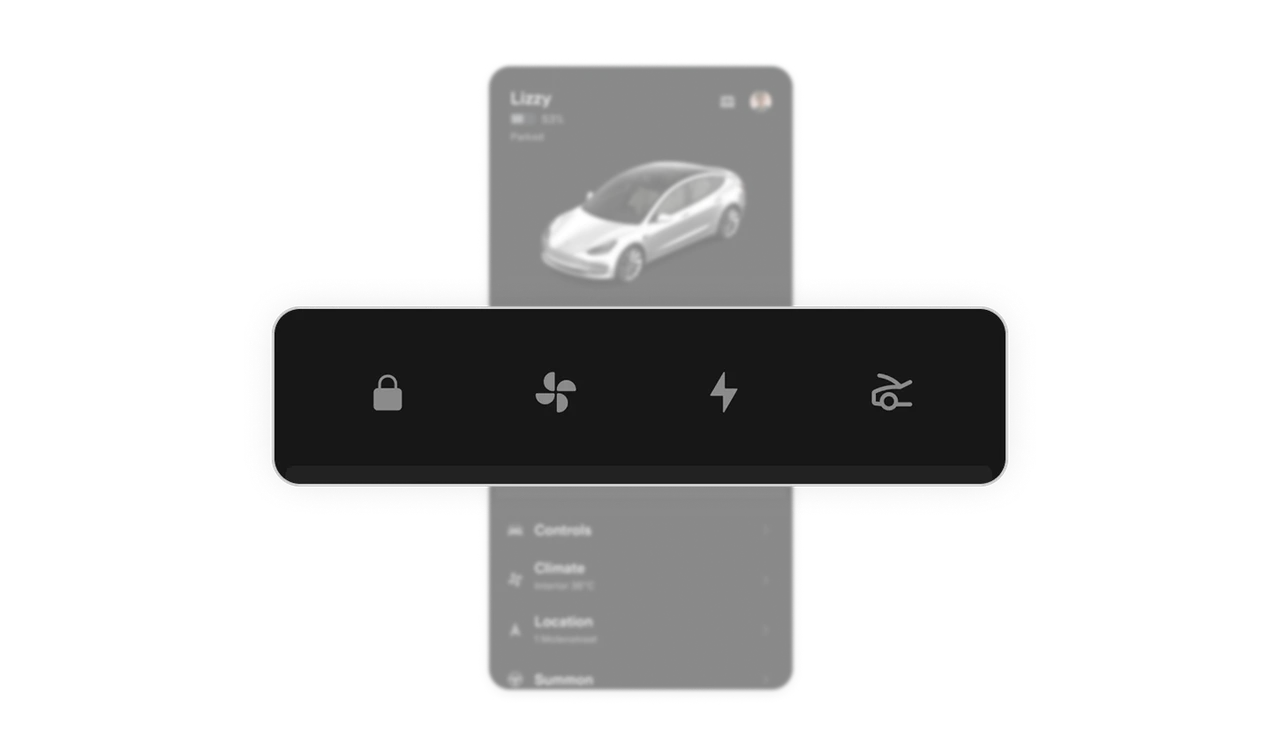
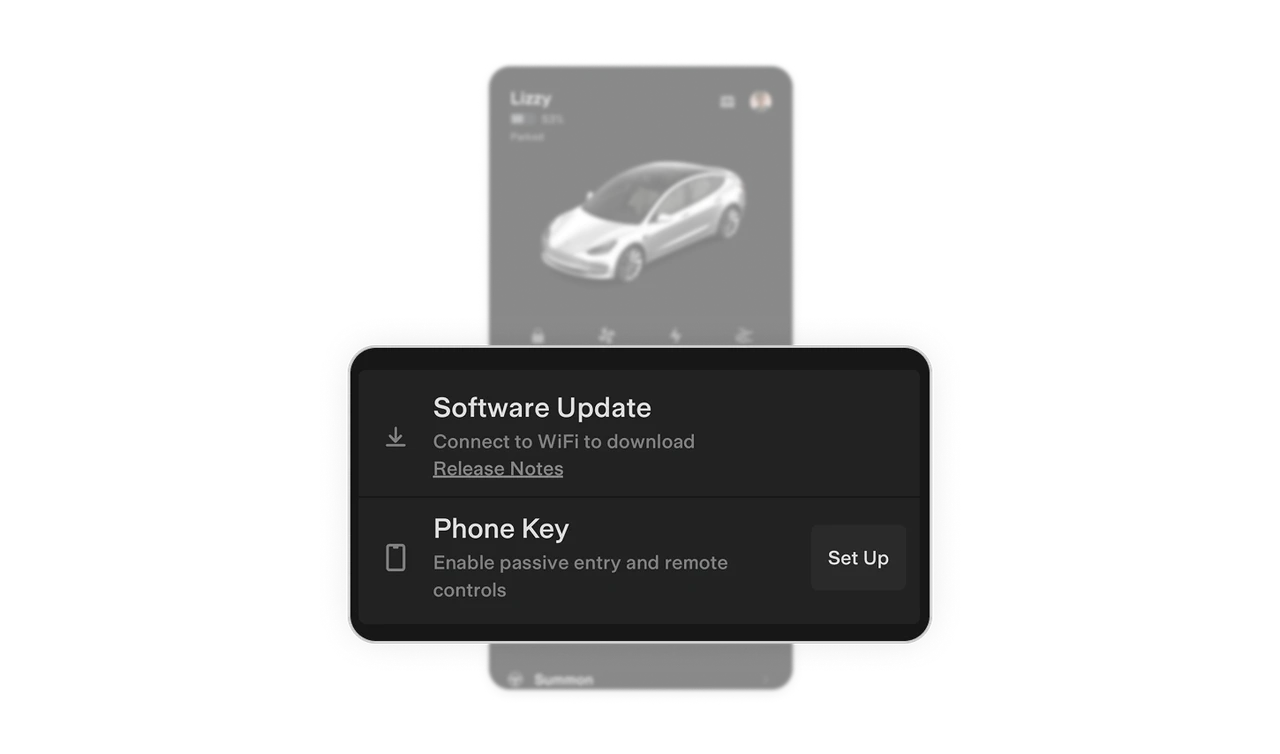
Contextual system alerts stay visible
Software updates, phone key setup, and other system prompts appear only when they matter. They sit in their own block instead of mixing with controls, which keeps urgency clear without hijacking the layout.
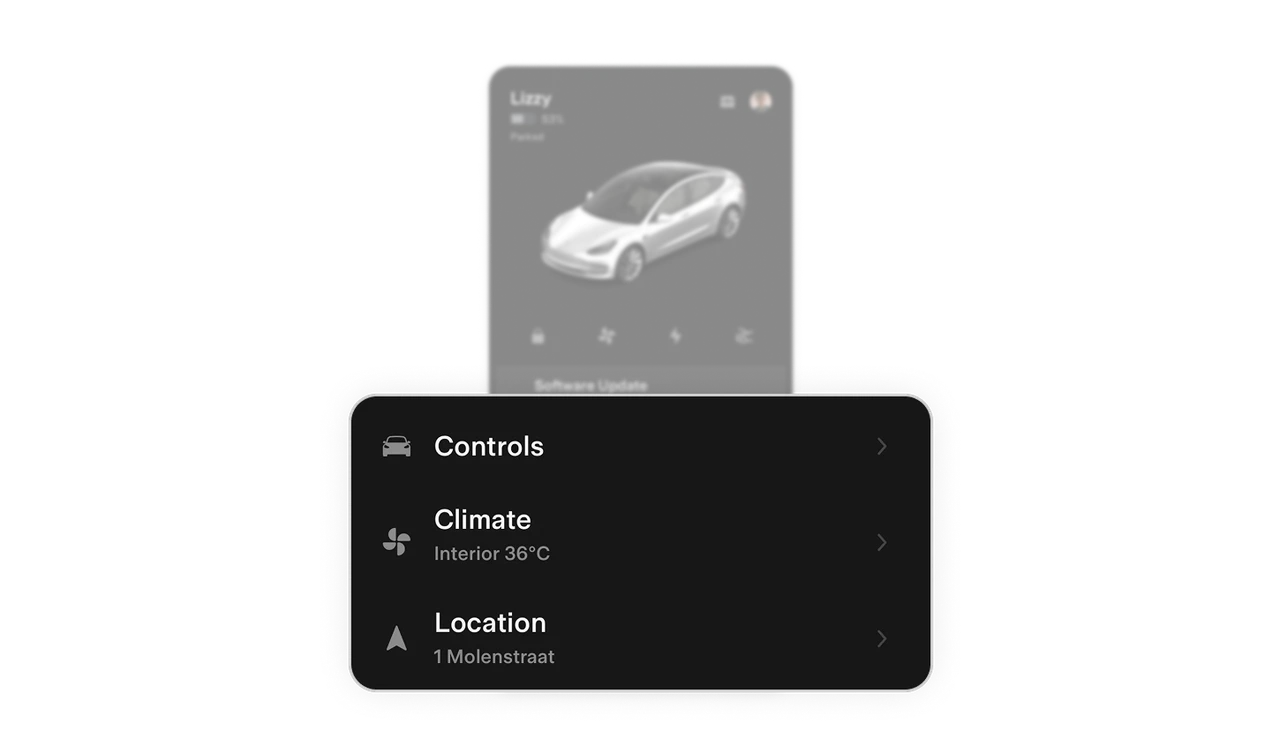
Navigation groups actions into clean categories
Controls, climate, location, and summon are grouped in a compact list with simple icons and short subtitles. The structure reduces cognitive load and helps users predict where each action will live, even before reading the labels.
Similar Breakdown Lessons