Campaign Workflow Canvas

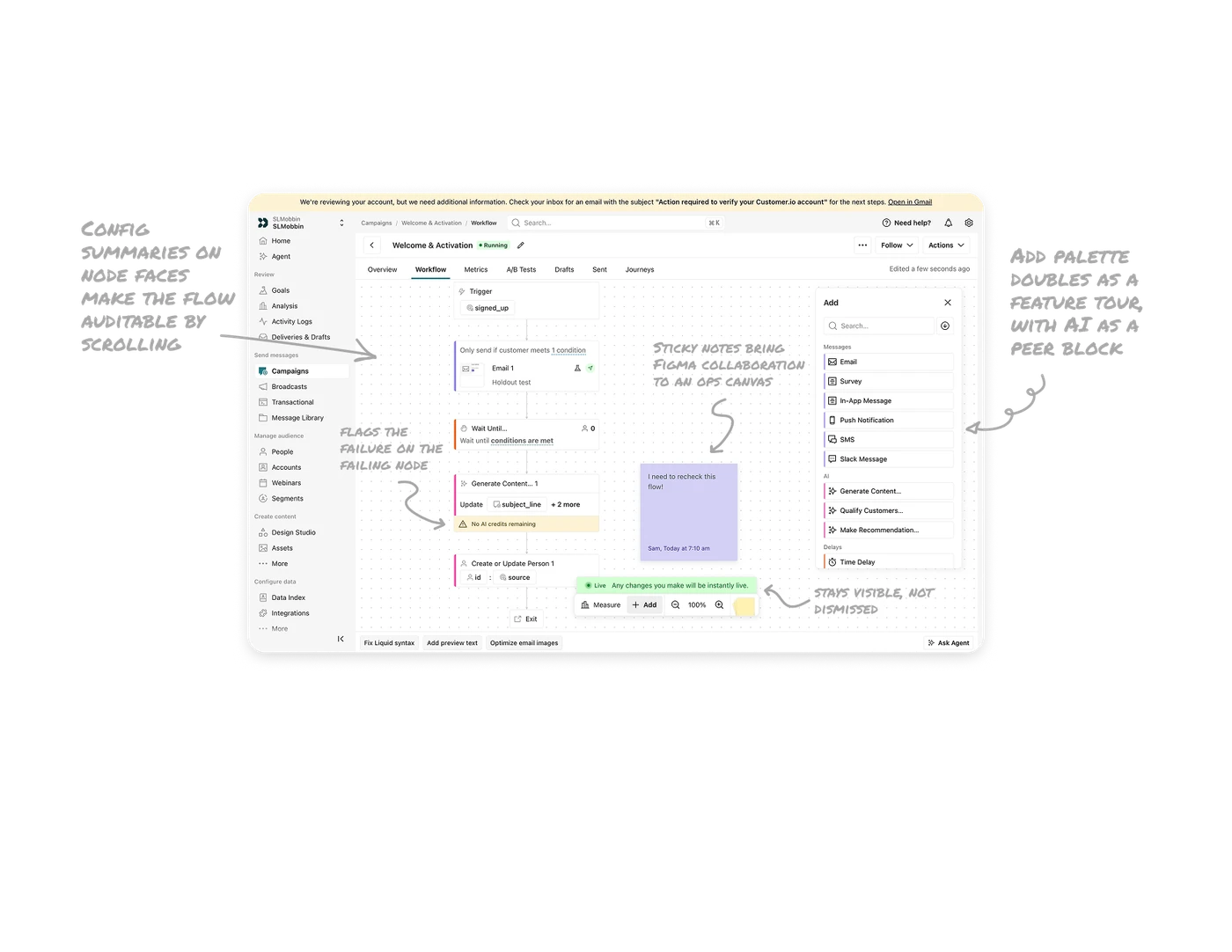
"Any changes will be instantly live" stays visible, not dismissed
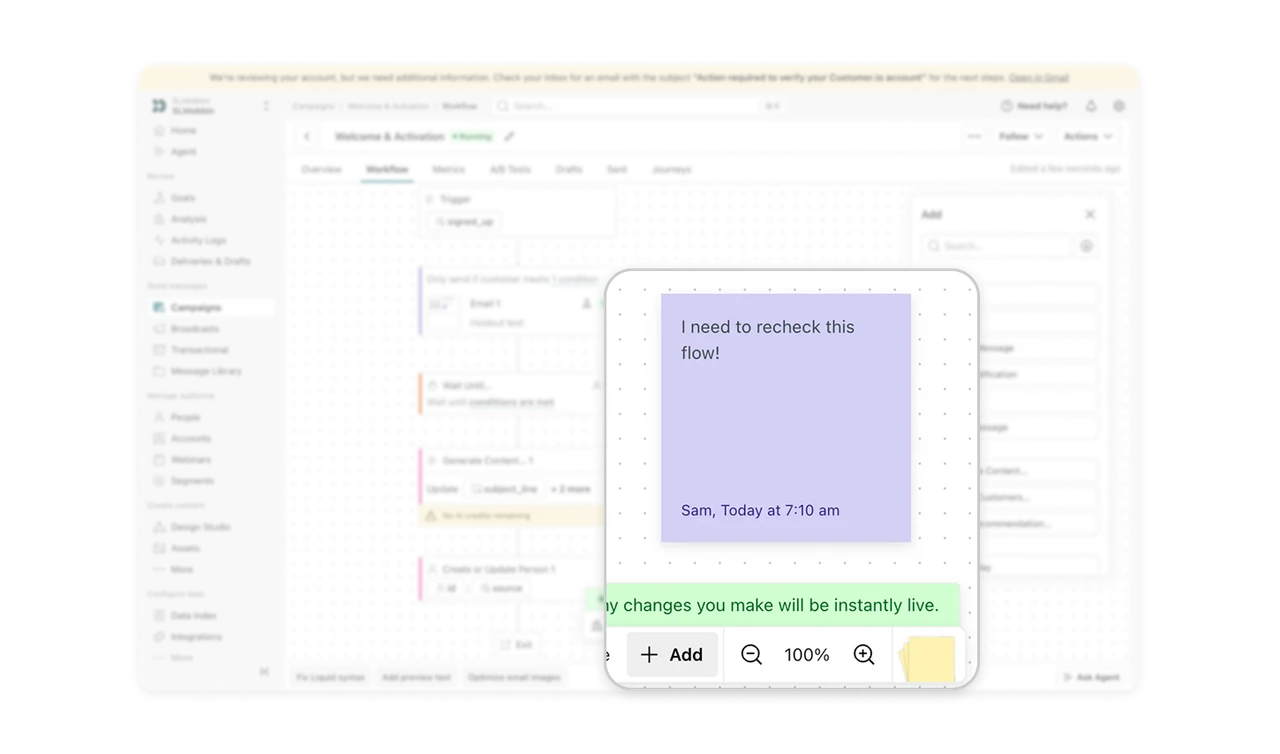
A green banner floats by the toolbar warning that this workflow is running right now, edits hit real customers immediately. The most dangerous fact about the session is stated persistently, not once in a modal that gets dismissed and forgotten. When editing affects production in real time, radical visibility is the safety mechanism. The stakes of an edit should be readable at the moment of every edit, because a warning you saw once is a warning you no longer see.
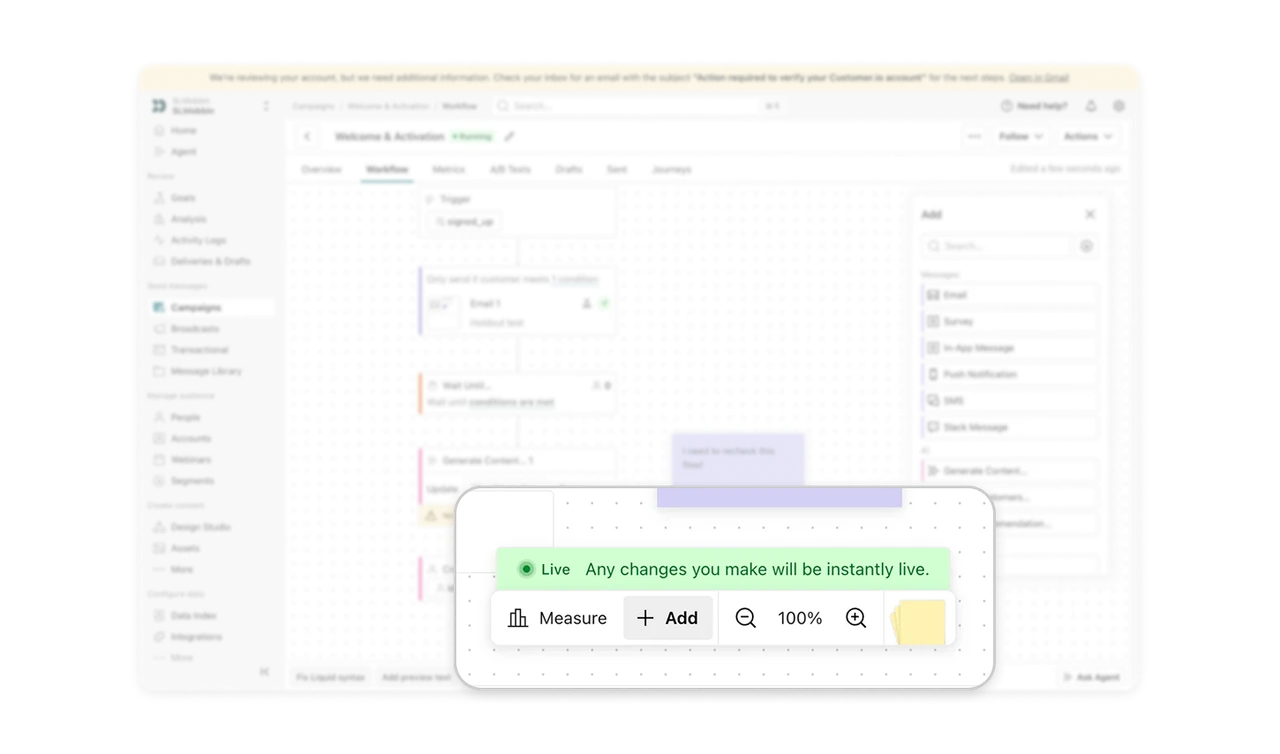
Config summaries on node faces make the flow auditable by scrolling
Each node states its logic inline: "Only send if customer meets 1 condition," "Wait until conditions are met," "Update subject_line +2 more." The whole campaign is readable top to bottom without clicking into a single step. Show each node's configuration on its face, not just its name. A workflow you can read like a document is a workflow you can trust, and trust is what lets a marketer touch a live flow at all.
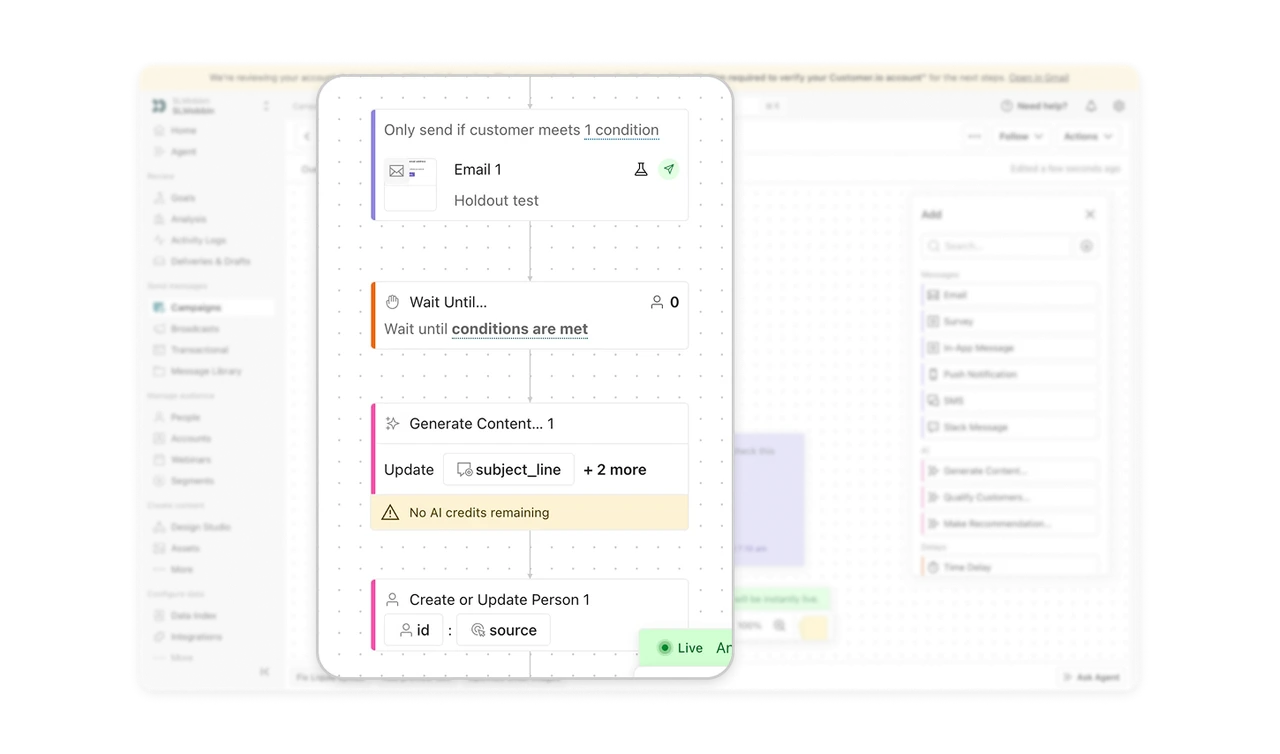
The Add palette doubles as a feature tour, with AI as a peer block
The insert panel groups steps by function: Messages, AI, Delays, plus search. Categories teach new users what is possible while search serves experts who know what they want. Note AI as its own first-class category: 2026's builders treat AI steps as a peer block type, not a special mode, and the palette placement announces that maturity.
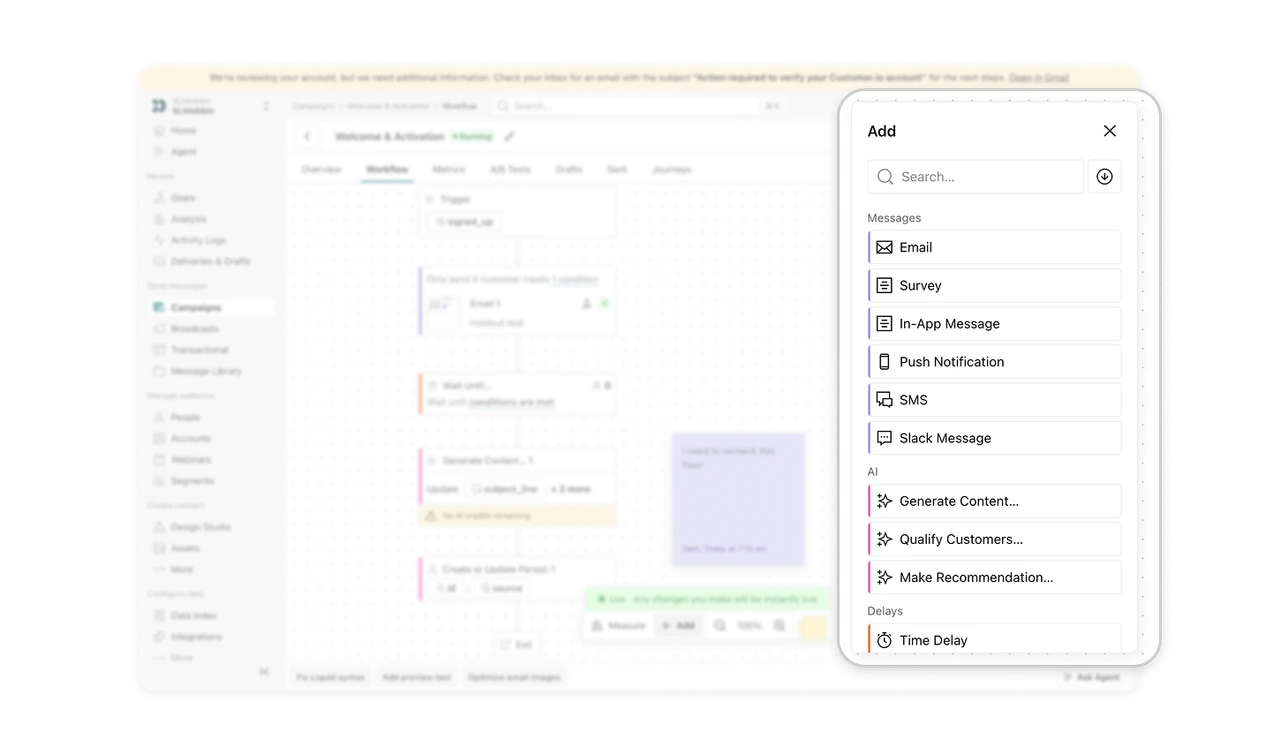
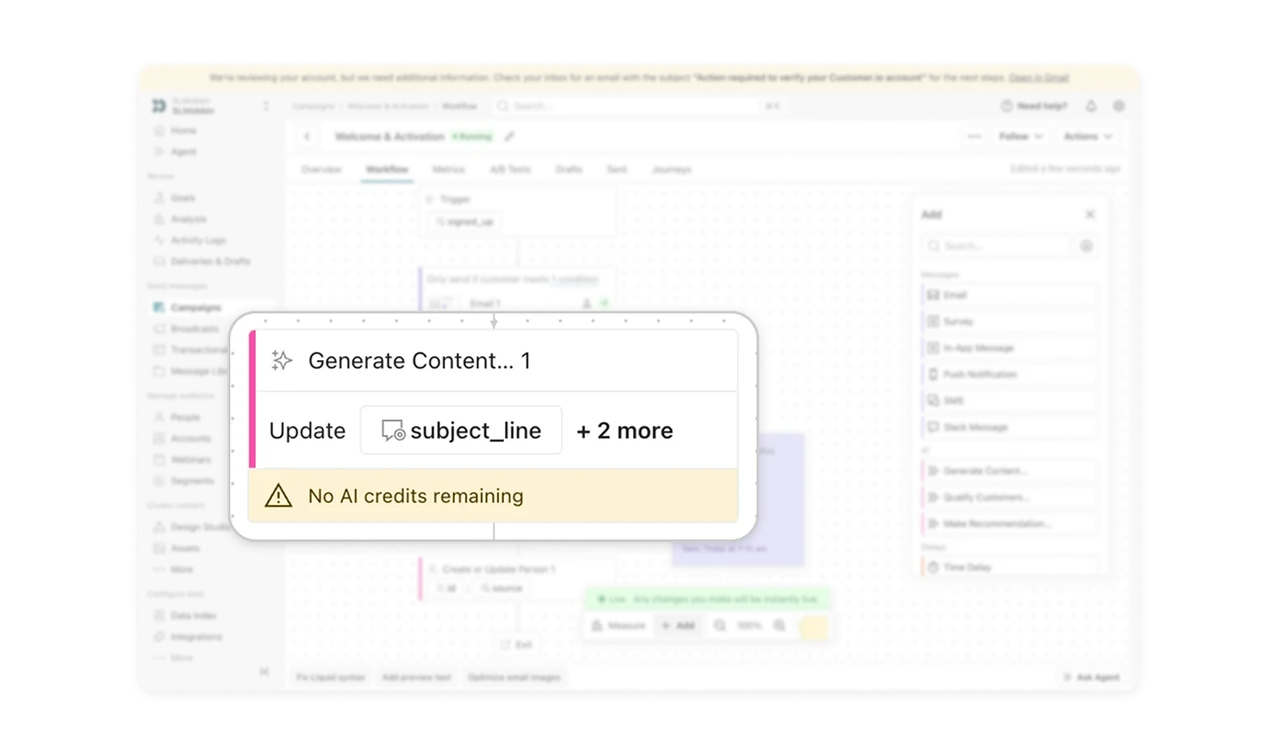
"No AI credits remaining" flags the failure on the failing node
The Generate Content step carries a yellow warning strip directly on its card. The automation's broken link is flagged exactly where it lives in the flow, not only in a global notification that makes users hunt for impact. Surface operational failures on the exact node that is failing. Diagnosis and location arrive in one glance, and the user's next question, "what stops working?", is answered by where the warning sits.
Sticky notes bring Figma collaboration to an ops canvas
A purple note sits pinned beside the workflow with author and timestamp. Team commentary lives spatially on the canvas, next to the steps it concerns, carrying context no separate comment thread can. Workflows are team artifacts, and the canvas is where the conversation belongs. FigJam patterns are migrating into ops tooling, and spatial annotation is the one worth copying first.
Similar Breakdown Lessons