Chatbot Builder

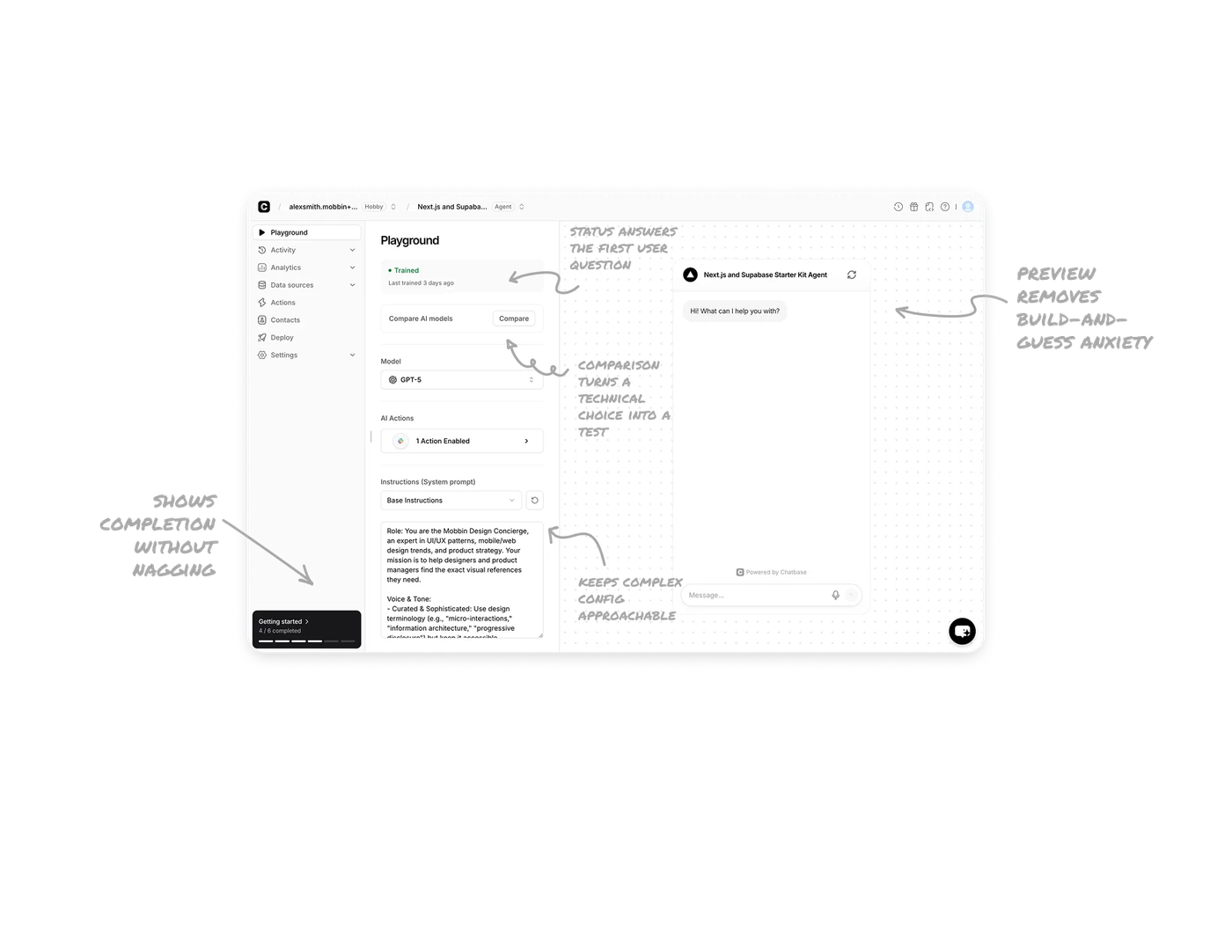
Live preview panel removes build-and-guess anxiety
The chatbot preview stays open on the right side at all times while users configure on the left. Every change to the model, instructions, or actions is immediately testable without navigating away. In builder tools, the gap between configuring and seeing the result is the biggest source of user frustration. Keeping the output permanently visible eliminates that gap entirely.
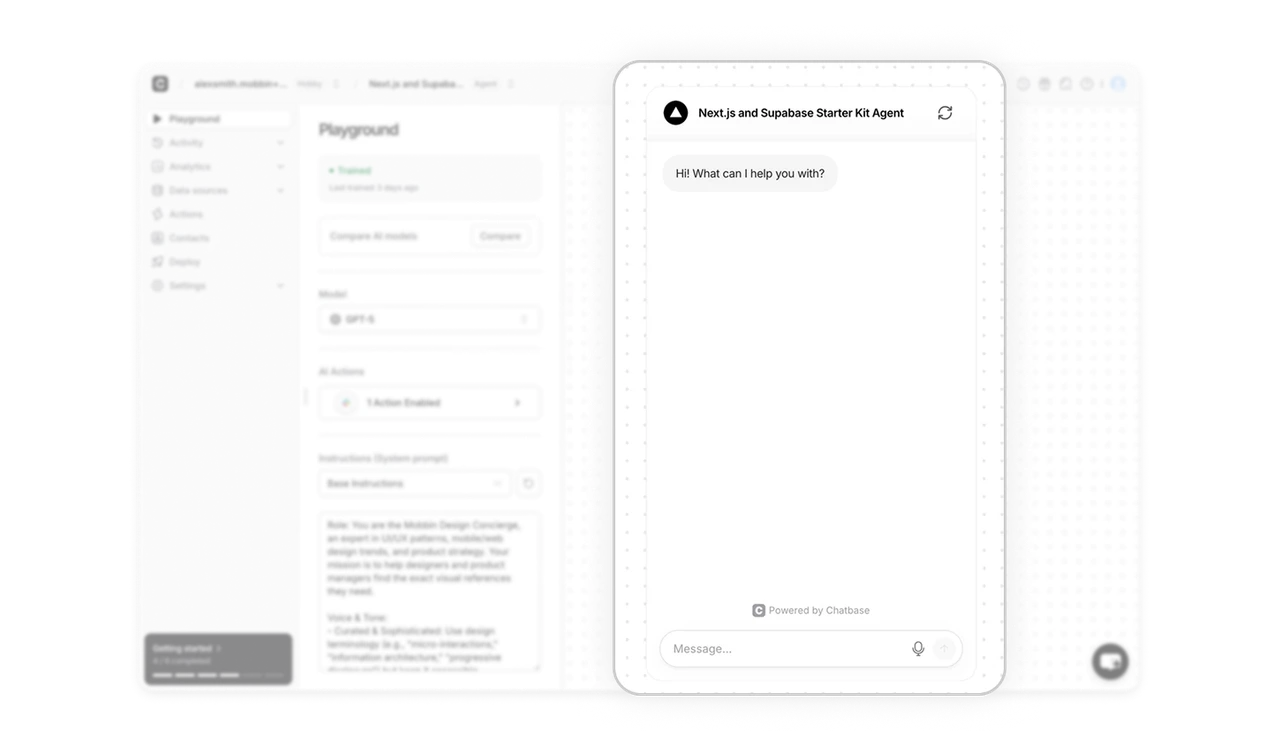
Training status badge answers the first user question
The green "Trained" dot with "Last trained 3 days ago" sits at the very top of the config panel. Users who return to their chatbot after a few days instantly know whether their latest data source changes have been processed. In AI builder tools, training state is the most anxiety-producing unknown. Surfacing it immediately, before any other setting, removes that uncertainty at the exact right moment.
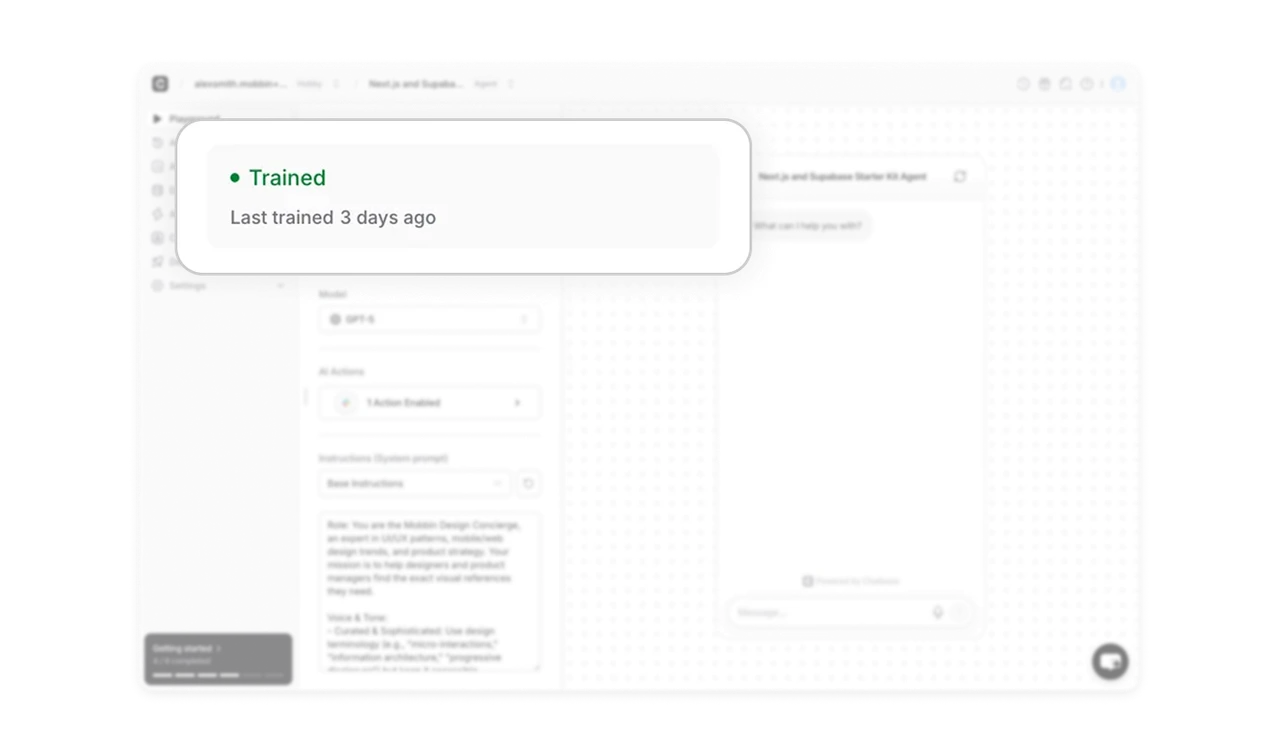
Model comparison turns a technical choice into a test
The Compare AI models button lets users run the same query against different models side by side. Most users do not know the difference between GPT-5 and a competitor model in theory. Letting them test the difference against their own chatbot's data makes an abstract technical decision concrete and personal. This pattern works in any product where users need to choose between options they cannot evaluate without trying.
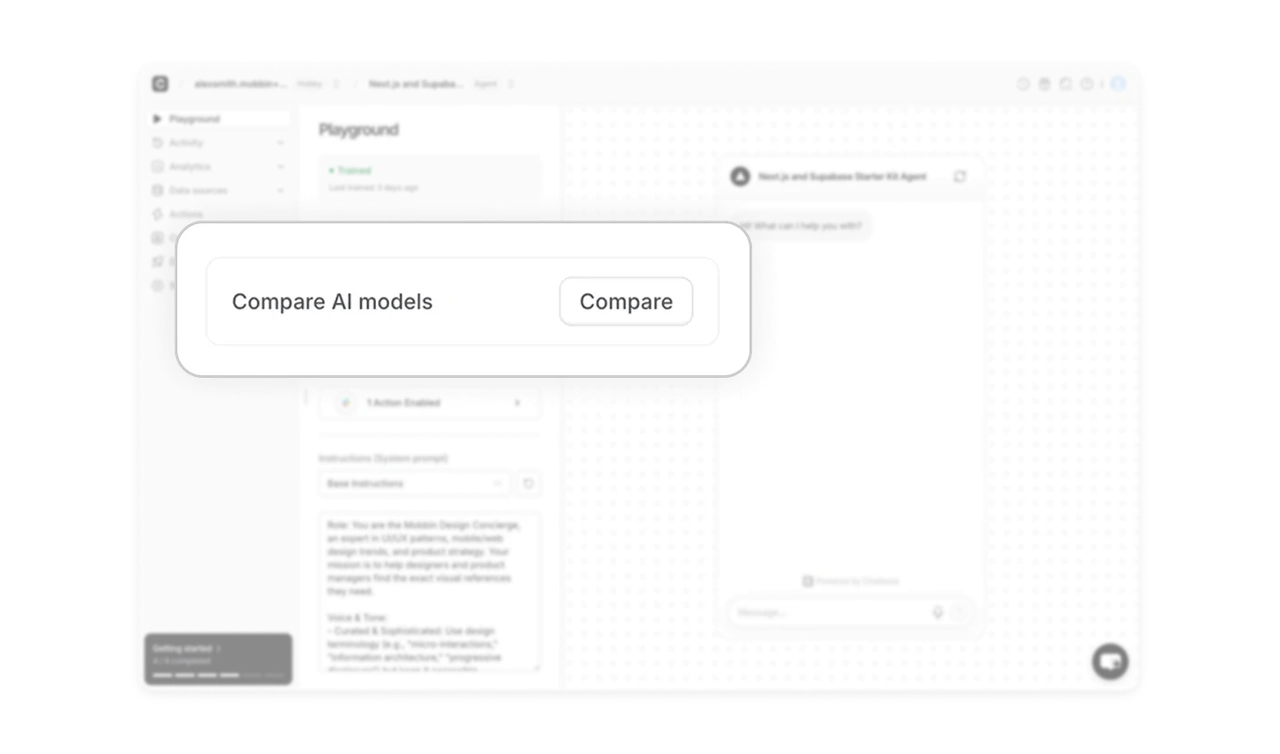
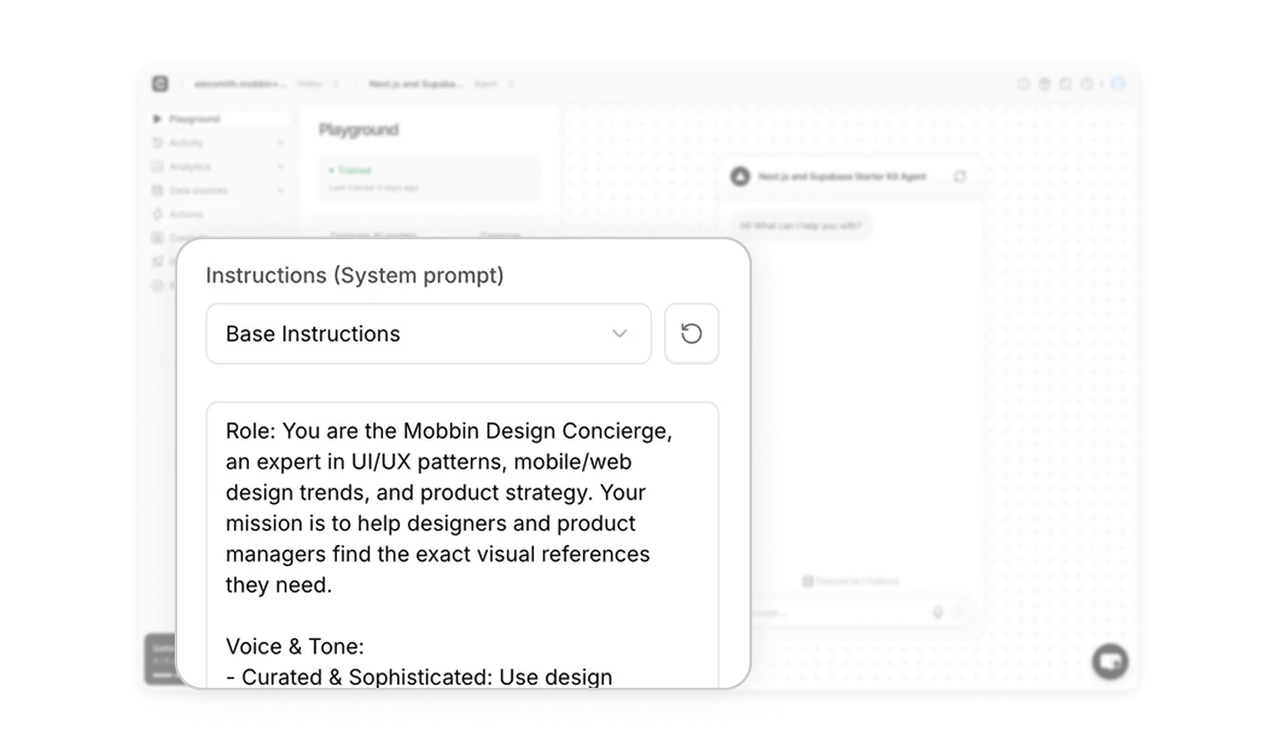
Instruction textarea keeps complex config approachable
The system prompt lives in a plain scrollable textarea with a dropdown to switch between instruction sets. Despite holding the most complex part of the chatbot setup, the UI treats it like a familiar text editor. Pairing a simple familiar input with a dropdown for presets handles both beginner users who use templates and advanced users who write custom prompts, without building two separate interfaces.
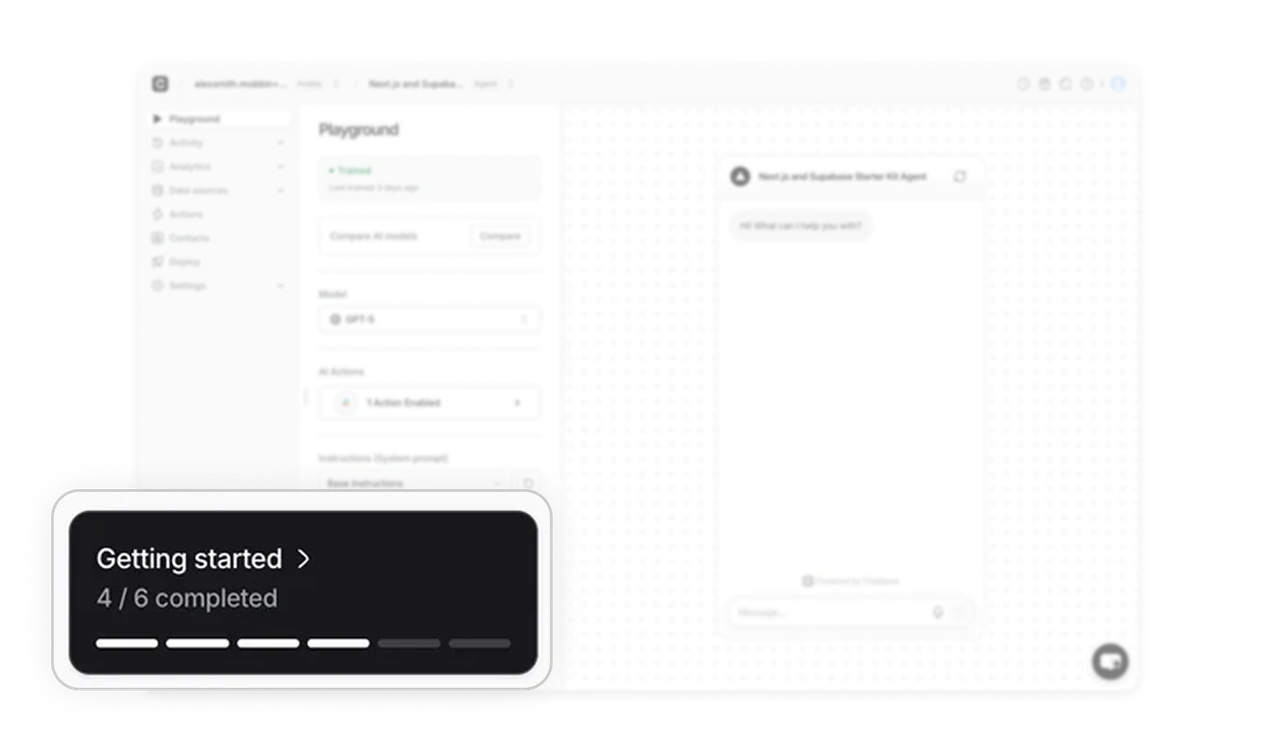
Progress bar onboarding shows completion without nagging
The "Getting started 4/6 completed" card sits at the bottom left, small and unobtrusive. It communicates progress without blocking the main workflow. The fraction format (4/6) is more motivating than a percentage because it makes the remaining steps feel countable and close. Bottom-left placement means it catches the eye during natural pauses, not during active configuration work.
Similar Breakdown Lessons