Merchant Store Launch Setup

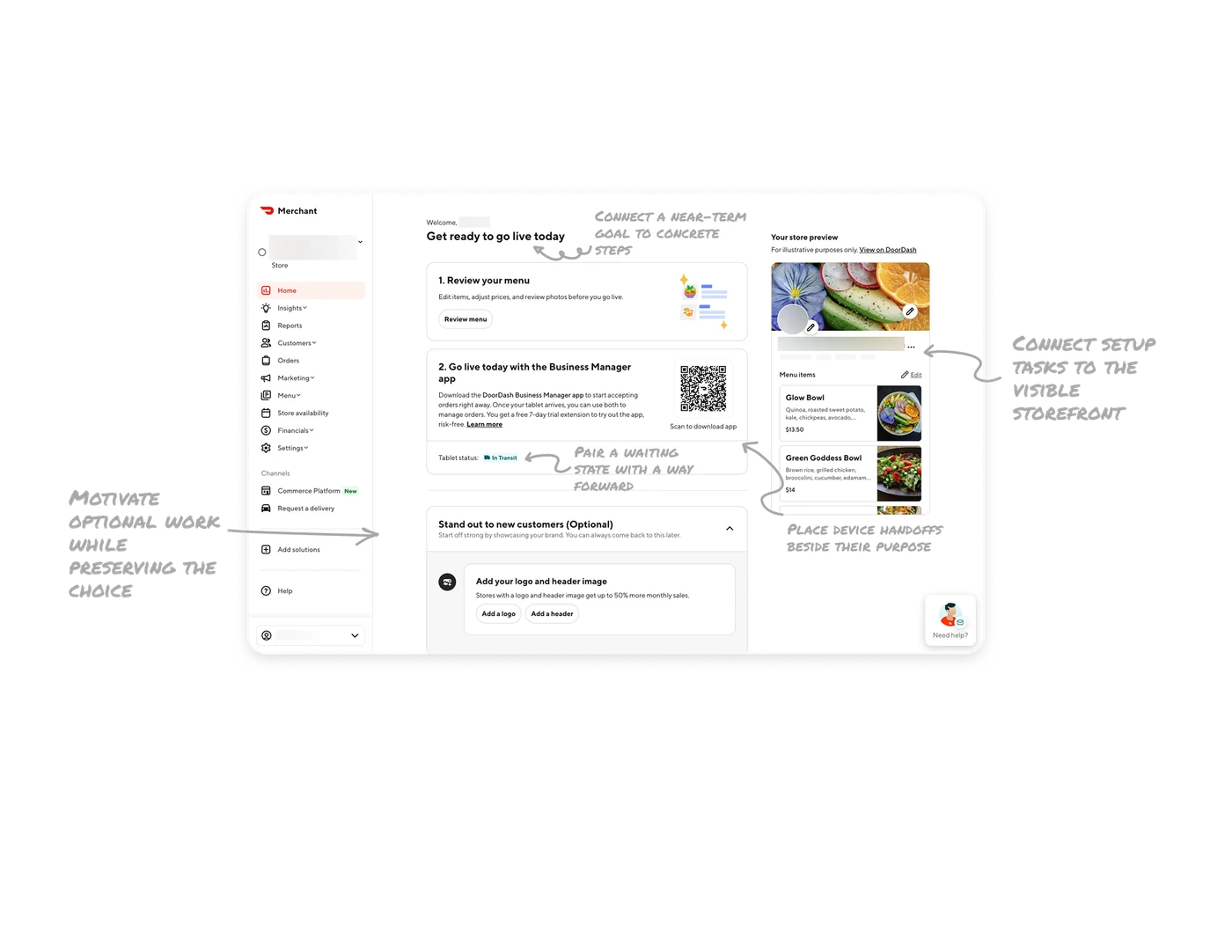
Connect a near-term goal to concrete steps
“Get ready to go live today” introduces two numbered cards: review your menu and launch with the Business Manager app. The headline gives the work an immediate purpose, while the cards translate it into specific actions. Optional branding sits outside that sequence. When introducing a complex setup, pair the desired outcome with a short, clearly prioritized path toward it.
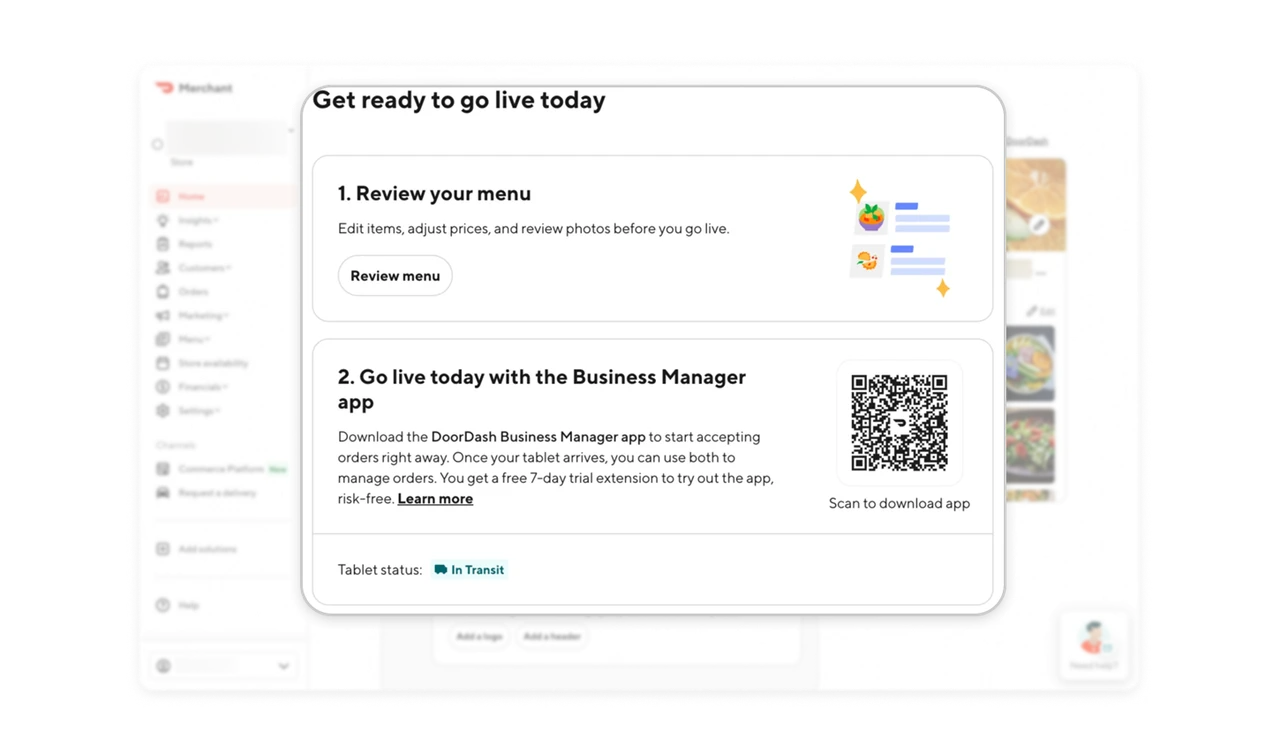
Pair a waiting state with a way forward
The app launch card includes a tablet status marked “In Transit.” Its copy explains that merchants can accept orders through the app now and use both devices once the tablet arrives. Placing the alternative beside the dependency helps answer whether shipping must delay launch. When setup depends on something outside the user’s control, show an available route forward alongside its status.
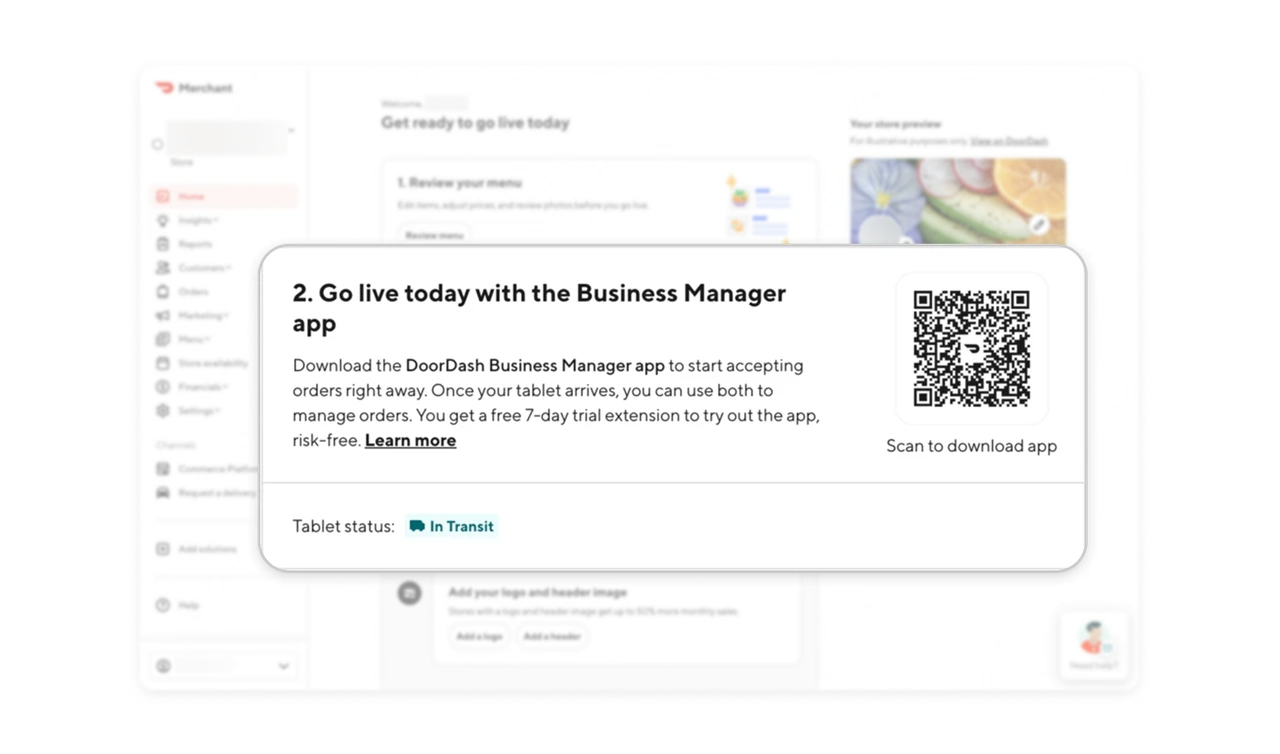
Place device handoffs beside their purpose
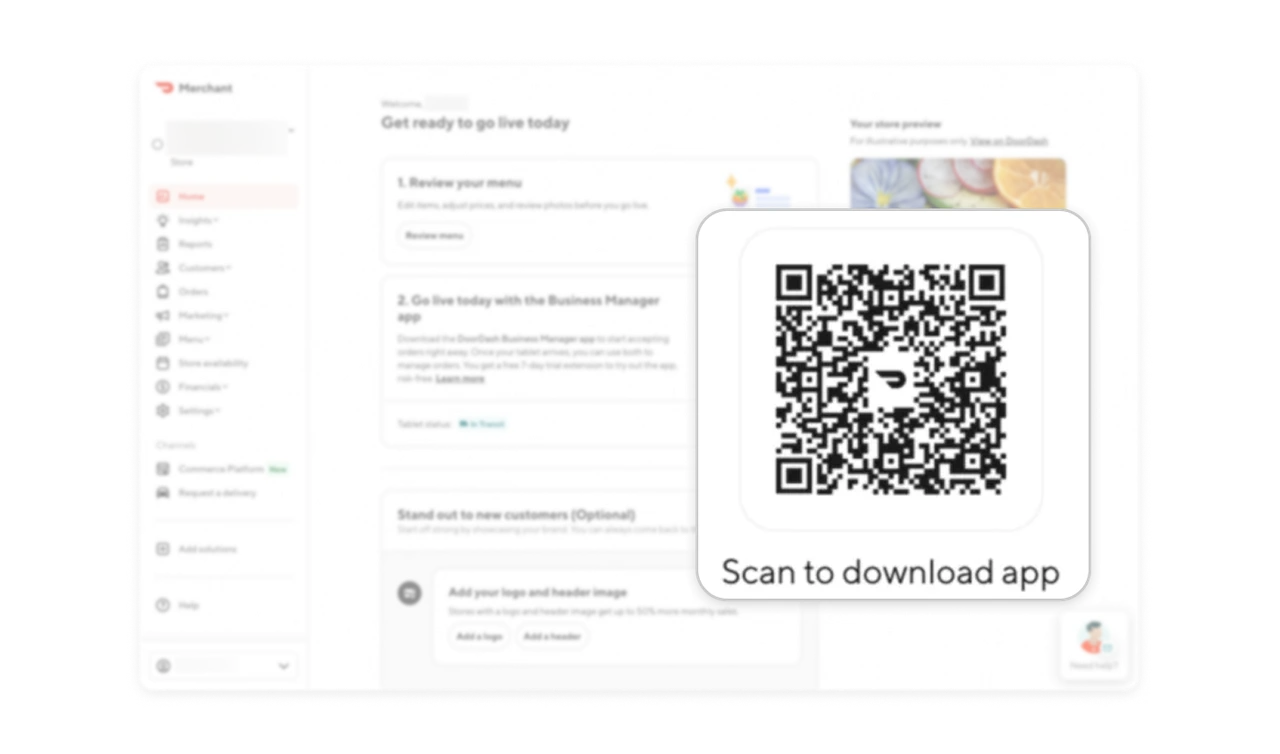
A QR code labeled “Scan to download app” sits inside the step explaining how the Business Manager app supports launch. Merchants encounter the reason to switch devices and the means to do it together. For desktop workflows that continue on a phone, place the handoff where it becomes relevant. A clear destination label helps users understand what scanning will lead to.
Motivate optional work while preserving the choice
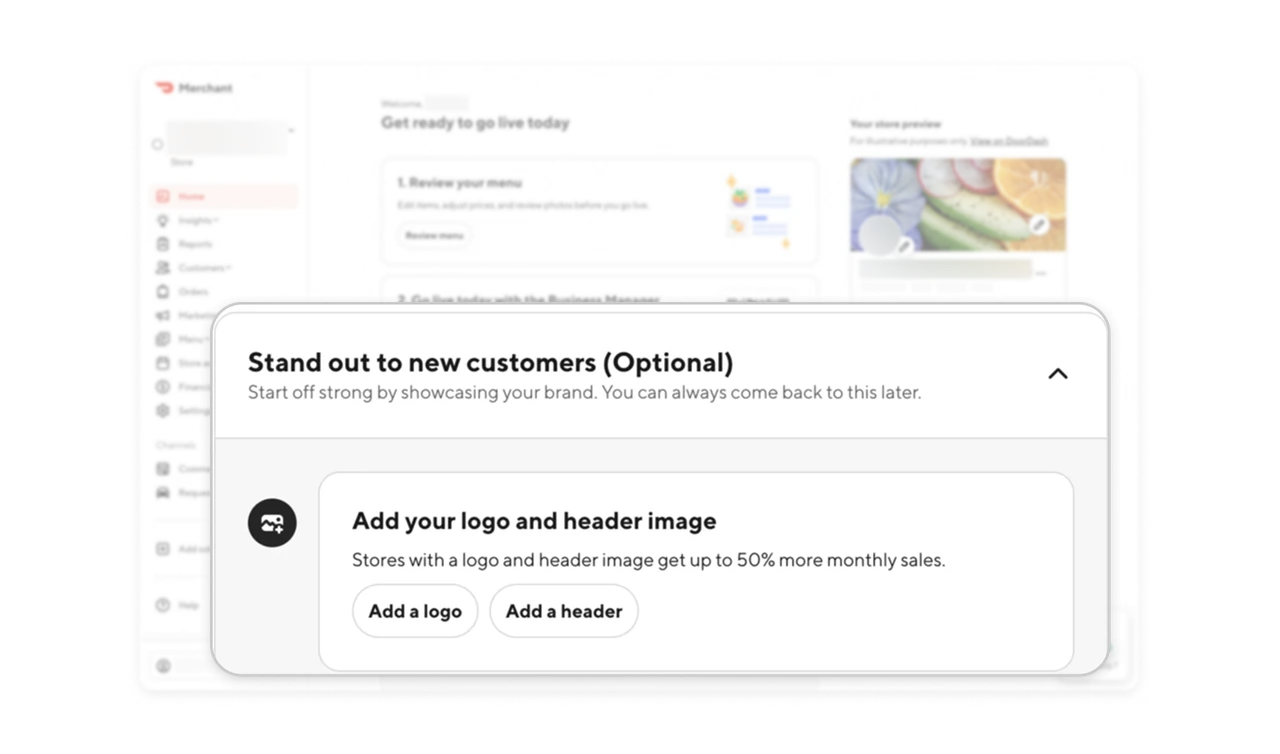
The branding section pairs “Optional” and “You can always come back to this later” with a claim of up to 50% more monthly sales. Merchants see both a business reason to add images and permission to postpone the work. When encouraging optional setup, explain its potential value while making deferral explicit. Persuasion should help users prioritize without making every improvement feel required.
Connect setup tasks to the visible storefront
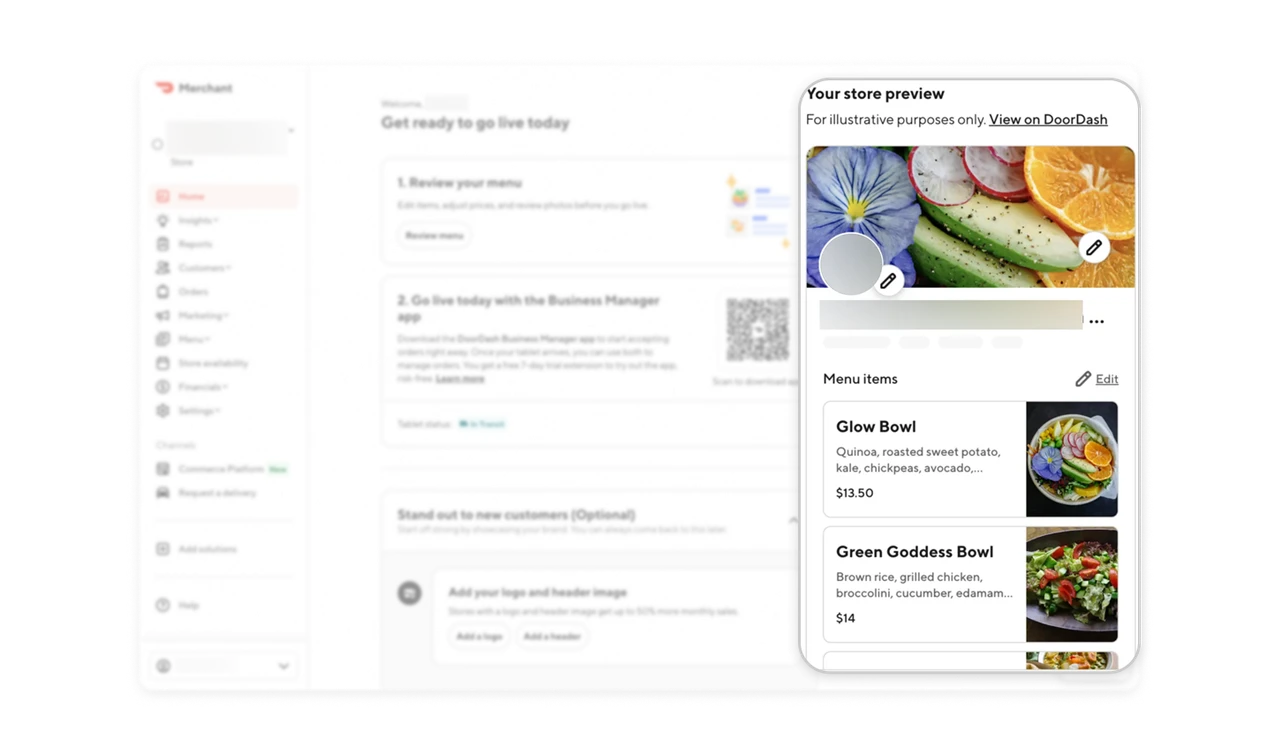
The store preview places menu names, prices, and photos beside setup tasks, with pencil controls on the header and logo. Merchants can inspect the presentation and identify where changes belong. The illustrative disclaimer and “View on DoorDash” link clarify the preview’s limits. When configuration shapes a customer-facing result, show that result alongside the work and attach editing affordances to recognizable elements.
Similar Breakdown Lessons