AI Scene Builder

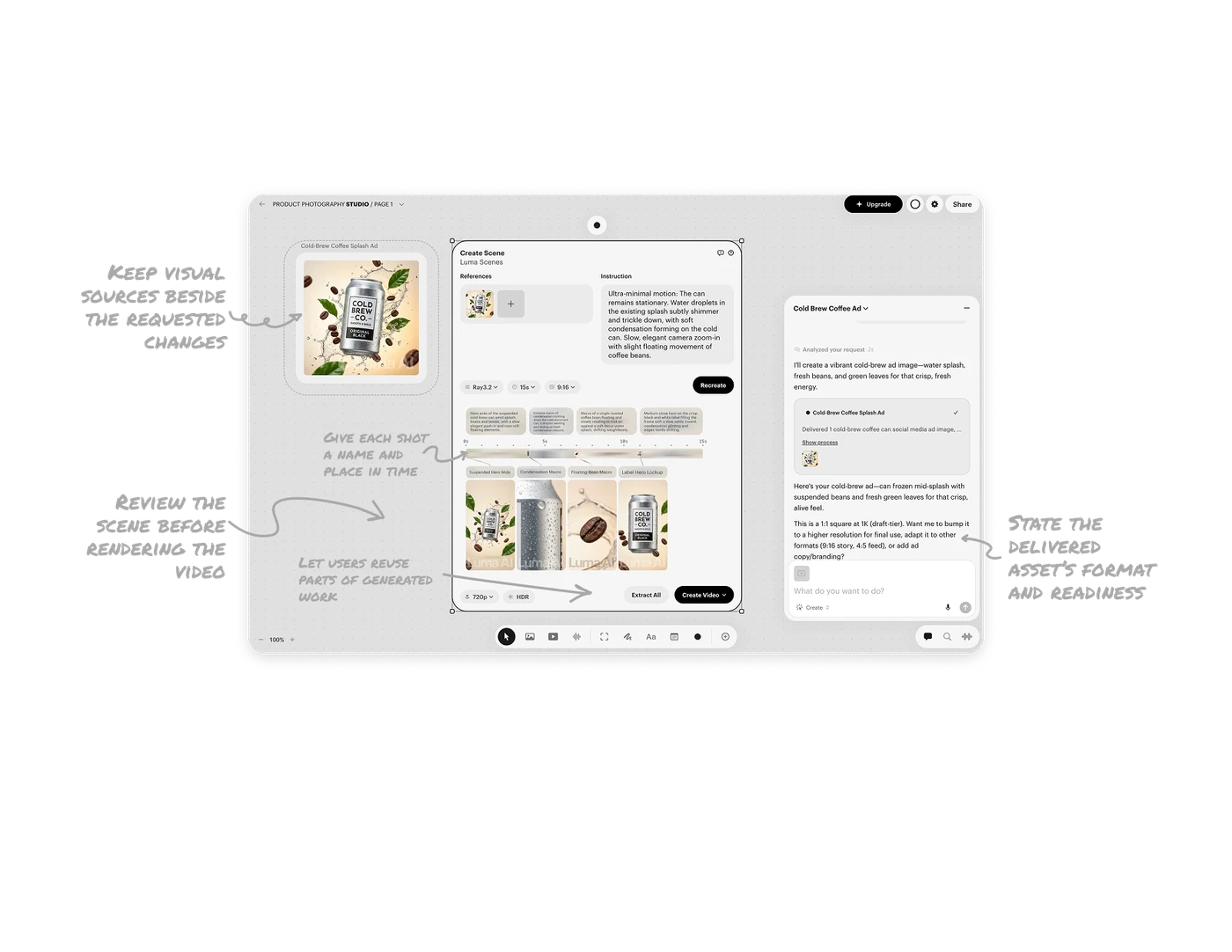
Review the scene before rendering the video
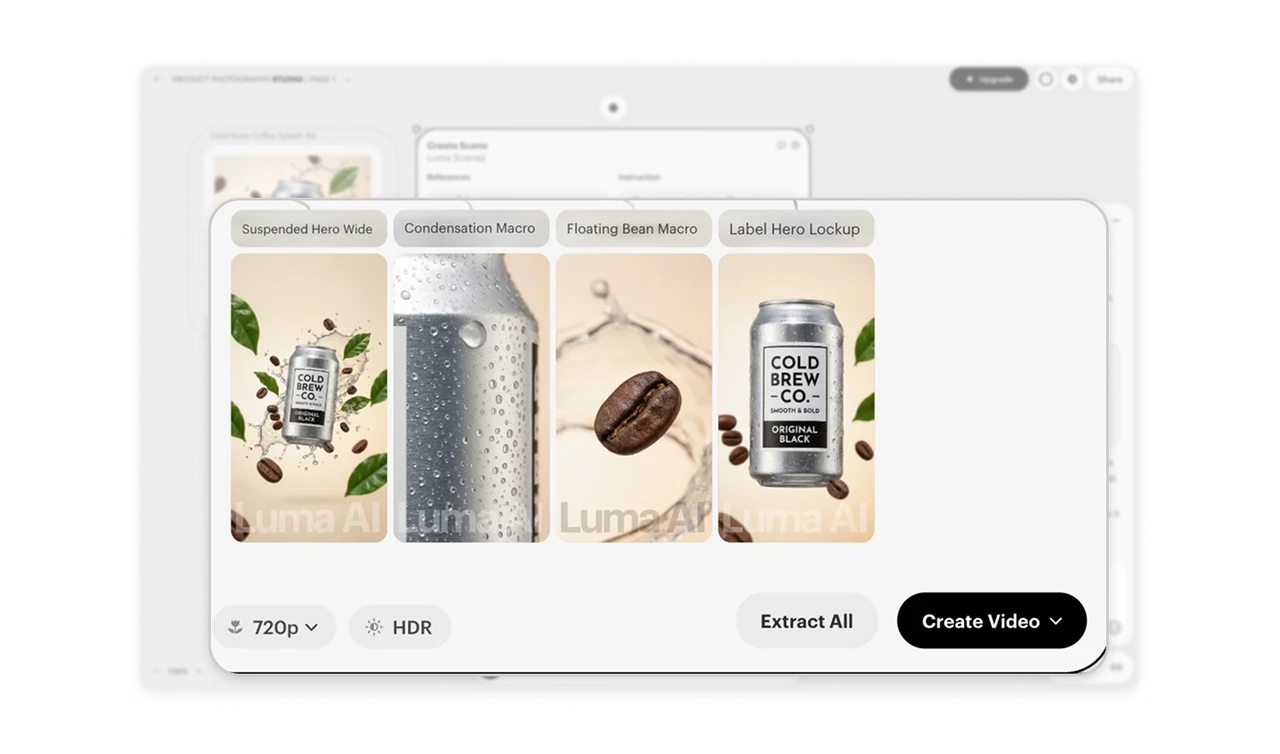
The scene presents shot descriptions and four keyframe previews before “Create Video,” with “Recreate” available beside the inputs. Users can inspect the proposed compositions and product details, then revise the plan before proceeding to video. This intermediate matters when final generation consumes time and credits. Make the plan inspectable and correctable so users can resolve visual problems before committing resources to the finished output.
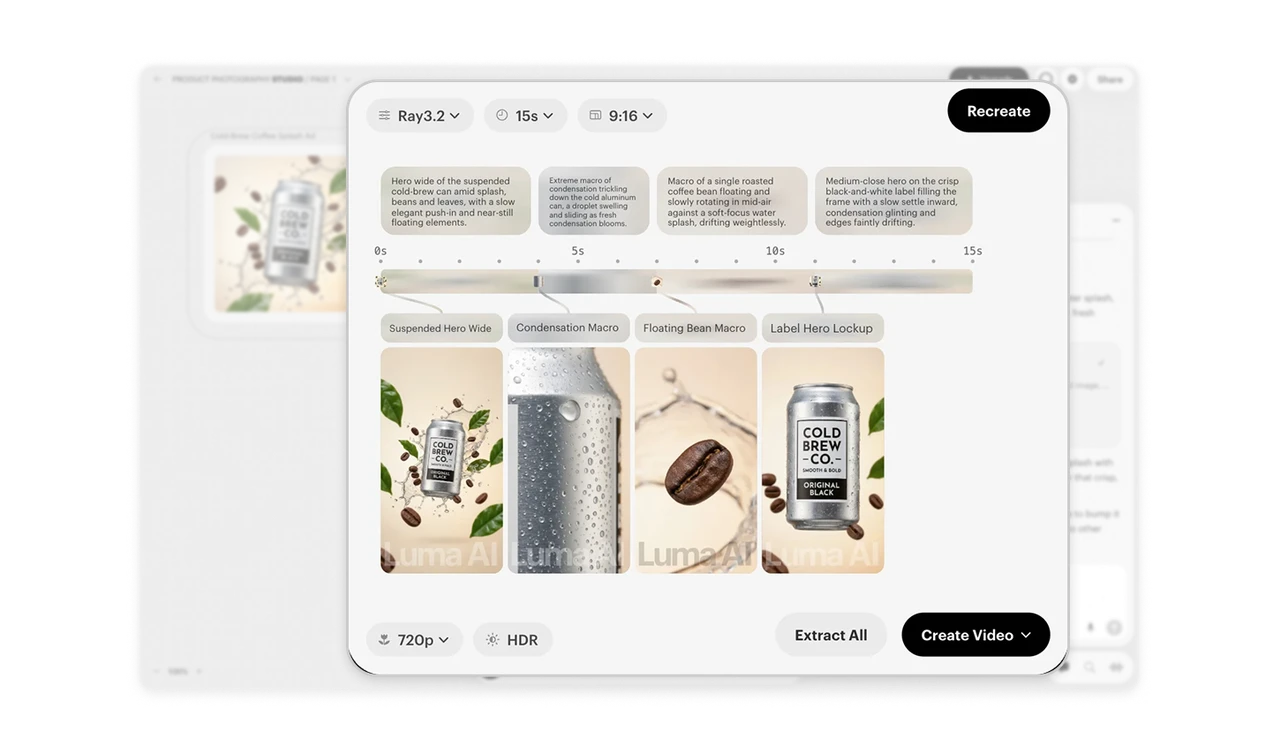
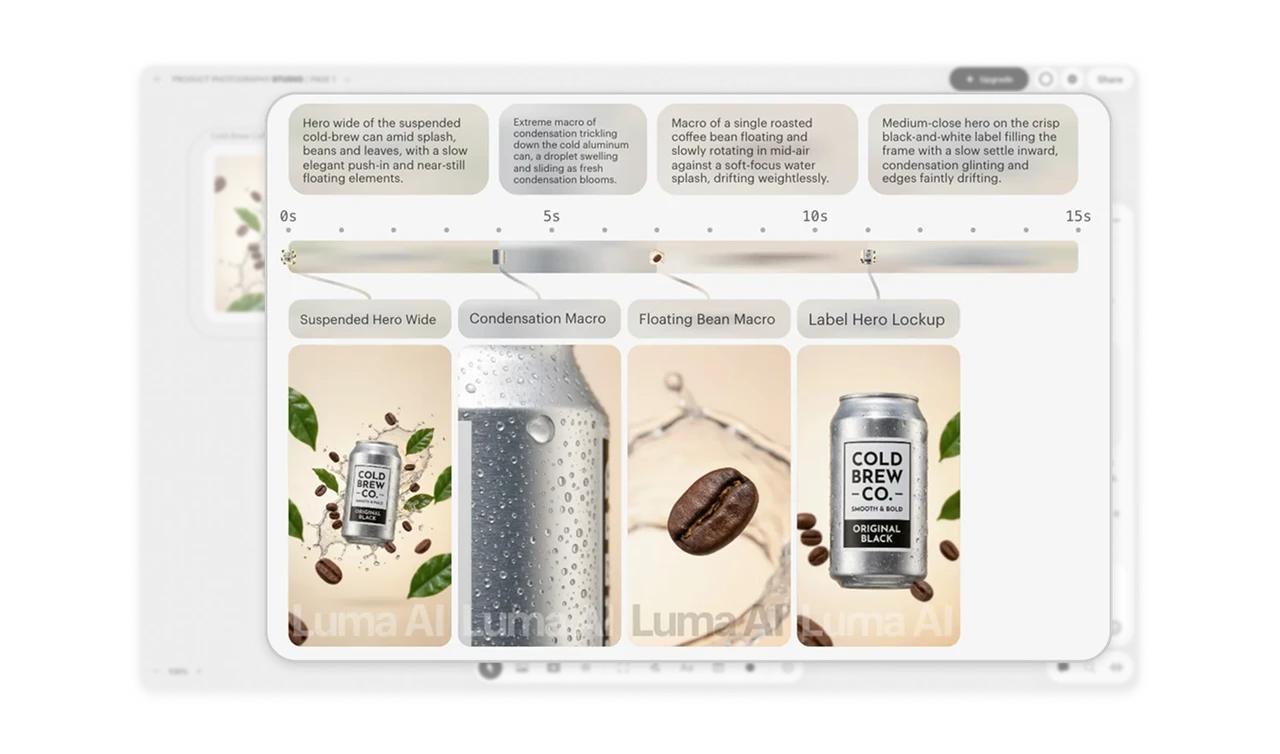
Give each shot a name and place in time
Labels such as “Condensation Macro” and “Label Hero Lockup” identify individual shots, while connectors link their previews to positions on a 0–15 second timeline. The names give users specific vocabulary for feedback; the ruler makes temporal placement visible. When AI generates a sequence, identify its parts and show where they occur. This helps users locate a particular moment, discuss changes precisely, and judge its place in the overall pacing.
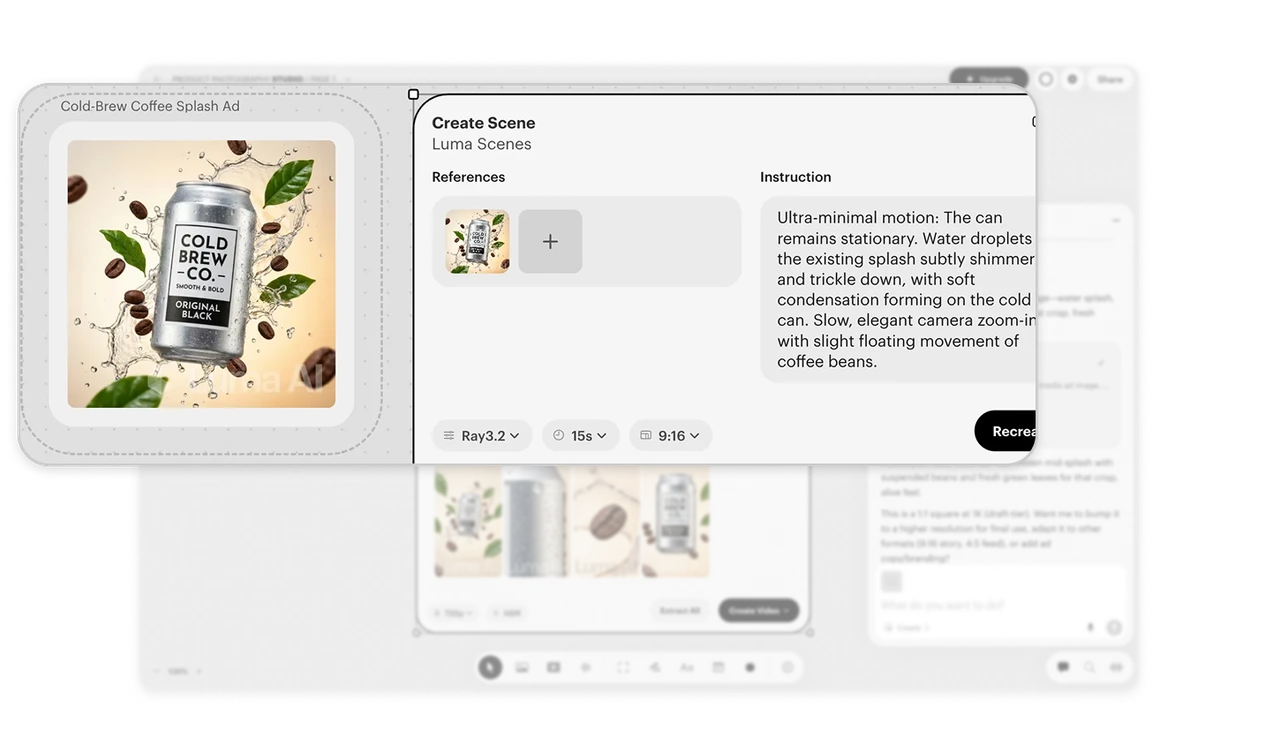
Keep visual sources beside the requested changes
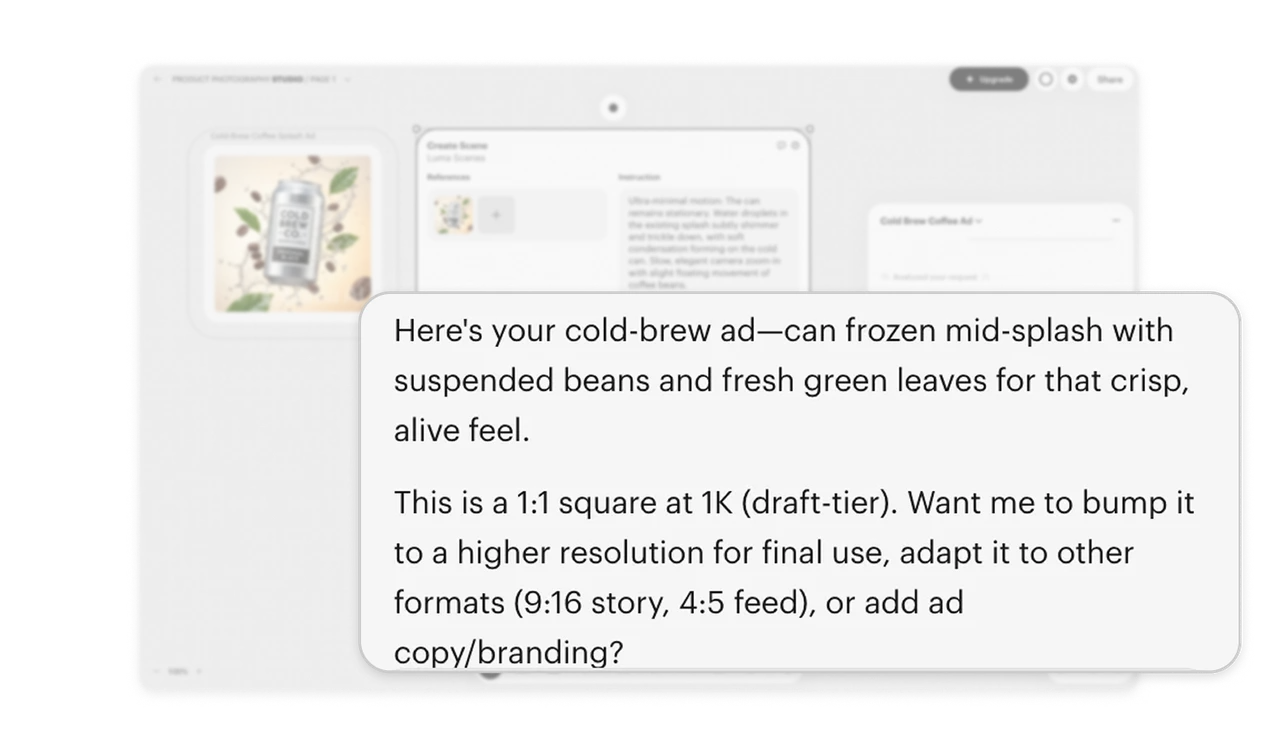
The cold-brew image remains visible on the canvas and reappears as a thumbnail in the scene’s References area. Beside it, the Instruction field describes the desired motion, condensation, and camera movement. The repeated image makes the chosen source recognizable while the separate text explains the requested transformation. When users build on existing material, keep that material visible alongside their instructions so they can check both the input and the direction being applied.
State the delivered asset’s format and readiness
The assistant describes its delivered image as a 1:1 square at 1K and labels it “draft-tier.” It then offers higher resolution, alternative formats, or added copy and branding. This gives users concrete information for judging whether the asset fits its intended use and what to change next. When handing over generated work, state its specifications and draft status so users can make an informed decision about using or refining it.
Let users reuse parts of generated work
“Extract All” sits beside “Create Video” below the four shot previews. It makes the scene’s keyframes available as individual assets, giving users another useful outcome from the same plan. The previews therefore serve both as a way to review the video and as material for further creative work. When generation produces useful intermediate pieces, provide an explicit way to reuse them alongside the action that produces the complete result.
Similar Breakdown Lessons