Transaction History and Details

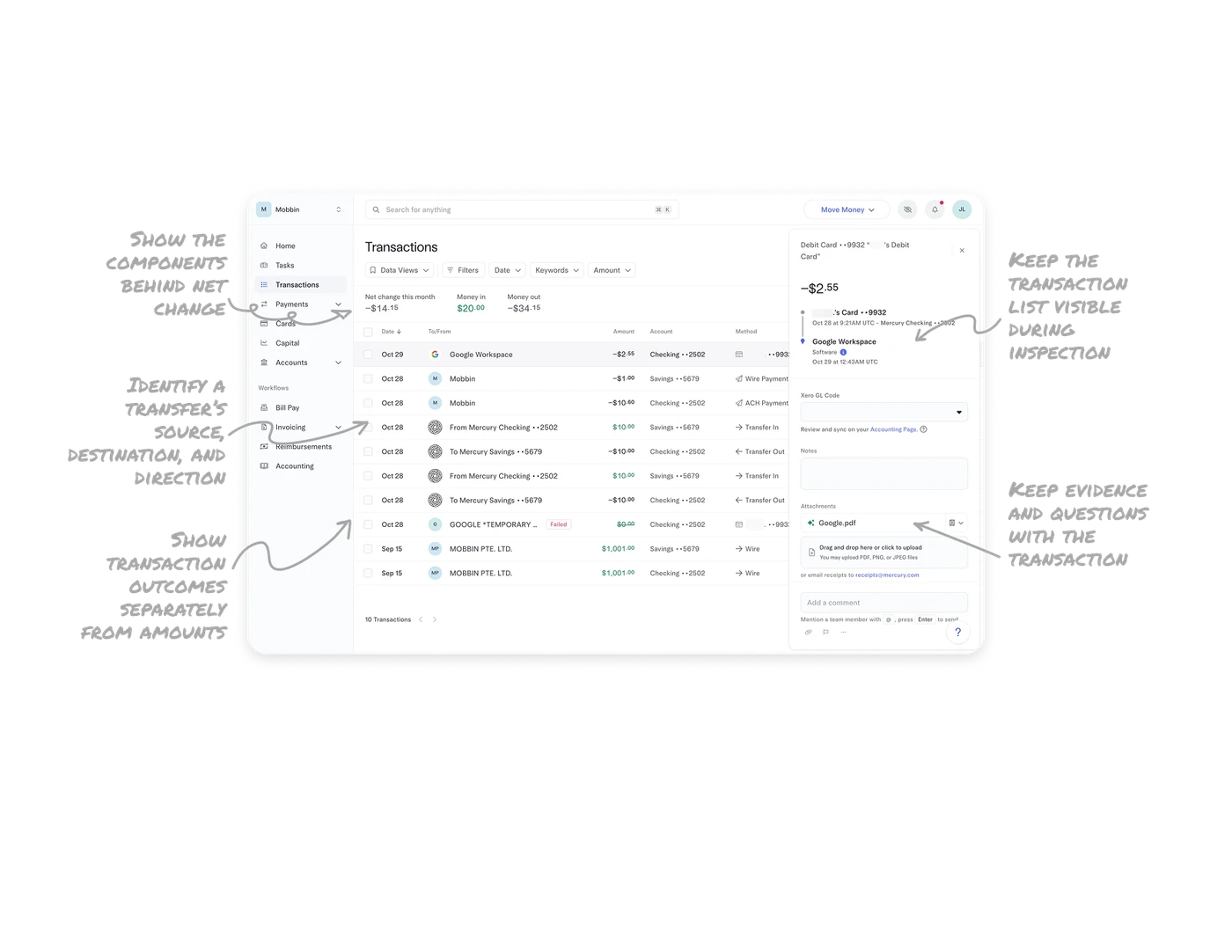
Show the components behind net change
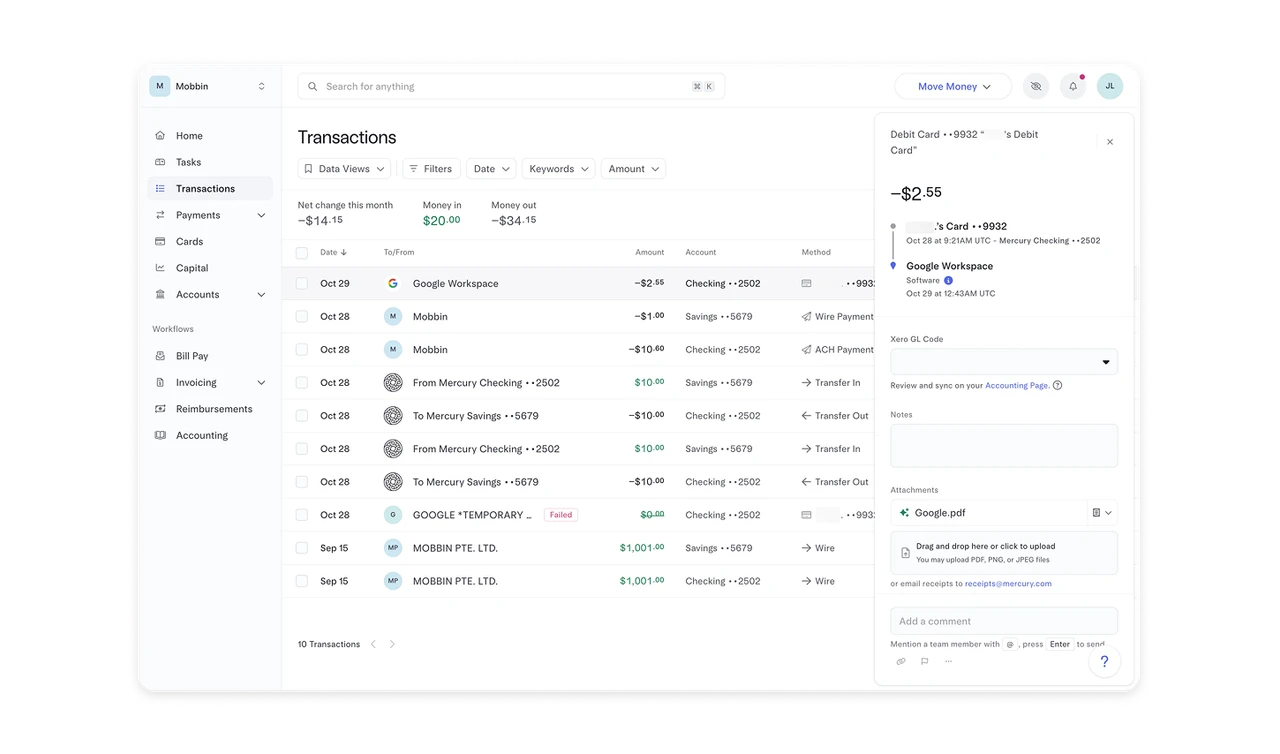
The header places “Net change this month” at −$14.15 beside $20.00 money in and −$34.15 money out. Showing both components helps users understand the movement behind the net result. A small net change can conceal larger amounts moving in opposite directions. When that distinction matters, present incoming and outgoing totals alongside the net figure so users can interpret the result without reconstructing its components themselves.
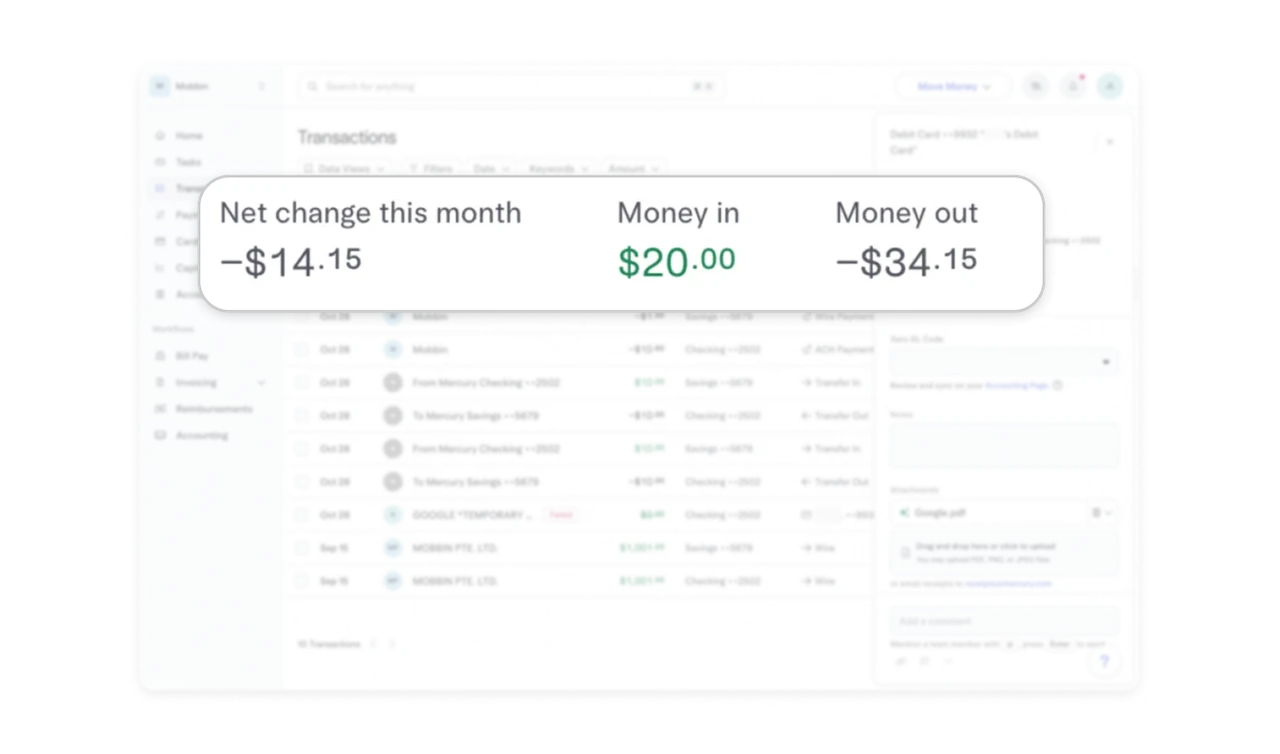
Keep the transaction list visible during inspection
The Google Workspace row remains highlighted while its details appear in a panel on the right. The selected transaction stays visibly connected to the surrounding list, giving users a reference point during investigation. For workflows that involve reviewing many records, preserve collection context alongside individual details. A clear selection state helps users maintain their place and recognize which entry the additional information belongs to.
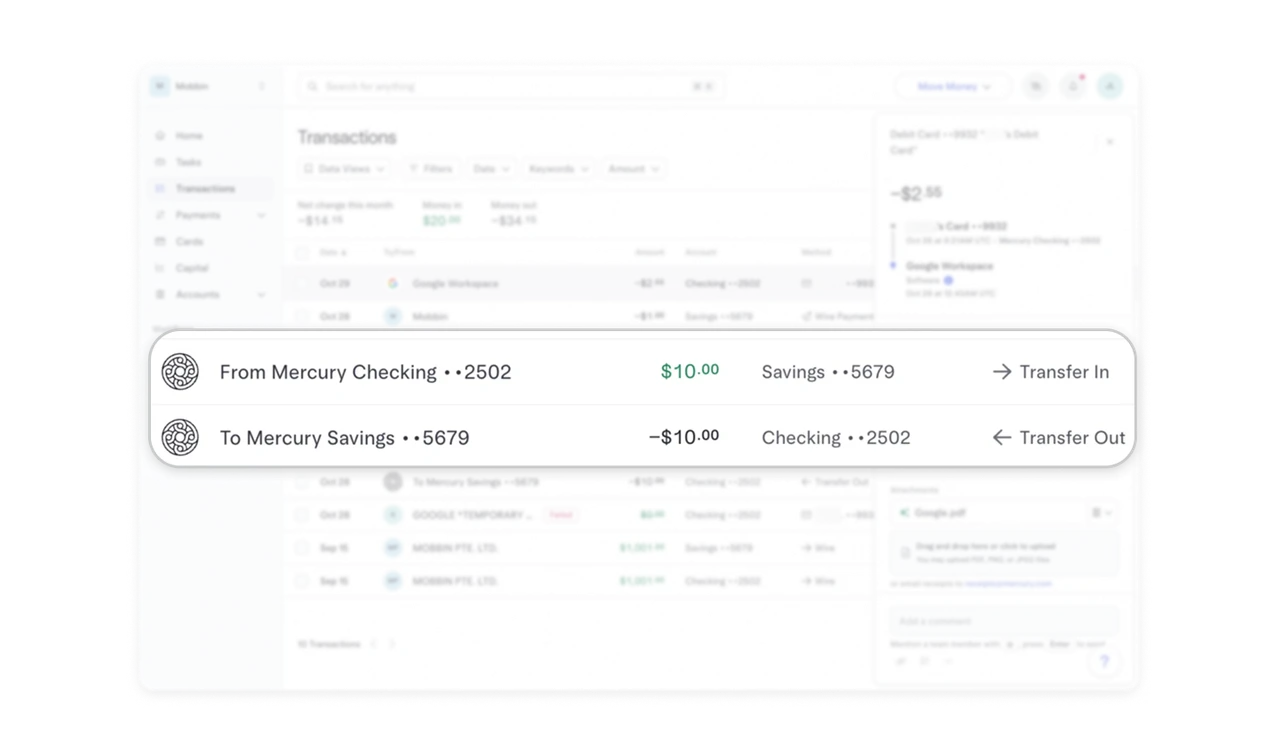
Identify a transfer’s source, destination, and direction
An incoming row names “From Mercury Checking ••2502,” lists Savings ••5679 in the Account column, and labels the method “Transfer In.” Outgoing entries use “To” and “Transfer Out.” Together, these cues make movement between accounts readable from the list. When displaying transfers, identify both endpoints and the direction so users can distinguish internal movement from payments involving an outside party.
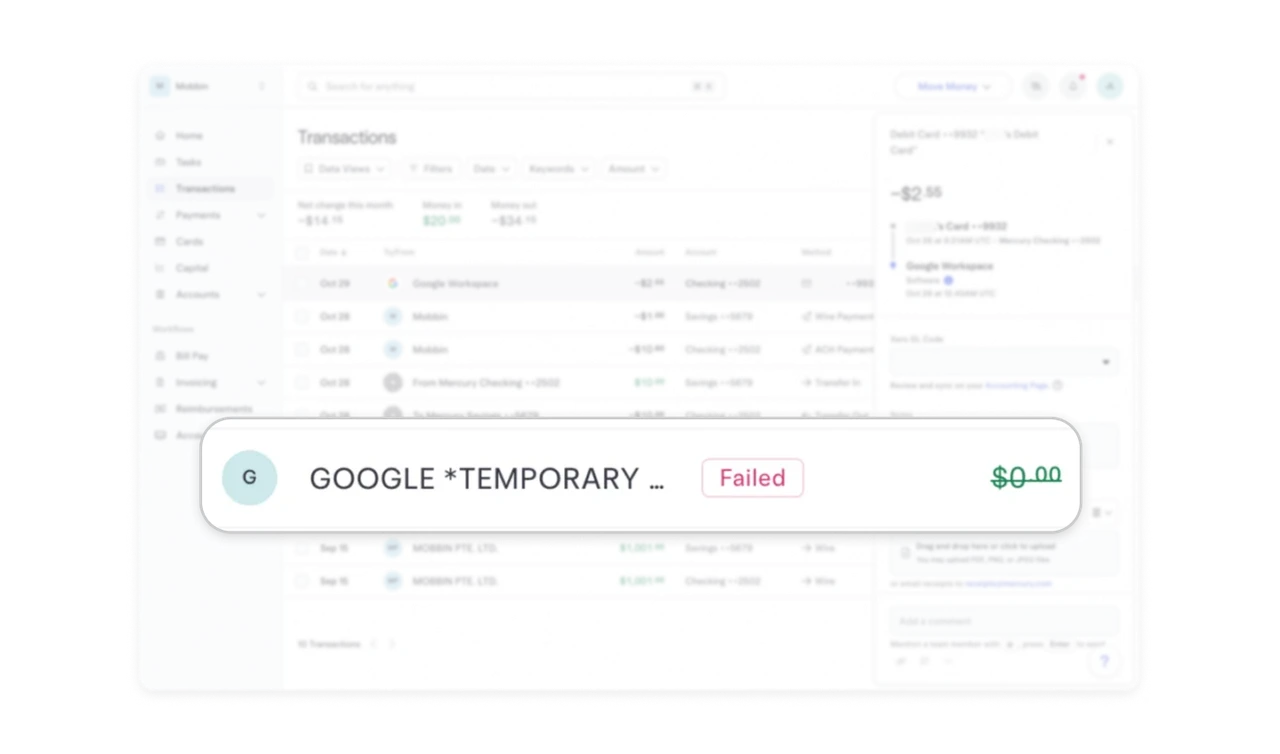
Show transaction outcomes separately from amounts
The “GOOGLE *TEMPORARY…” entry remains visible with a “Failed” badge and a struck-through $0.00 amount. The explicit status communicates an outcome that the number alone cannot explain. Keep unsuccessful attempts recognizable within activity history, and give their status its own label. Users should be able to distinguish an attempted transaction from a completed one without interpreting color, a zero value, or an unfamiliar merchant name.
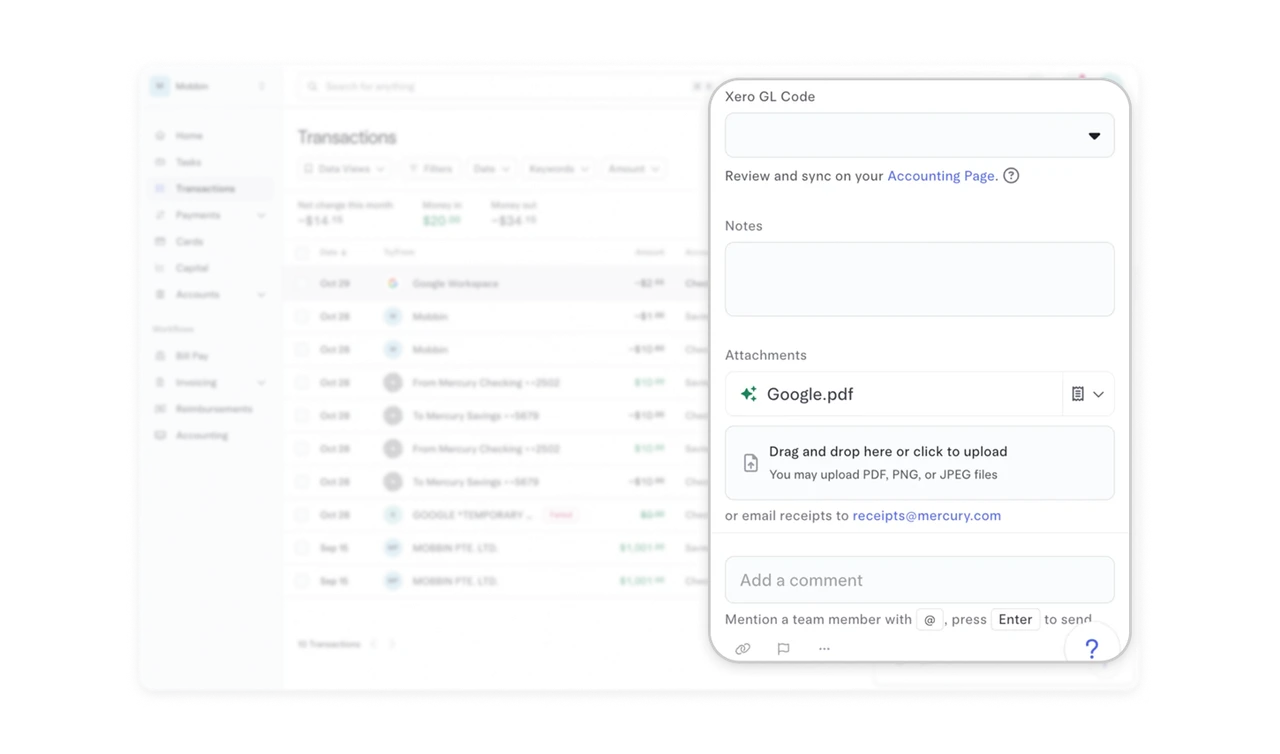
Keep evidence and questions with the transaction
The transaction panel brings together a Xero GL Code selector, a Notes field, an attached Google.pdf file, and a comment field with guidance for mentioning a teammate. Receipts can also be submitted by email. These options support classifying the entry, documenting its context, and directing questions to someone who can help. When records require investigation, keep supporting evidence and follow-up work beside the details needed to understand them.
Similar Breakdown Lessons